

For LMS integration, you can also use the xAPI standard as an alternative.
For the full endpoint schema, see the API
reference. Prefer a
no-code path? See Export training data to
Excel.
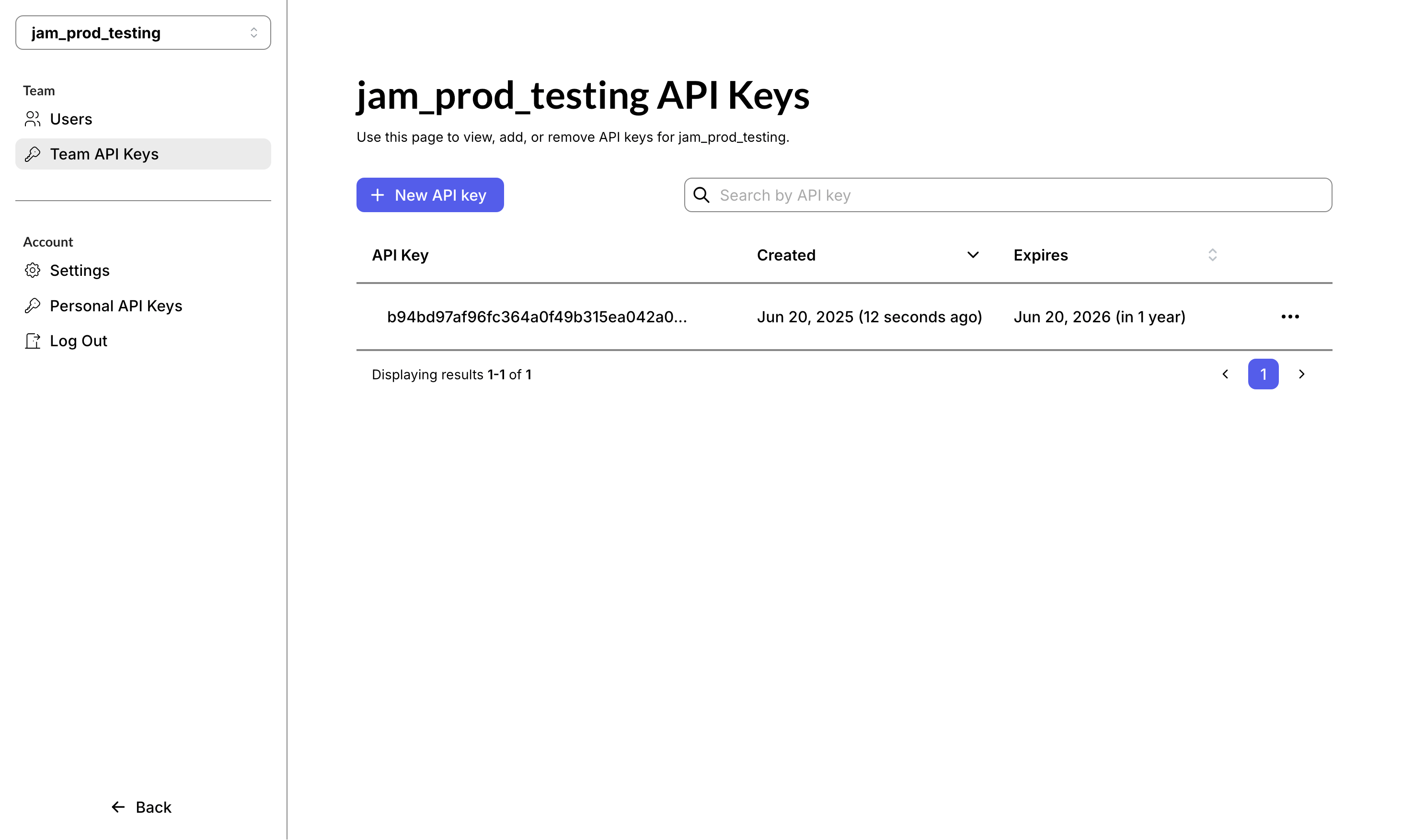
Create an API key for your organization
The first step is to create an API key for your organization. To do this, you need to be an Owner of your organization in JAM. As an Owner, create an API key here:🔑 https://auth.wejam.ai/org/api_keys/
The data-export endpoint
Once you have an API key, you can pull data from the data-export endpoint of the Jam API. The full, interactive schema for every operation lives in the API reference.
The most relevant entities for reporting are:
- Users:
users,teams - Training content:
missions,tracks - Training activity:
sprints,track-assignments, andmission-assignmentscreated by managers to drive engagement, plus the resultingsessionsplayed by learners.
- the overall session
score(0-100) - the main performance metric in JAM - a breakdown per task in the scorecard - each task has an underlying
itemScore(0-6), mapped to “solved”, “partly solved”, or “not yet solved”
Example use cases
Below are two Python examples illustrating the kind of queries you can write with thedata-export endpoint.
Example 1: Get all sessions played by all users
This example uses thedata-export endpoint to get all roleplay sessions played by all users, to track each user’s activity. We:
- start from the
sessionsobject - extract the
score(0-100) and whether the session wascompleted - add user names from the
usersobject - add mission titles from the
missionsobject - export the result as a CSV to share with stakeholders
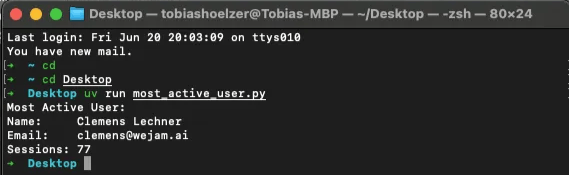
Example 2: Get the most active user by number of sessions
The goal here is to find the most active user by number of sessions played. We:- start from the
sessionsdata - count the roleplay sessions played by each user
- add user information from the
usersdata
Related articles
- Export training data to Excel via the Jam API - a no-code path using Excel Power Query
- API reference - full schema for every
data-exportendpoint
Last updated: June 2026