

@yourcompany.com) are automatically redirected to your identity provider (IdP) for authentication. Password and social login options disappear entirely - access is controlled exclusively through your IdP.
To enable SAML for your organization, email support@wejam.ai. You’ll receive a one-time setup link with a 5-step wizard. The setup takes 10-15 minutes and requires the Owner role in Jam.
What Changes After SSO Is Live
Users with your company email domain see only the SSO login path - no password field, no social login buttons. When they enter their email, Jam detects the domain and redirects them to your IdP automatically. After authenticating there, they land in Jam without a separate Jam password. From an IT perspective: no manual user invites, roles can sync from your IdP, and offboarding is instant - remove the user from your IdP and their Jam access is revoked immediately. Existing accounts migrate automatically. On their next login, existing users with a matching email are mapped to SSO seamlessly - no migration needed.Generic SAML Setup
1
Request enablement
Email support@wejam.ai to request SAML for your organization. You’ll receive a unique setup link (it looks like
https://auth.wejam.ai/setup_saml/...).2
Open the setup wizard
Click the setup link. The wizard walks you through 5 steps and provides the values your IdP needs: Entity ID, ACS URL, and Start URL.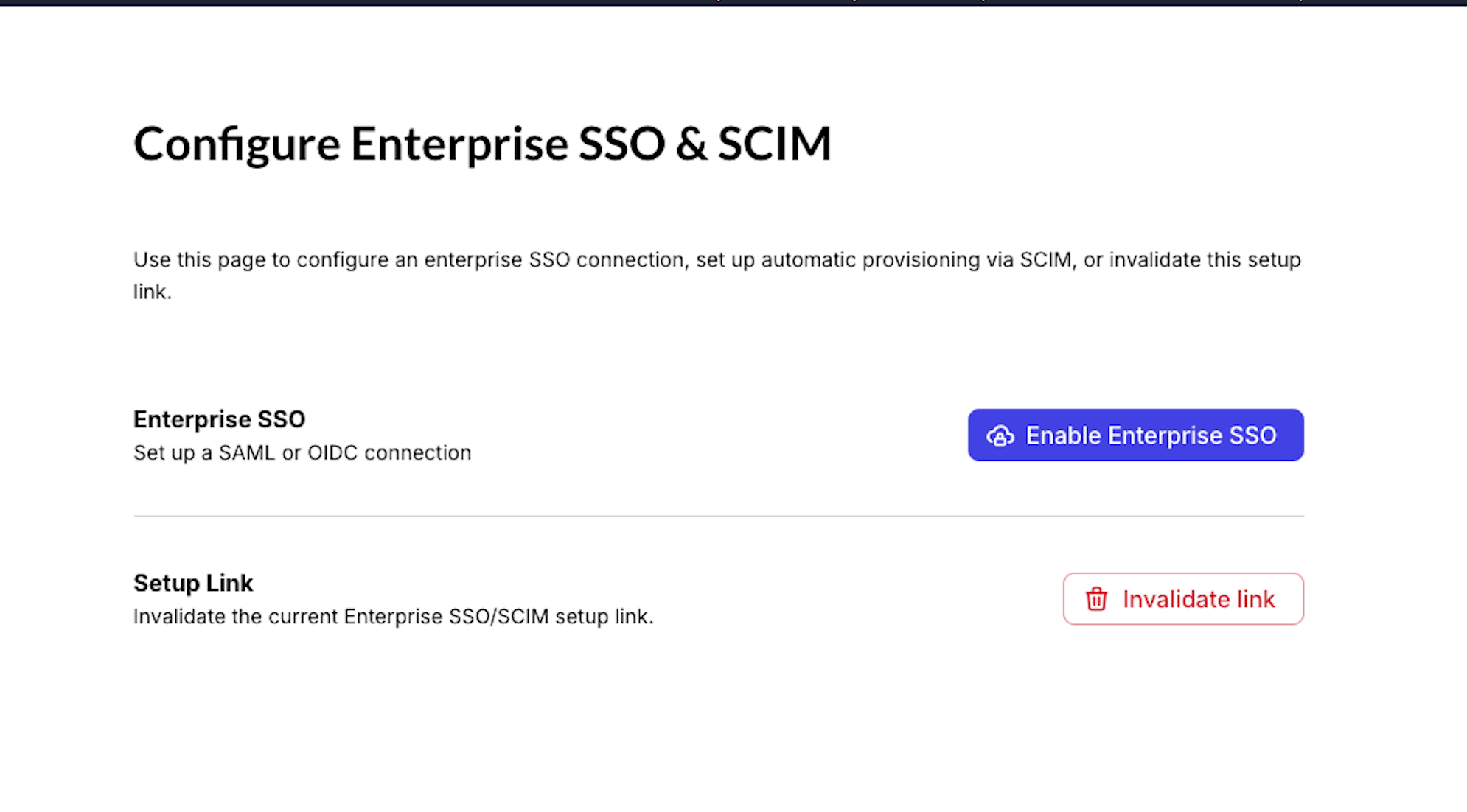
3
Create a SAML app in your IdP
In your identity provider, create a new SAML application and enter Jam’s Entity ID, ACS URL, and Start URL from the wizard.
4
Exchange metadata
Download your IdP’s metadata file (or copy the metadata URL) and upload it to the Jam wizard.
5
Map user attributes
In your IdP, map the email attribute to
email and first name to first_name. Add any other attribute mappings your setup requires.6
Test
Use the test link provided in the wizard. Enter a company email and verify you are redirected to your IdP and land back in Jam successfully.
Google Workspace
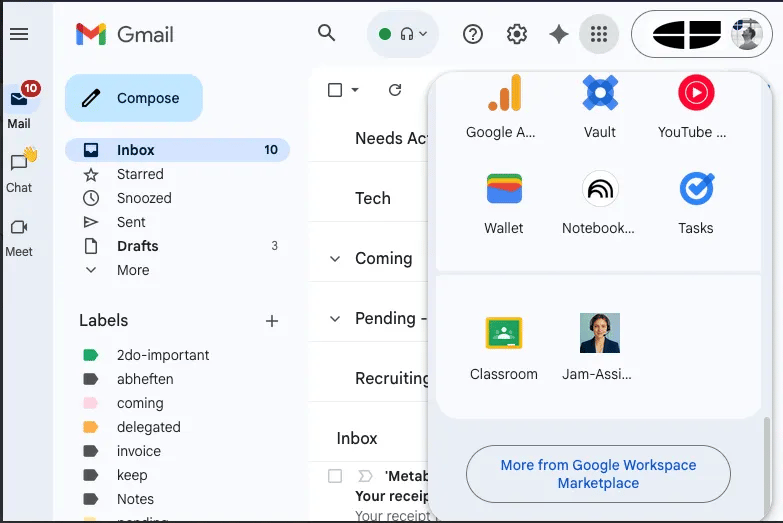
- In Google Admin, go to Apps & Services → Web/Mobile Apps and add a custom SAML app.
- Enter Jam’s Entity ID, ACS URL, and Start URL from the wizard.
- Download Google’s metadata and upload it to the Jam wizard.
- Configure attribute mapping in Google (email →
email, given name →first_name). - Test with the wizard’s test link - users with your domain should auto-redirect to Google and land in Jam.
Microsoft Entra (Azure AD)
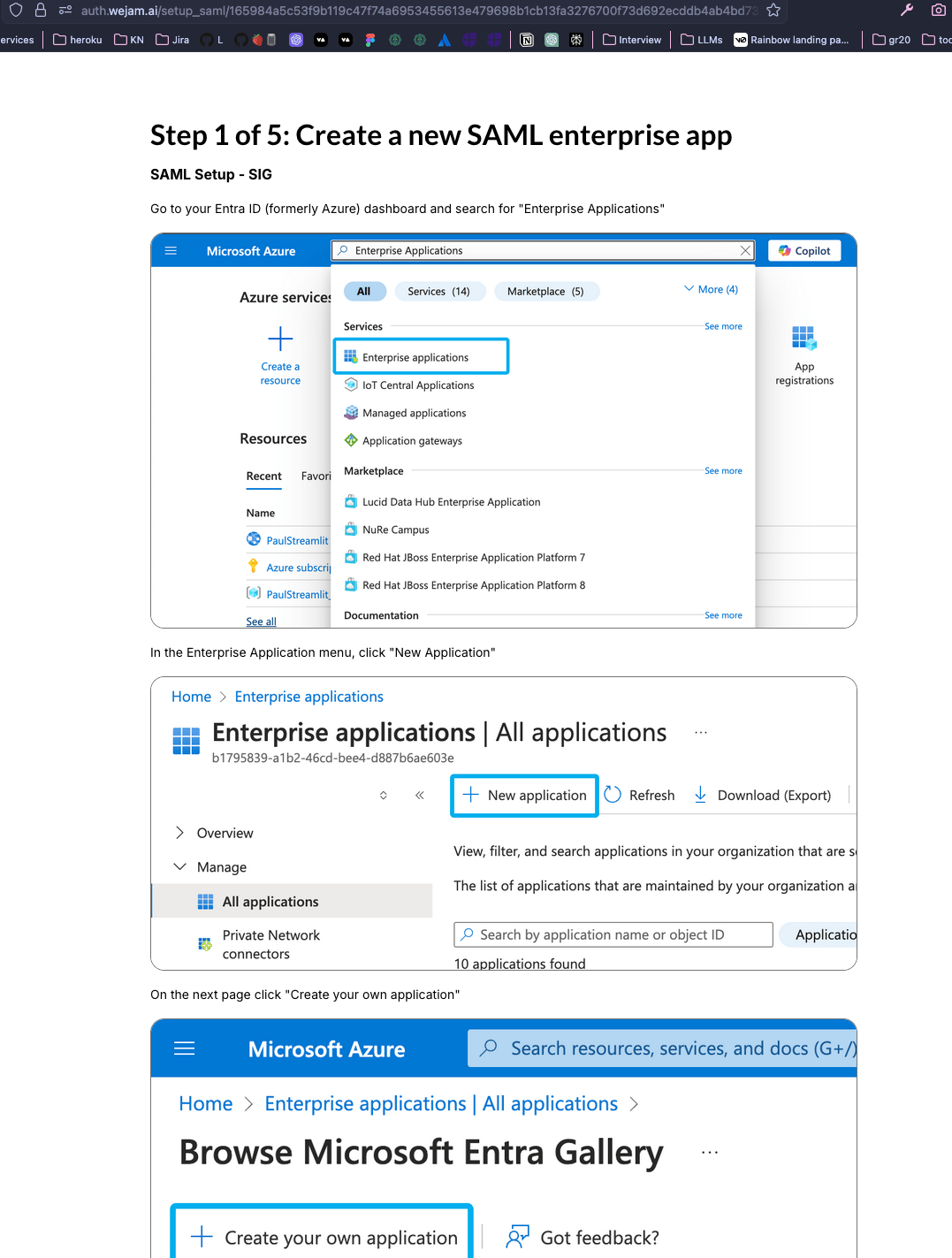
- In the Azure Portal, go to Enterprise Applications and create a new non-gallery application.
- Under Single sign-on → SAML, enter in Basic SAML Configuration:
- Identifier: Jam’s Entity ID
- Reply URL: Jam’s ACS URL
- Sign on URL: Jam’s Start URL
- Download the Federation Metadata XML from Entra and upload it to the Jam wizard.
- Under User Attributes & Claims, map
emailandgivennameto the corresponding Jam attributes. - Optionally assign users or groups to the app.
- Test with the wizard’s test link.
If users previously logged in via Jam’s Microsoft SSO (not SAML), their browser may try the old method. Direct them to
auth.wejam.ai/login_sso or ask them to clear cookies and try again in an incognito window.Directing Users Straight to SSO (Optional)
To skip Jam’s hosted login page and send users directly to your IdP, use the SAML redirect URL with one of these query parameters:?domain=yourcompany.com- redirects by domain?email=user@yourcompany.com- parses the domain from the email?org_name=YourOrgName- redirects by organization name (case-sensitive)
https://auth.link.wejam.ai/api/fe/v3/login/saml/?domain=yourcompany.com
To force a specific login method for all users, share one of these links:
-
Google SSO only:
https://auth.wejam.ai/?opt_hint=gl
-
Microsoft/Entra only:
https://auth.wejam.ai/?opt_hint=ms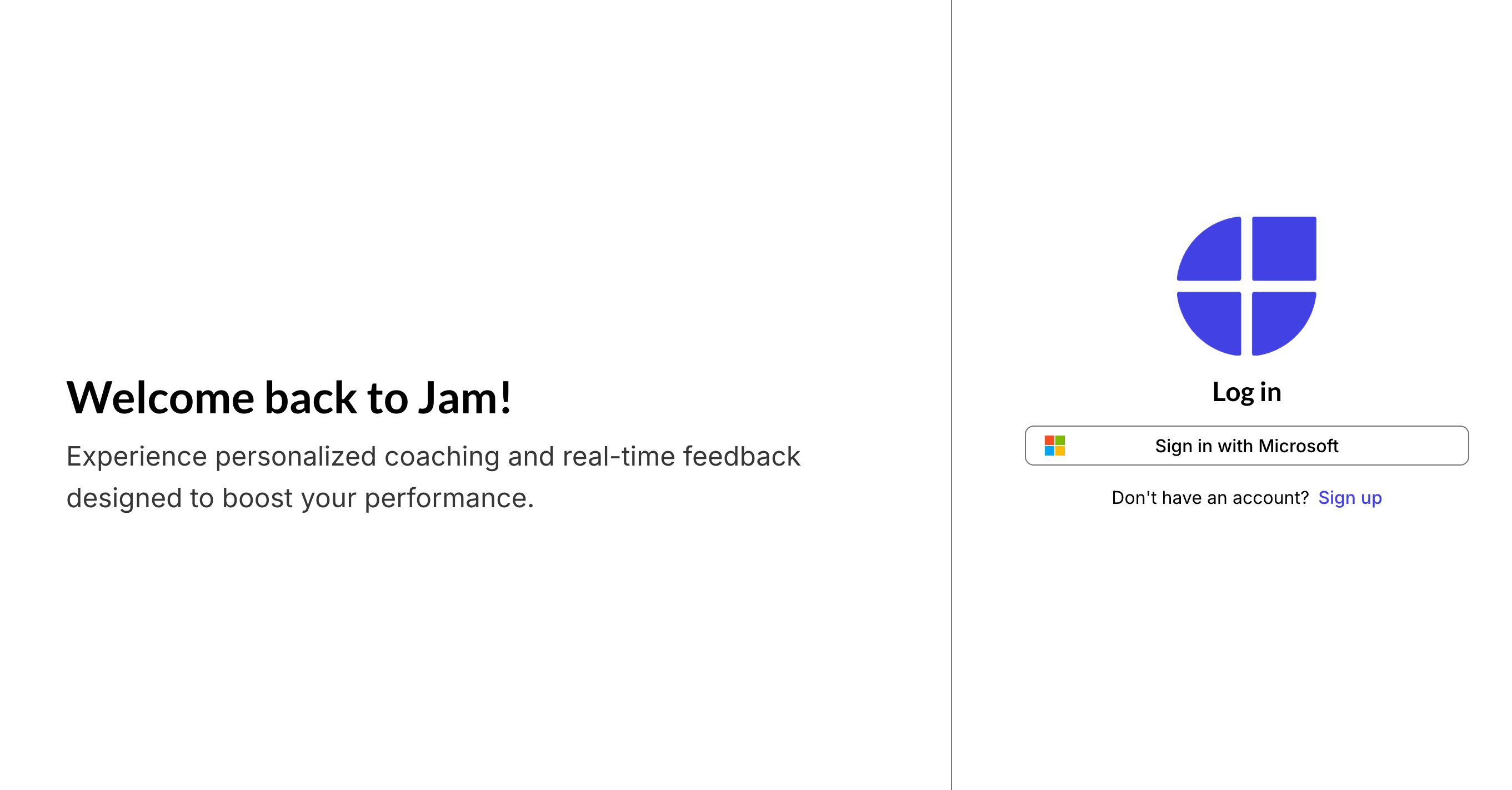
-
Enterprise SSO only:
https://auth.wejam.ai/?opt_hint=sso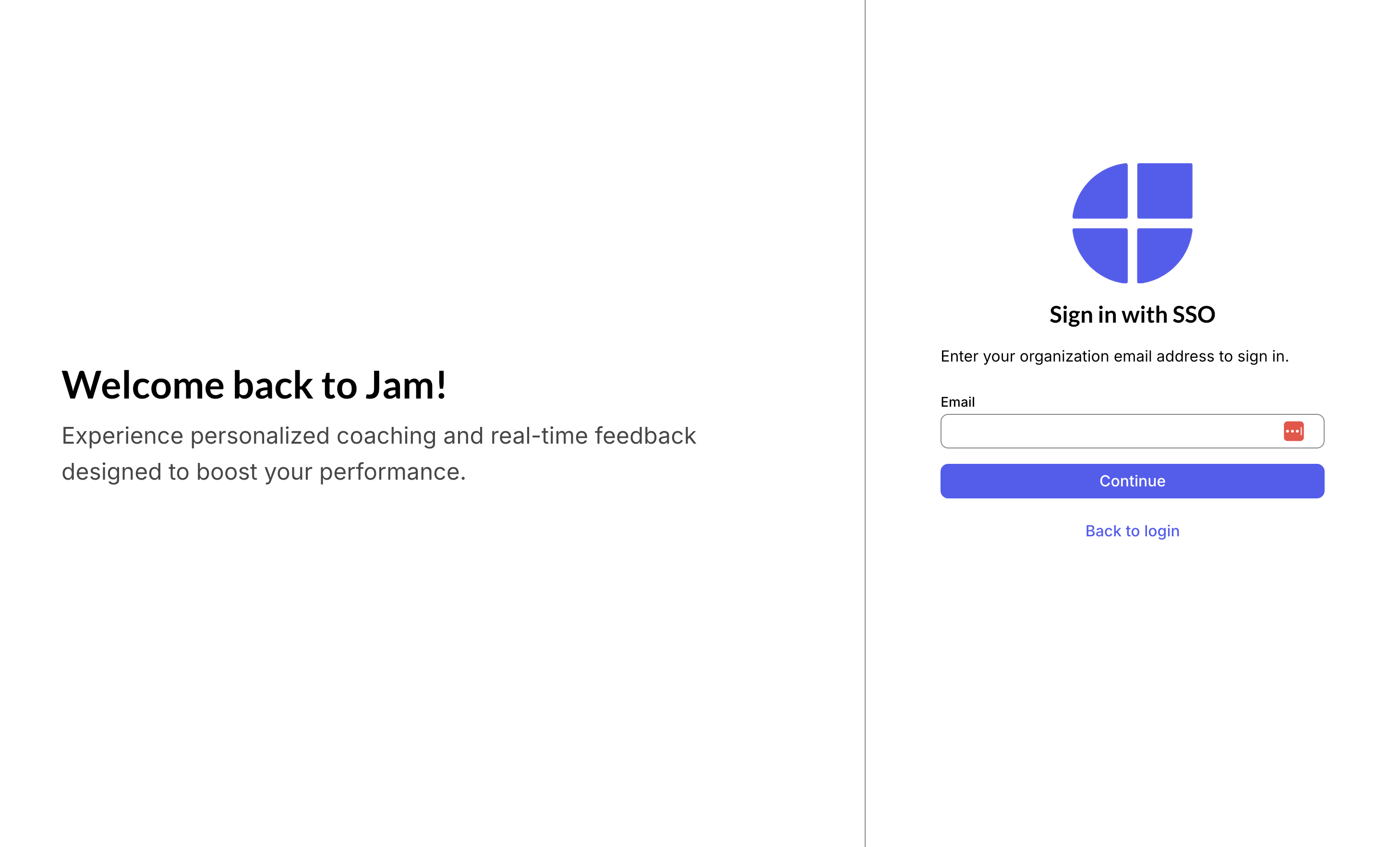
Troubleshooting
Users still see a password option
Users still see a password option
SAML setup is incomplete. Check that your domain is correctly configured in the wizard and that the setup completed all 5 steps.
'Invalid SAML response' error
'Invalid SAML response' error
Copy the Entity ID, ACS URL, and Start URL exactly from the wizard - small differences in formatting cause this error.
'User not found' error
'User not found' error
Verify the email attribute mapping in your IdP matches what the wizard expects (
email).Lost the setup link
Lost the setup link
Contact support@wejam.ai to have a new link generated.
Microsoft/Entra users can't log in after SAML setup
Microsoft/Entra users can't log in after SAML setup
The user’s browser is caching the old Microsoft SSO flow. Direct them to
auth.wejam.ai/login_sso or ask them to use an incognito window.'AADSTS50105' error on Microsoft Entra sign-in
'AADSTS50105' error on Microsoft Entra sign-in
This error means the user’s own Entra ID admin has the enterprise application set to require assignment, and the signed-in user hasn’t been granted access - either directly or via a group. This is configured entirely on the customer’s tenant and can’t be fixed from Jam’s side.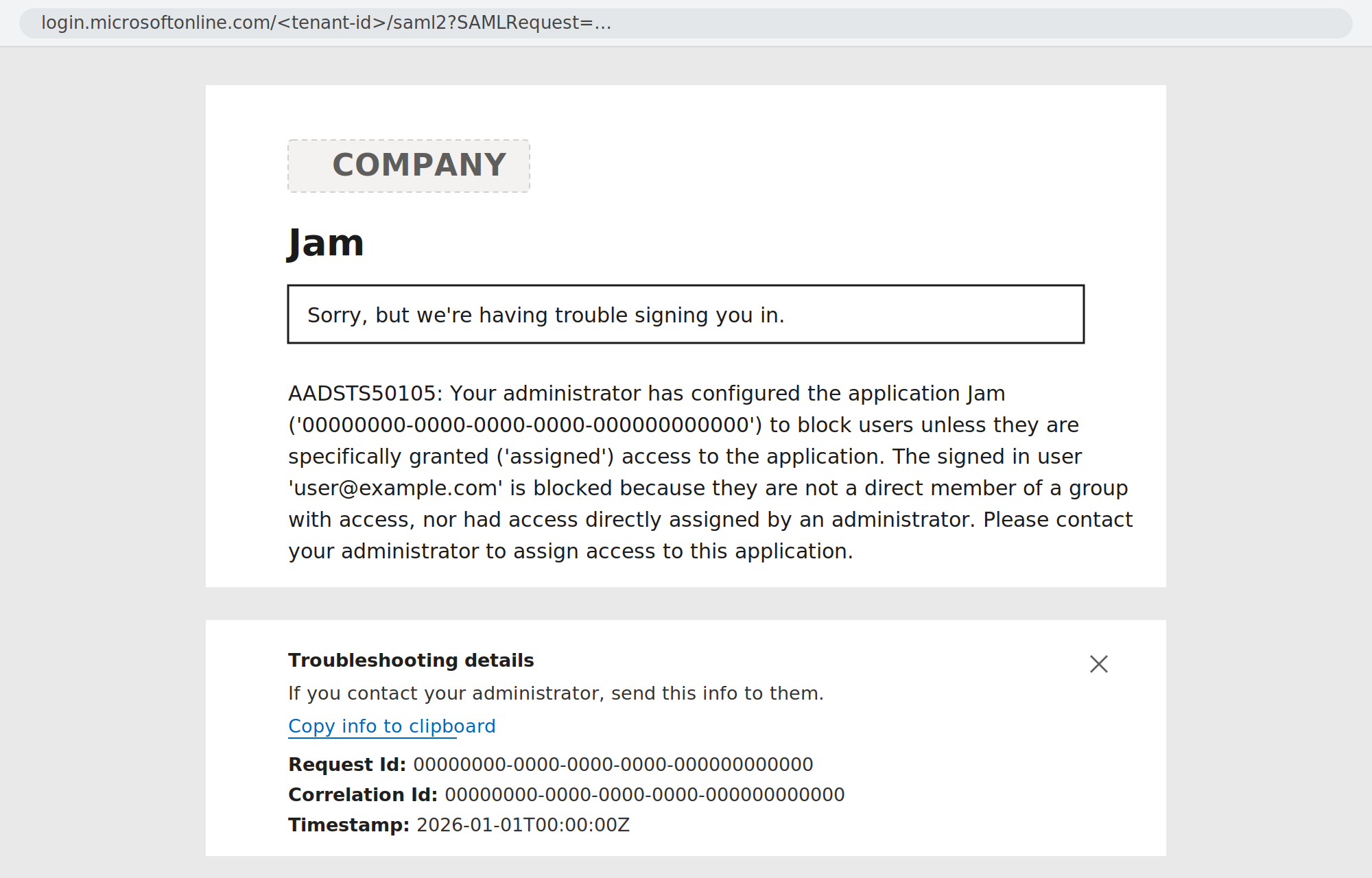
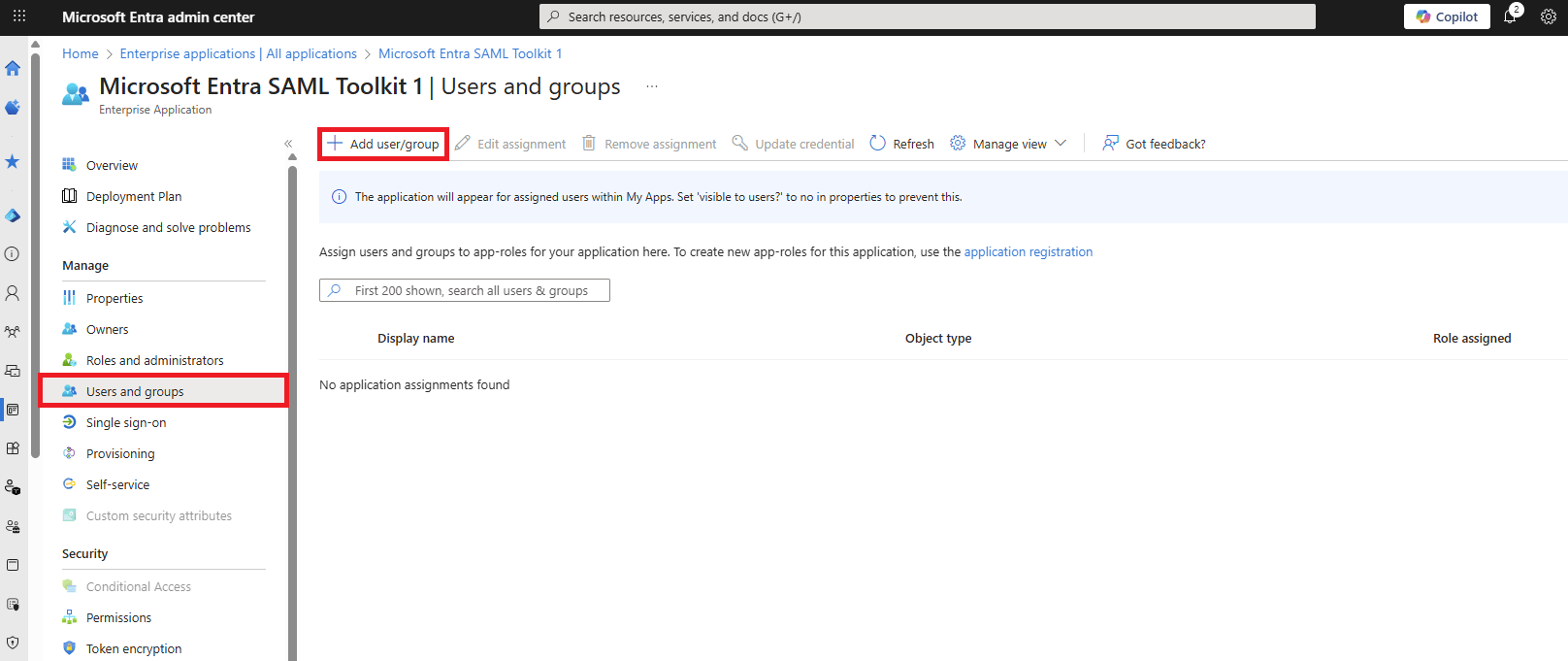
- Ask your organization’s Microsoft Entra ID admin to grant you access.
- They’ll go to Enterprise Applications → [your app name] → Users and groups.
- Select Add user/group.
-
Assign you directly, or add you to a group that’s already assigned to the app.
Related Articles
- Accessing Multiple JAM Organizations - use separate account addresses when one person needs access to more than one organization