

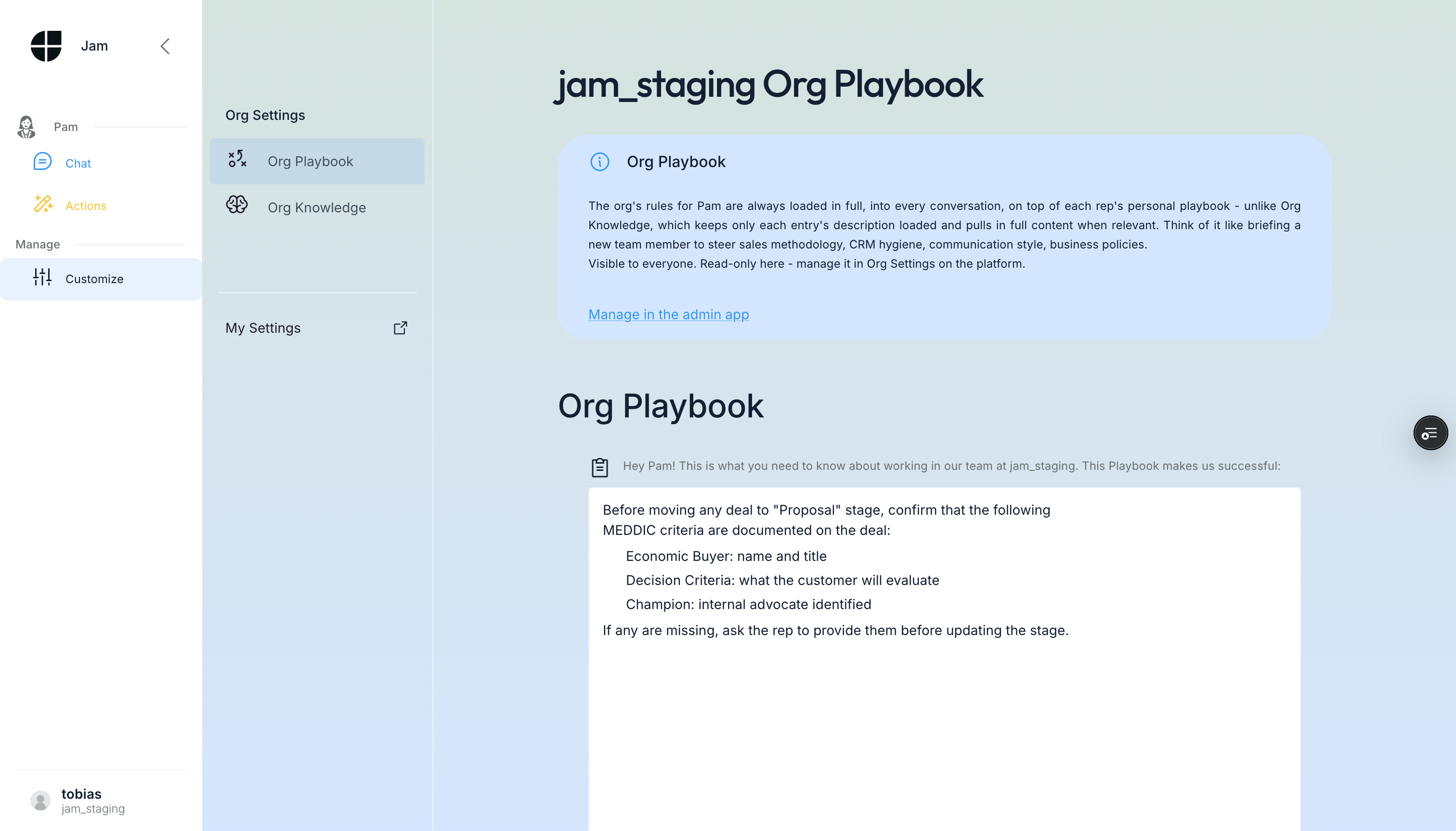
- Org Playbook - Rules that apply to every member of your organization, across every channel. Managed by admins at app.wejam.ai/assistant/playbook; visible read-only under Org Settings > Org Playbook in the Assistant app.
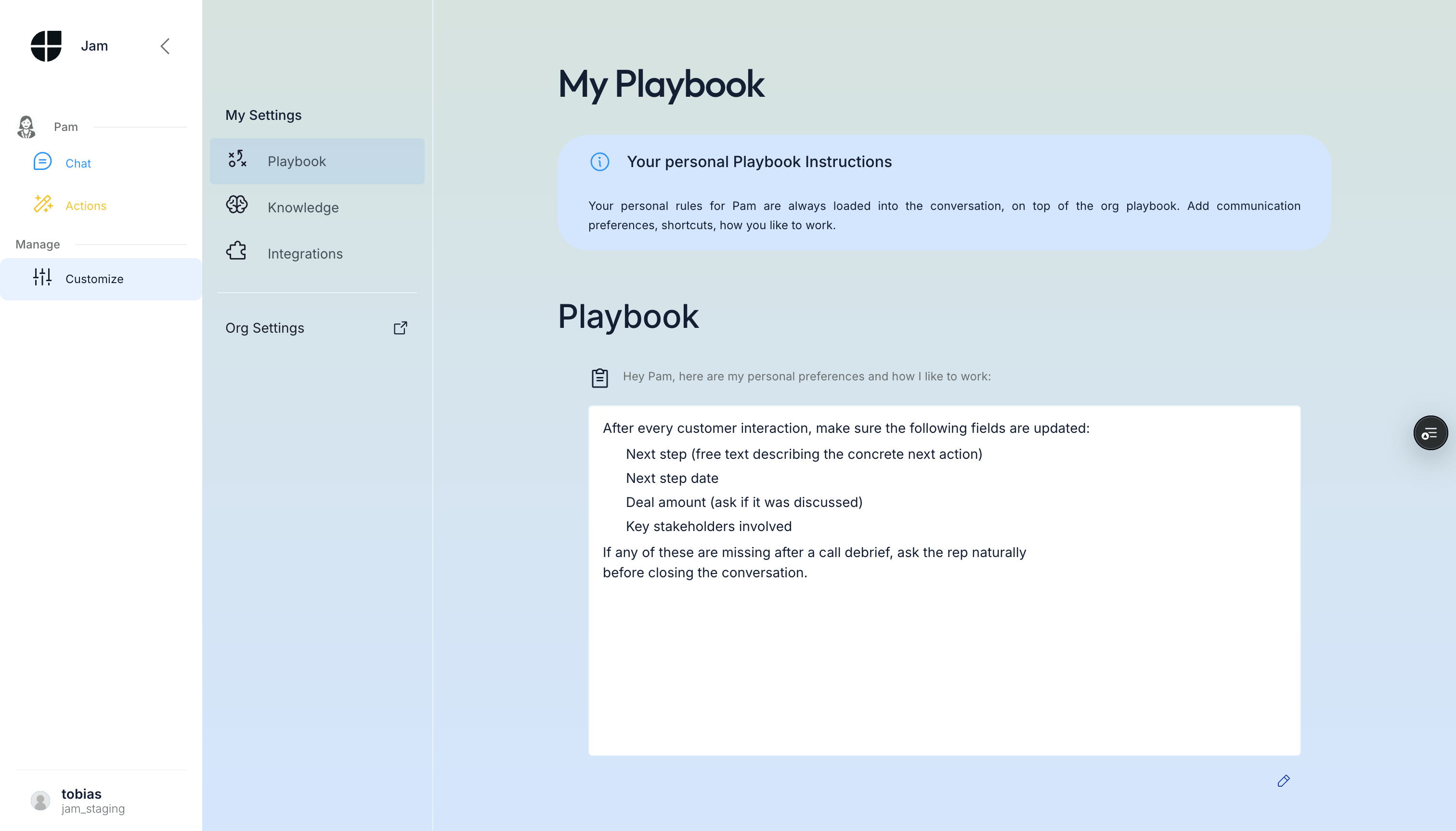
- My Playbook (My Settings > Playbook) - Your own shortcuts and preferences, layered on top of the org playbook. Every member can edit their own.
Managing the Org Playbook (admins, on the platform)
Org rules are the most powerful way to steer Jam Assistant across your organization. Every conversation Jam Assistant has - whether by chat, voice, WhatsApp, or phone - is shaped by these rules. Org admins manage the Org Playbook at app.wejam.ai/assistant/playbook, under Assistant > Manage > Org Playbook.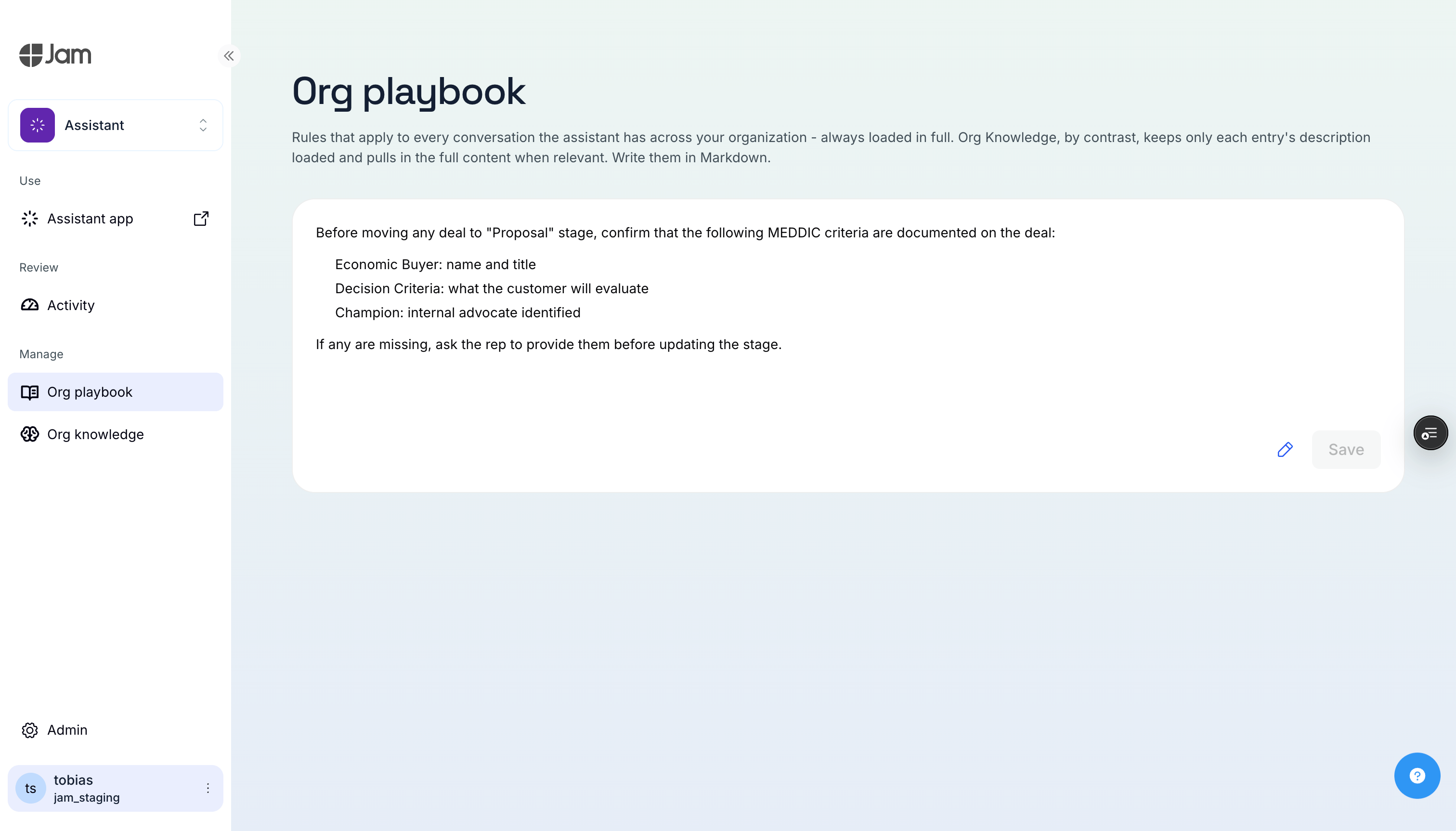
How It Works
Org rules are free-form text that becomes part of Jam Assistant’s system prompt. Write them in natural language, exactly as you’d brief a new team member. Jam Assistant sees them as:“Specific instructions on how to behave while working here at [Your Company]”On the platform, click Edit the org playbook, make your changes, then click Save - the rule is immediately active for every member.
Example: Adding an Org Rule
Here is an example objection-tracking rule for the org playbook:What to Include
Sales methodology:Best Practices
- Be specific - “Update the deal stage after every call” works better than “Keep CRM up to date”
- Use examples - Show Jam Assistant what good looks like
- Set priorities - If two rules could conflict, be explicit about which wins
- Iterate - Start with 3-5 rules, observe, refine
- Think in campaigns - Update weekly to match your sales rhythm
- Keep it current - Remove stale rules (last quarter’s pricing, ended campaigns)
File Uploads (Coming Soon)
A future update will allow you to attach documents (PDFs, playbooks, pricing sheets) as additional context.My Settings
Every member can define personal skills and preferences that layer on top of the org rules under My Settings. Jam Assistant sees both - org rules first, then your personal additions. See the screenshot at the top of this page for what this looks like.Skills (Slash Commands)
Define personal “slash commands” by writing patterns into your personal playbook. These work across all channels - type/prep in web chat or say “slash prep” on a voice call.
Writing Your First Slash Command
Click Edit in your personal Playbook section, then describe how Jam Assistant should behave when you use a particular phrase: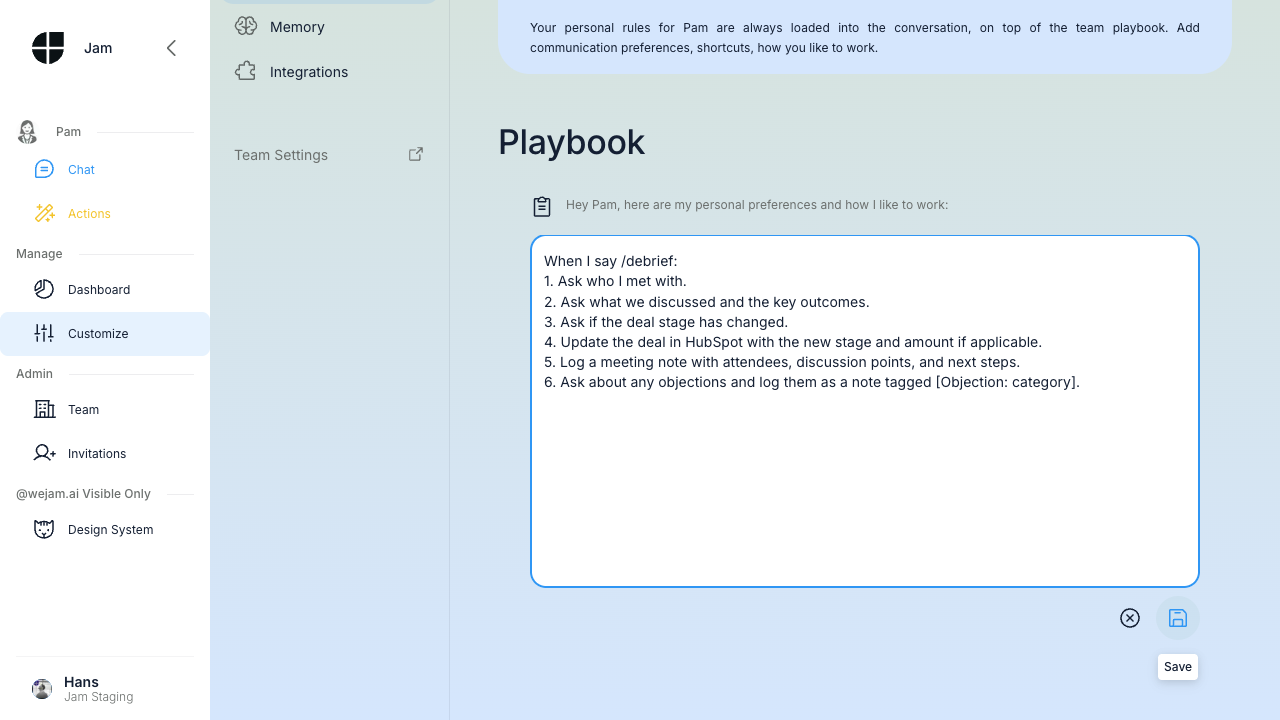 Click Save - the instruction is immediately active.
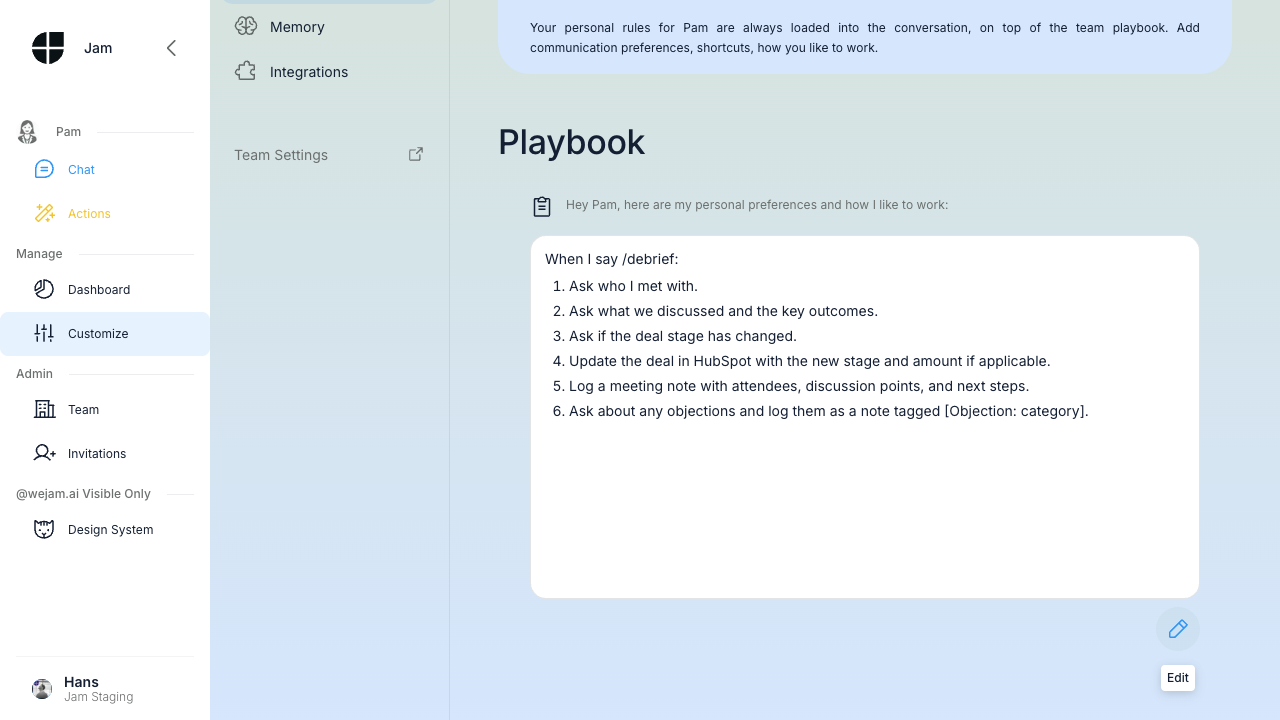 See Playbook Recipes for more skill examples.
Preferences
Territory and Account Context
Tips
- Personal rules are for your preferences - use org rules for org-wide process
- Start small: 2-3 rules, see how Jam Assistant adapts, then refine
- Be direct: “Do X” works better than “It would be nice if you could maybe try to X”
- If a personal rule contradicts an org rule, Jam Assistant generally favors the more specific one. For critical org rules, admins should be explicit: “This overrides personal preferences”
How Org + Personal Work Together
Jam Assistant builds its context in layers:- Org rules - The org-wide foundation (process, policies, knowledge)
- Personal rules - Individual preferences and skills layered on top
/debrief workflow for how they want to capture meeting notes. The org rule ensures the data gets collected; the personal skill makes it feel natural for each individual.
Slash Commands in Action
Once you have saved a slash command to your personal playbook, use it directly in chat. Type/debrief (or whichever phrase you defined) and Jam Assistant immediately follows your personal workflow:
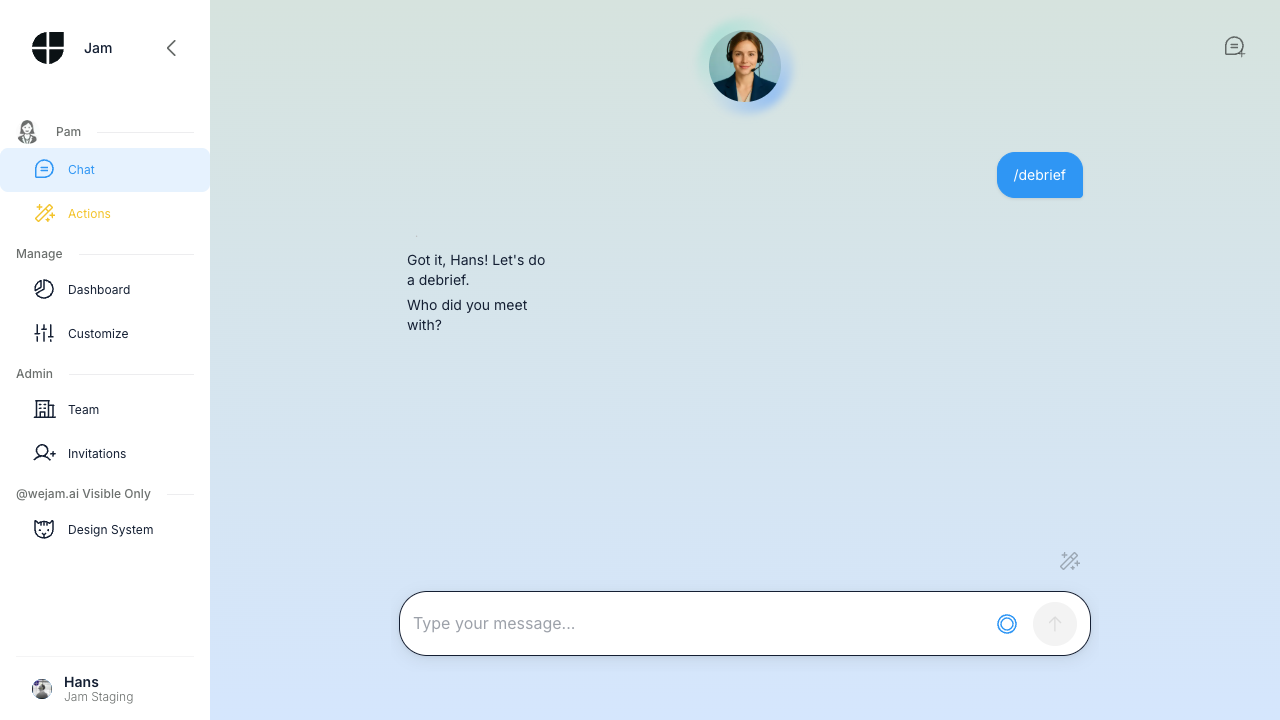
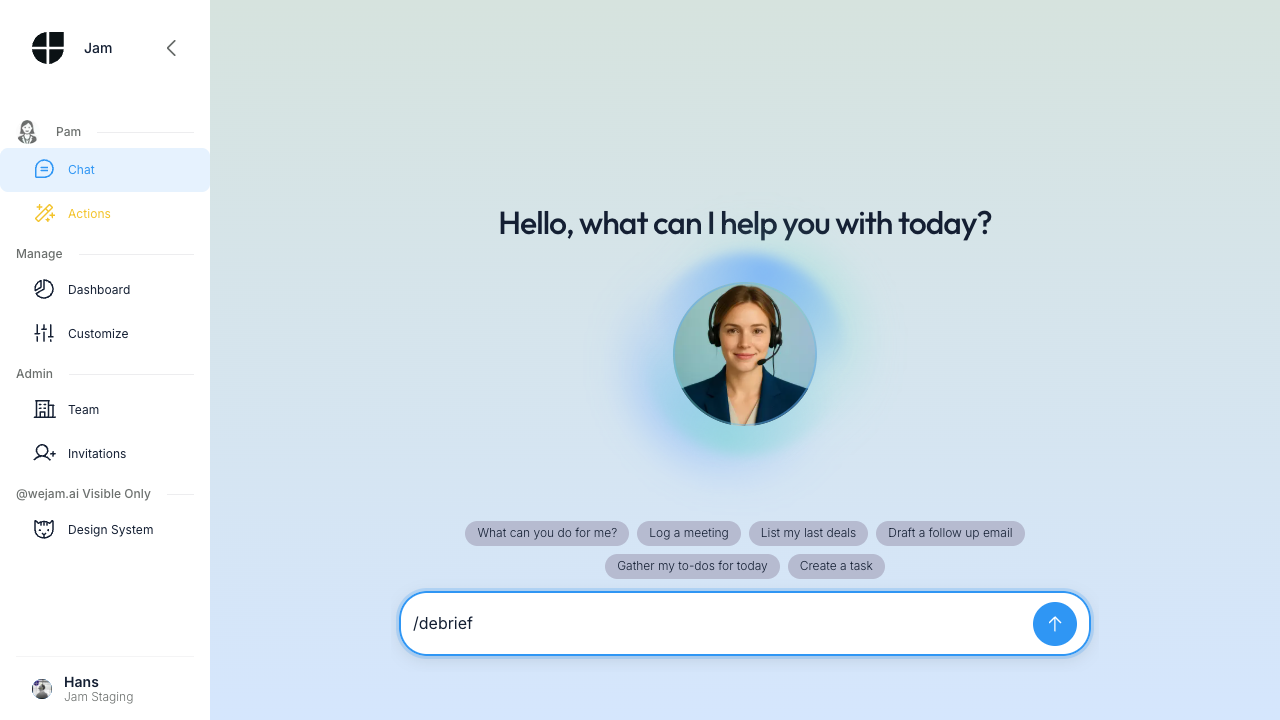 Jam Assistant recognizes your command and begins the defined sequence - in this case, asking who you met with first:
Troubleshooting
Jam Assistant isn’t following my org rule- Make sure the rule is saved (the Save button should be gone and the Edit pencil icon should be visible)
- Keep instructions clear and unambiguous
- If you have a long playbook, Jam Assistant reads the whole thing, but the most recent/specific instructions tend to win when there is a conflict
- Ensure you defined the trigger phrase exactly as you type it (e.g.,
/debriefnotdebrief) - Save after editing - unsaved changes are not active
- Org rules are loaded automatically; members don’t need to configure anything
- Only admins can edit org rules - other members see a read-only view
- Add a personal rule that is more specific. For example, if the org rule says “address all contacts formally,” your personal rule can say “in my chats with contacts in California, use first names”
Related Documentation
- Playbook Recipes - Copy-paste templates for common instructions
- Knowledge - Facts and CRM schema Jam Assistant fetches on demand about your team and accounts
- Integrations - Connect HubSpot, Salesforce, email, and calendar