

Prerequisites
- A Jam Assistant account with at least one CRM integration connected (see Integrations)
- A microphone - built-in laptop mic or headset both work
- A modern browser (Chrome or Edge recommended for best audio quality)
Starting a Call
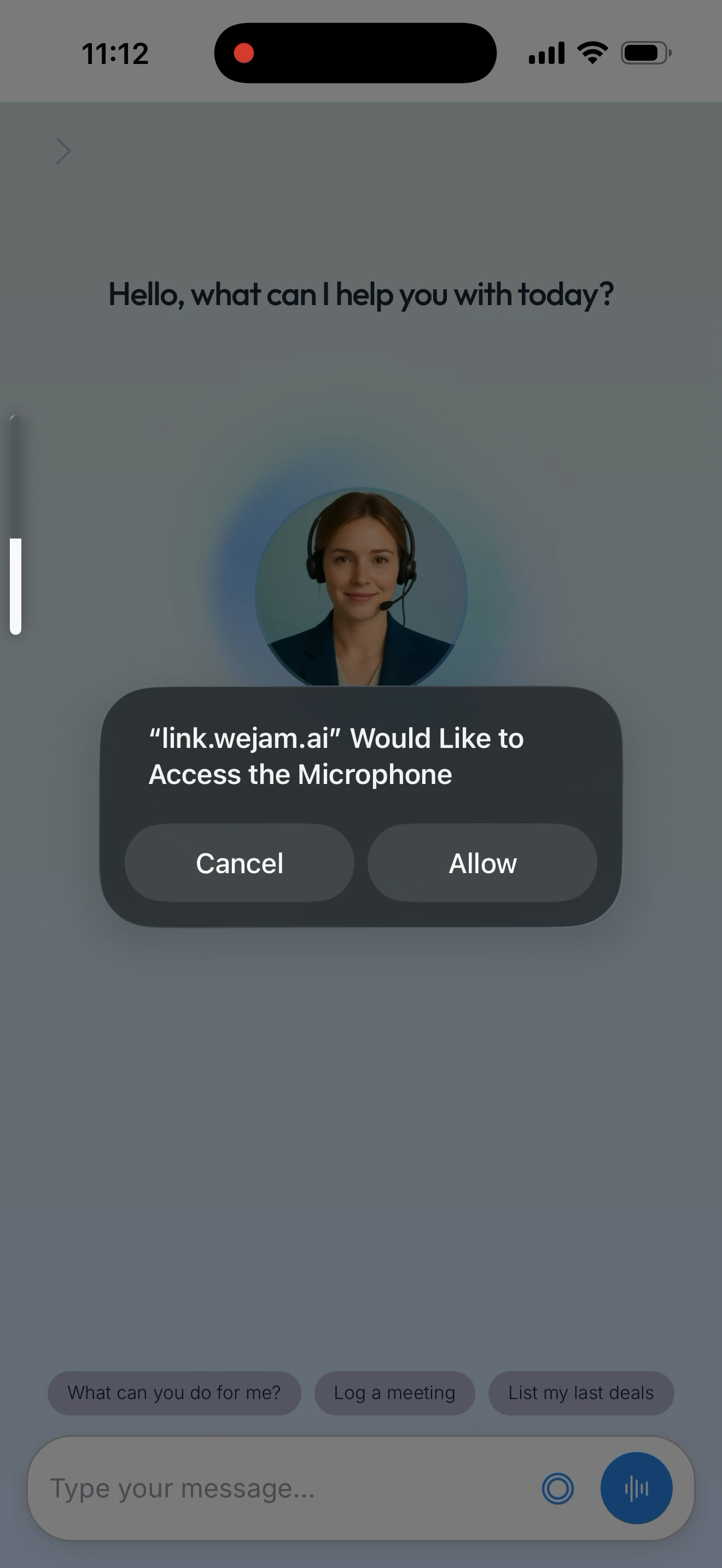
From the Chat screen, tap the voice button in the message bar to start a voice session.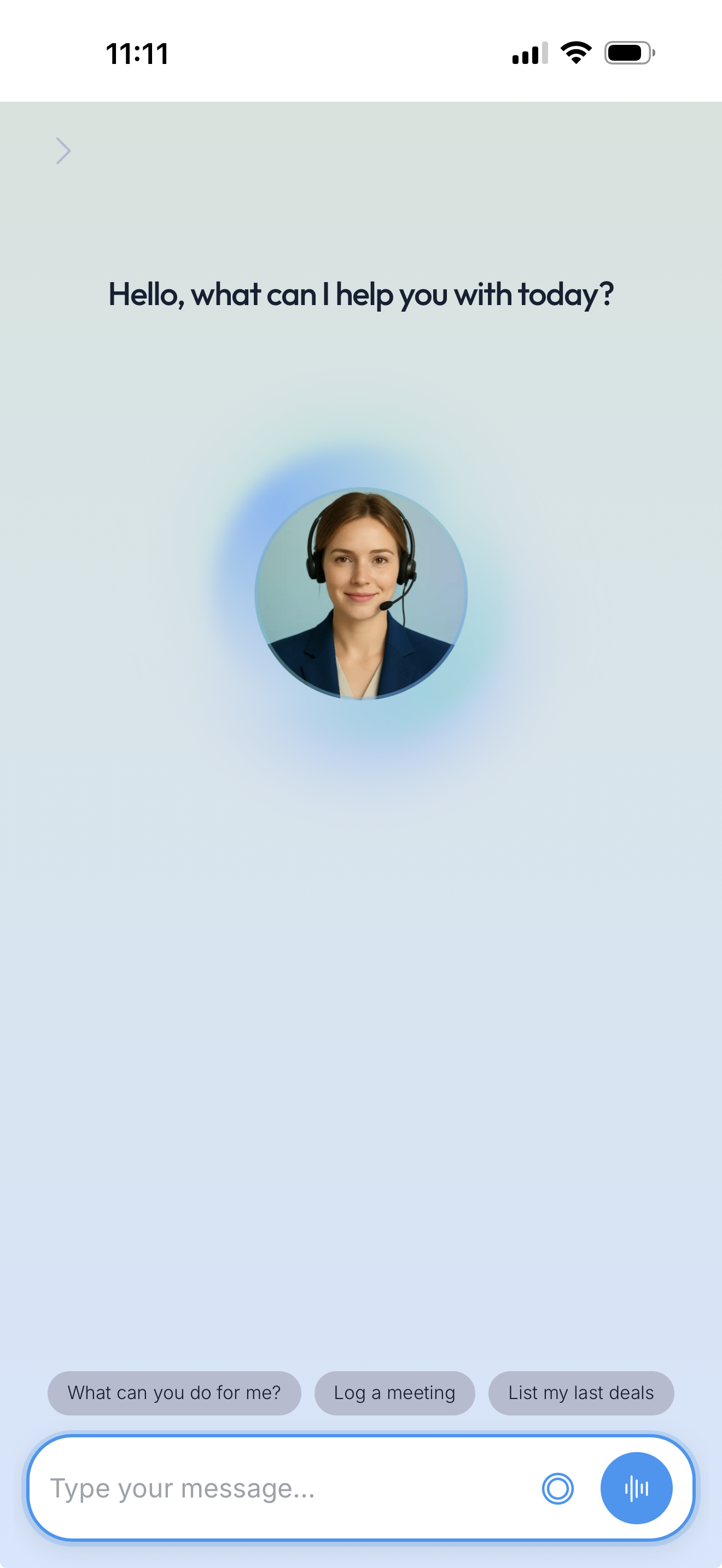 On first use, your browser will ask for microphone permission - tap Allow. Once granted, the permission is remembered and you won’t be asked again.
During the Call
After connecting, you see Jam Assistant’s voice call screen.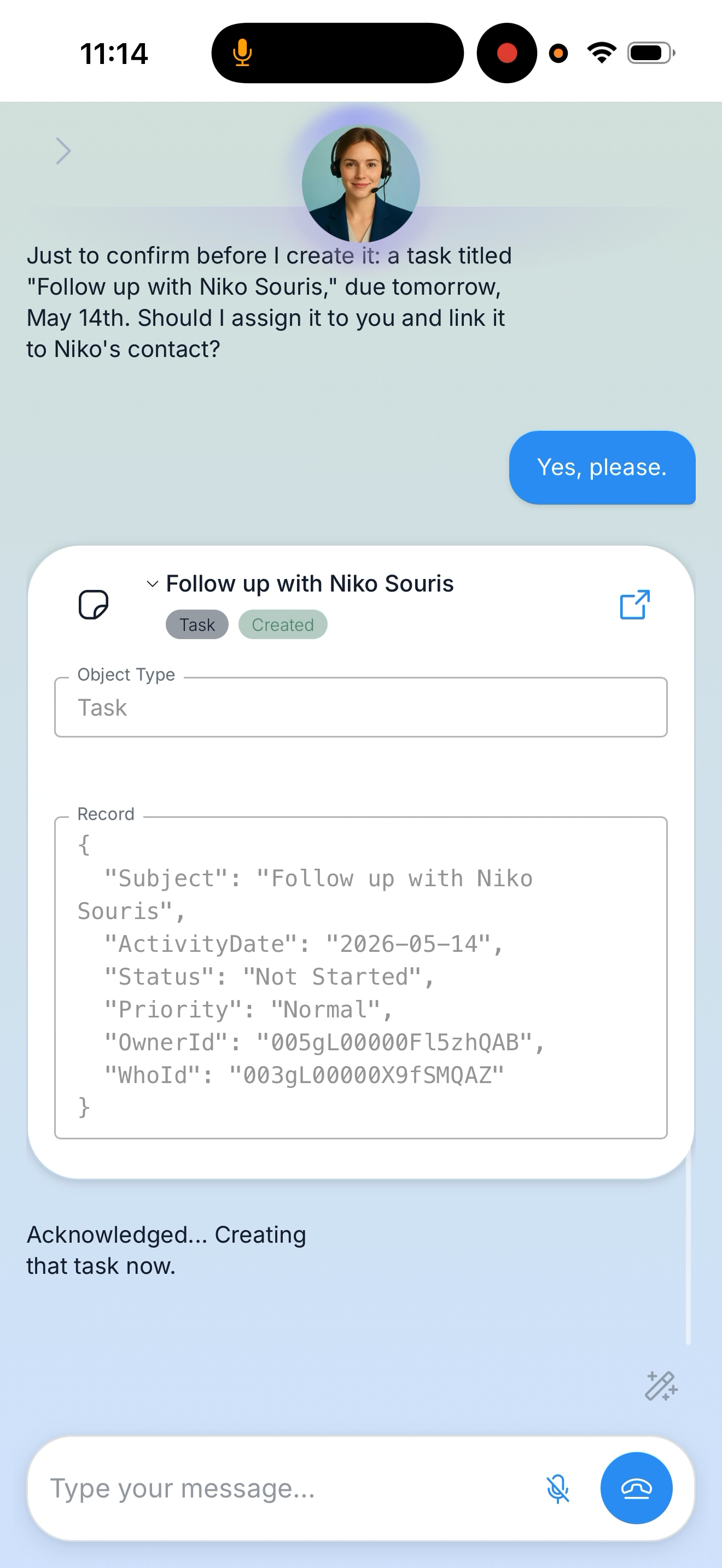 The call screen shows:
- Jam Assistant avatar - shows the active voice session at the top of the screen
- Jam Assistant’s response - displayed as text so you can read along
- Action cards - show CRM lookups, updates, and created records during the call
- Approval cards - appear before write actions (creates, updates) so you can review and confirm before anything changes in your CRM
- Mute button - tap to silence your microphone while Jam Assistant is responding
- Hang-up button - tap to end the call
“I just left TechStart. Sarah confirmed the budget is €80k and they want to start Q2. Update the deal and log a meeting note.”Jam Assistant listens, performs the CRM actions, and responds verbally to confirm what it did. You can interrupt at any time - Jam Assistant will stop speaking and listen.
What Jam Assistant can do during a call
Everything available in web chat is available by voice:- Look up deals, contacts, and companies
- Update deal stages, amounts, and close dates
- Log meeting notes and call summaries
- Create follow-up tasks and calendar events
- Draft emails for review
Approving actions before they run
Before Jam Assistant executes any write action in your CRM - creating a record, updating a field, logging a note - it pauses and shows an approval card. The card shows:
- Tool name - the CRM action Jam Assistant is about to take (e.g.
salesforce-batch-create-object) - Action details - the exact data Jam Assistant will write: object type, field values, record content
- Deny - cancels the action; Jam Assistant acknowledges it was blocked and can suggest alternatives
- Confirm - executes the action immediately
Tip: Glance at the record details before confirming. If a field looks wrong - for example, the wrong contact name or an incorrect date - tap Deny, correct Jam Assistant verbally, and ask it to try again.
Using slash commands by voice
Personal slash commands from your Playbook work during voice calls too. Say “slash prep TechStart” or “slash debrief” to trigger them hands-free.After the Call
Hang up and you’ll see the post-call feedback prompt.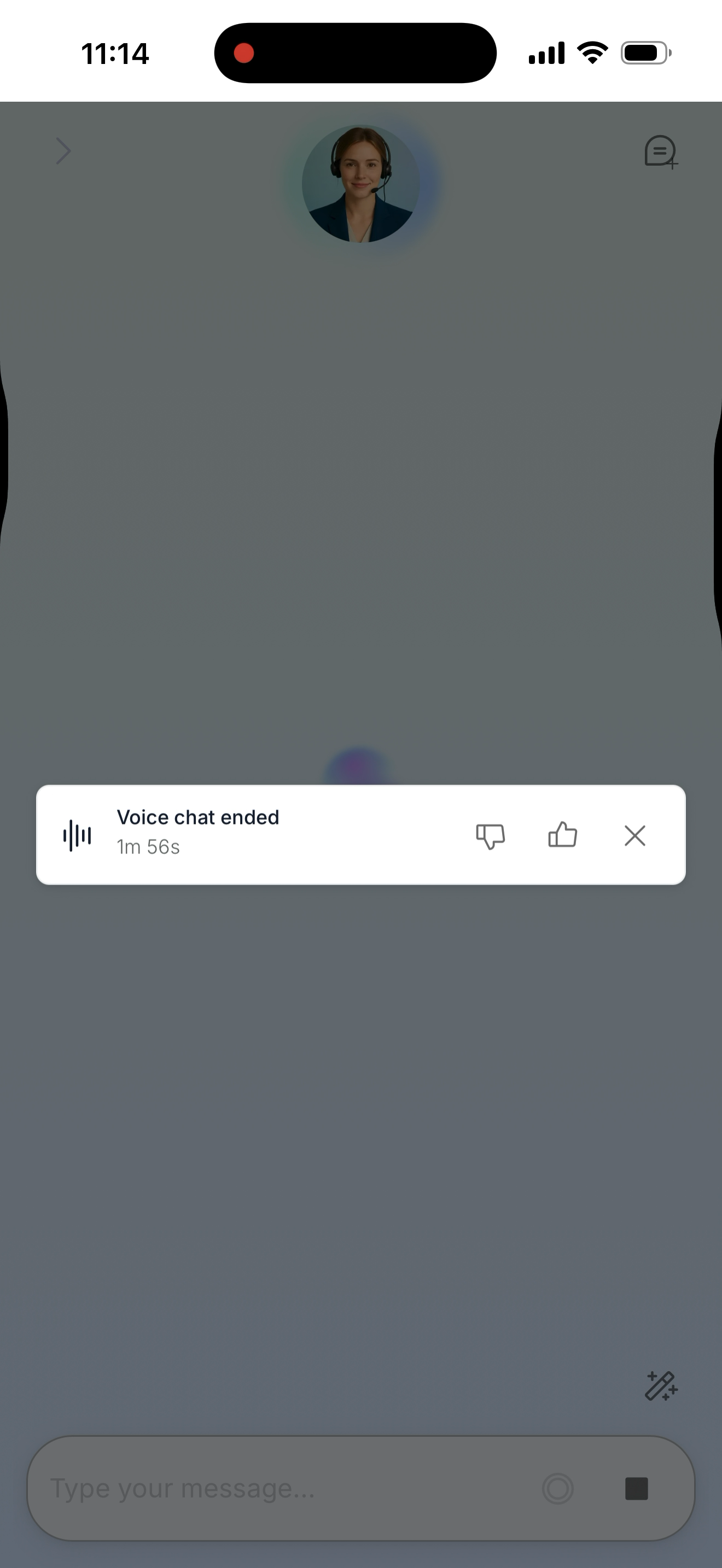 This screen has two options:
Feedback - Tap thumbs up or thumbs down to rate the call. This helps improve Jam Assistant’s voice performance over time.
Dismiss - Close the feedback prompt to continue.
This screen has two options:
Feedback - Tap thumbs up or thumbs down to rate the call. This helps improve Jam Assistant’s voice performance over time.
Dismiss - Close the feedback prompt to continue.
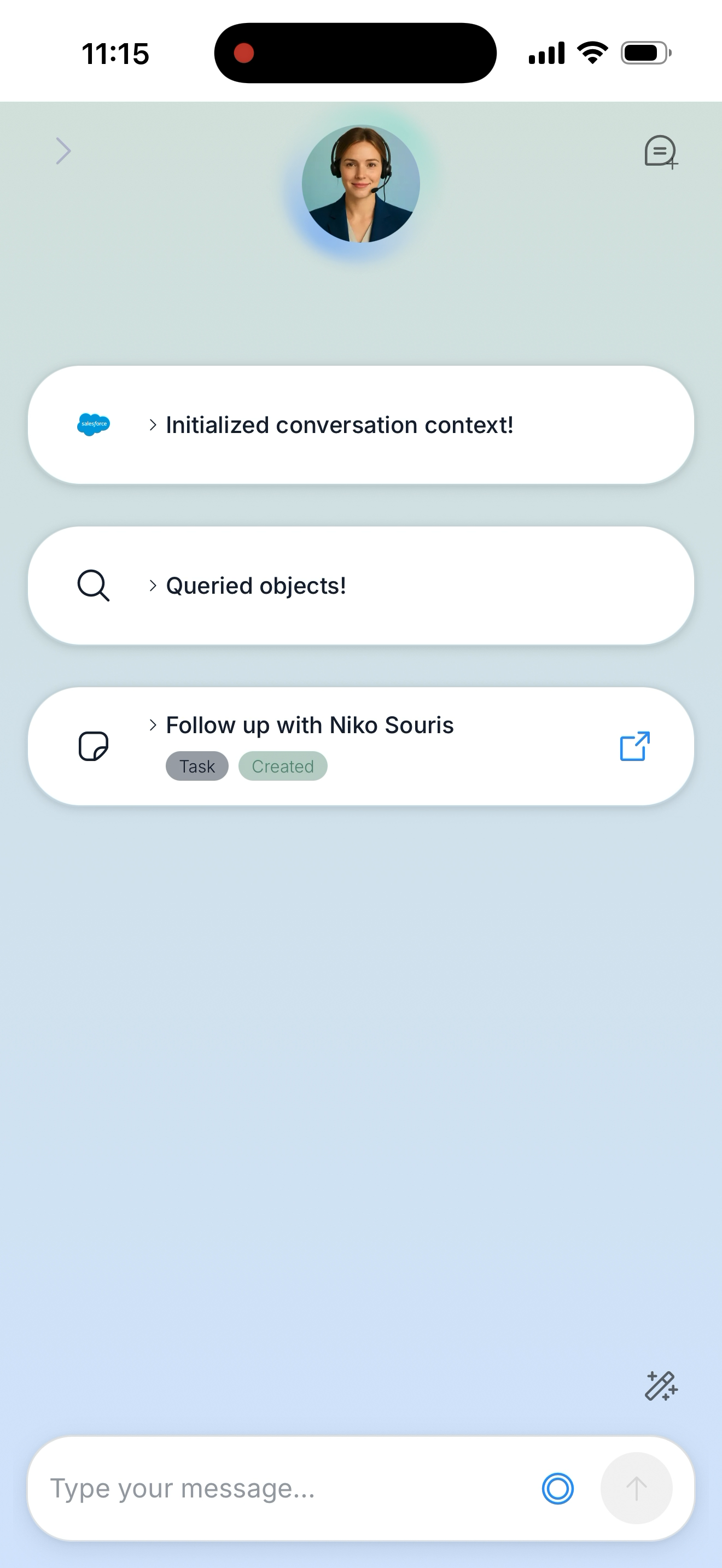 The call summary lists every CRM action Jam Assistant performed during the call, each with the record name, action type (Updated / Created), and a View in CRM link. The summary title generates automatically - give it a few seconds if it shows “Generating summary…”
The call and all its actions are saved to Chat History (the Actions page in the sidebar) and can be reviewed at any time.
The call summary lists every CRM action Jam Assistant performed during the call, each with the record name, action type (Updated / Created), and a View in CRM link. The summary title generates automatically - give it a few seconds if it shows “Generating summary…”
The call and all its actions are saved to Chat History (the Actions page in the sidebar) and can be reviewed at any time.
Audio Device Handling
- Connecting or disconnecting headphones during a call shows a notification - Jam Assistant switches to the new device automatically
- Screen sleep is prevented while a call is active (wake lock)
- If audio cuts out, hang up and redial - Jam Assistant will resume with the same session context
Tips
- Debrief while it’s fresh - Call immediately after leaving a customer meeting. Jam Assistant captures everything in one natural conversation.
- Be specific with names - “Update the TechStart deal” is more reliable than “update the deal” when you have multiple open deals.
- Correct mistakes by speaking - If Jam Assistant misheard something, just say “No, the amount is fifty thousand, not fifteen thousand” and Jam Assistant will fix it.
- Use mute when thinking - Tap mute before pausing to think or checking notes. It prevents Jam Assistant from picking up background noise as input.
- Check the summary - Glance at the post-call action cards before leaving the screen to confirm every update was applied correctly.
Troubleshooting
Microphone permission denied You need to allow microphone access in your browser settings. In Chrome: click the lock icon in the address bar → Site Settings → set Microphone to Allow, then reload the page. Jam Assistant can’t hear me / no response Check that the correct microphone is selected in your operating system’s audio settings. On macOS: System Settings → Sound → Input. Try speaking a test phrase after connecting. Call dropped unexpectedly Voice calls require a stable internet connection. If the call drops, return to the Chat screen and tap the voice button in the message bar to reconnect. Your previous session context is preserved for a short window. Call won’t start at all, or ends itself within a few seconds This is usually a corporate network blocking the WebRTC connection, not an account issue - especially if it happens every time rather than occasionally. See Call Connection Issues for the connectivity checker and network requirements to share with IT. Call summary is taking a long time Summaries are generated after the call ends and typically appear within 30 seconds. Navigate to Actions in the sidebar and use the Refresh button to check if it has appeared. No action cards in the summary If you only asked questions during the call (lookups, no creates/updates), there will be no action cards - this is expected. The conversation transcript is still saved. Approval card appeared but I didn’t tap anything Each approval request has a 5-minute timeout. If no response is given, Jam Assistant treats it as denied and moves on. Tap Confirm promptly if you want the action to proceed. I denied an action by mistake Ask Jam Assistant to try again - say “Go ahead and create that task” or “Try that again”. A new approval card will appear.Related Documentation
- Web Chat - Text-based chat with the same capabilities
- WhatsApp - Voice messages via WhatsApp for on-the-go debriefs
- Telephony - Call Jam Assistant from any phone without a browser
- Playbook - Define slash commands that work during voice calls
- Chat History - Review past calls and CRM actions