

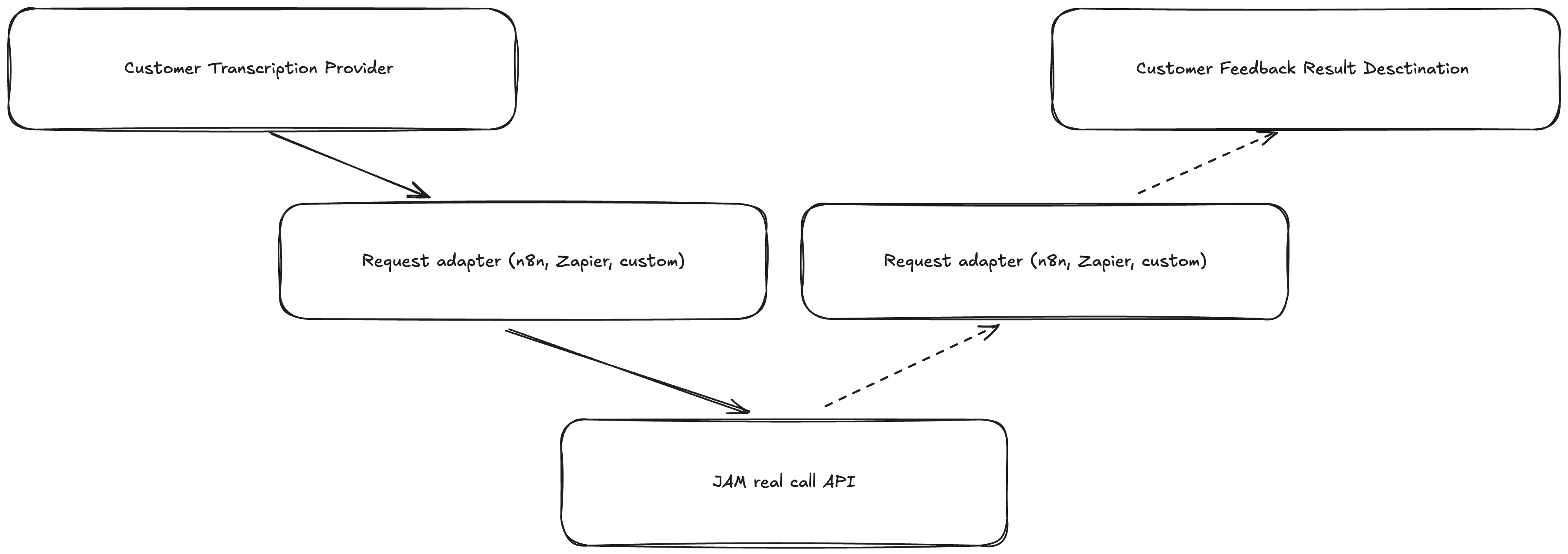
Push feedback back to your transcription provider is currently in development and will be available in a future update.
Before You Start
- A Jam account with Owner role
- A transcription provider that supports webhooks or automation (Fireflies, Gong, Mojo, or similar)
- A scorecard configured in Jam - you’ll need its ID
Step 1: Create a Jam API Key
Visit auth.wejam.ai/org/api_keys, log in, click New API Key, and copy it somewhere safe. You’ll use it to authenticate every request.Step 2: Find Your Scorecard ID
Go to app.wejam.ai/real-call?activeTab=scorecards, open the scorecard you want to use, and copy the 24-character ID from the URL (e.g.507f1f77bcf86cd799439012).
Step 3: Send Transcripts to Jam
API endpoint:
Choose your integration method:
n8n (recommended for non-technical users)
n8n (recommended for non-technical users)
- Set up a transcriber webhook trigger in n8n
- Add an HTTP Request node:
- URL:
https://api.wejam.ai/api/v1/real-call-sessions - Method: POST
- Headers:
x-api-key: [Your API Key],Content-Type: application/json - Body (JSON):
- URL:
Zapier
Zapier
- Accept the Jam Zapier invitation: zapier.com/developer/public-invite/233240/…
- Create a Zap with your transcriber as the trigger
- Use Jam - Analyze Transcript as the action
- Map: Transcript → transcript field, Sales rep email → email, Scorecard → scorecardId, Meeting title → meetingName
Custom code / cURL
Custom code / cURL