

Where to Find It
Navigate to Customize in the sidebar, then select Integrations from the settings sub-menu. The page is divided into two main areas:- Jam Assistant is everywhere you are - phone and messaging channels (WhatsApp, phone call, speed dial)
- Connections - OAuth-based integrations for CRM, Email, Calendar, and Chat
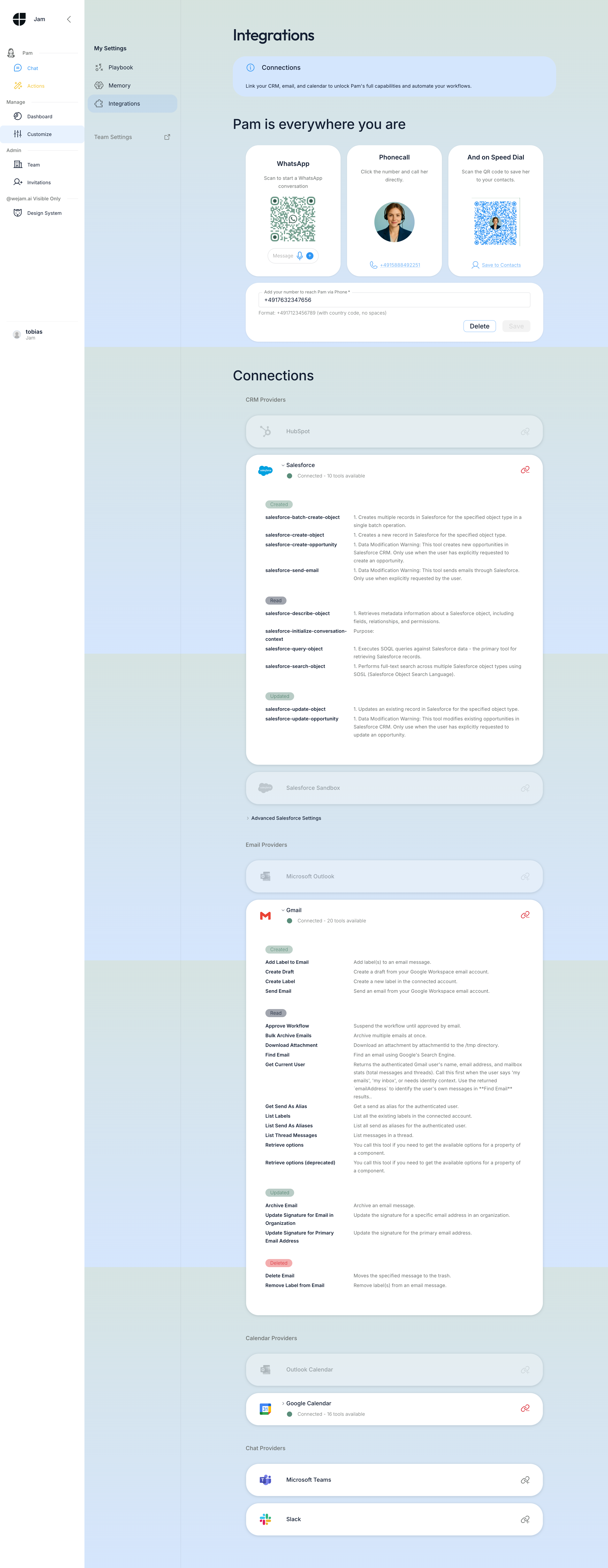
Overview
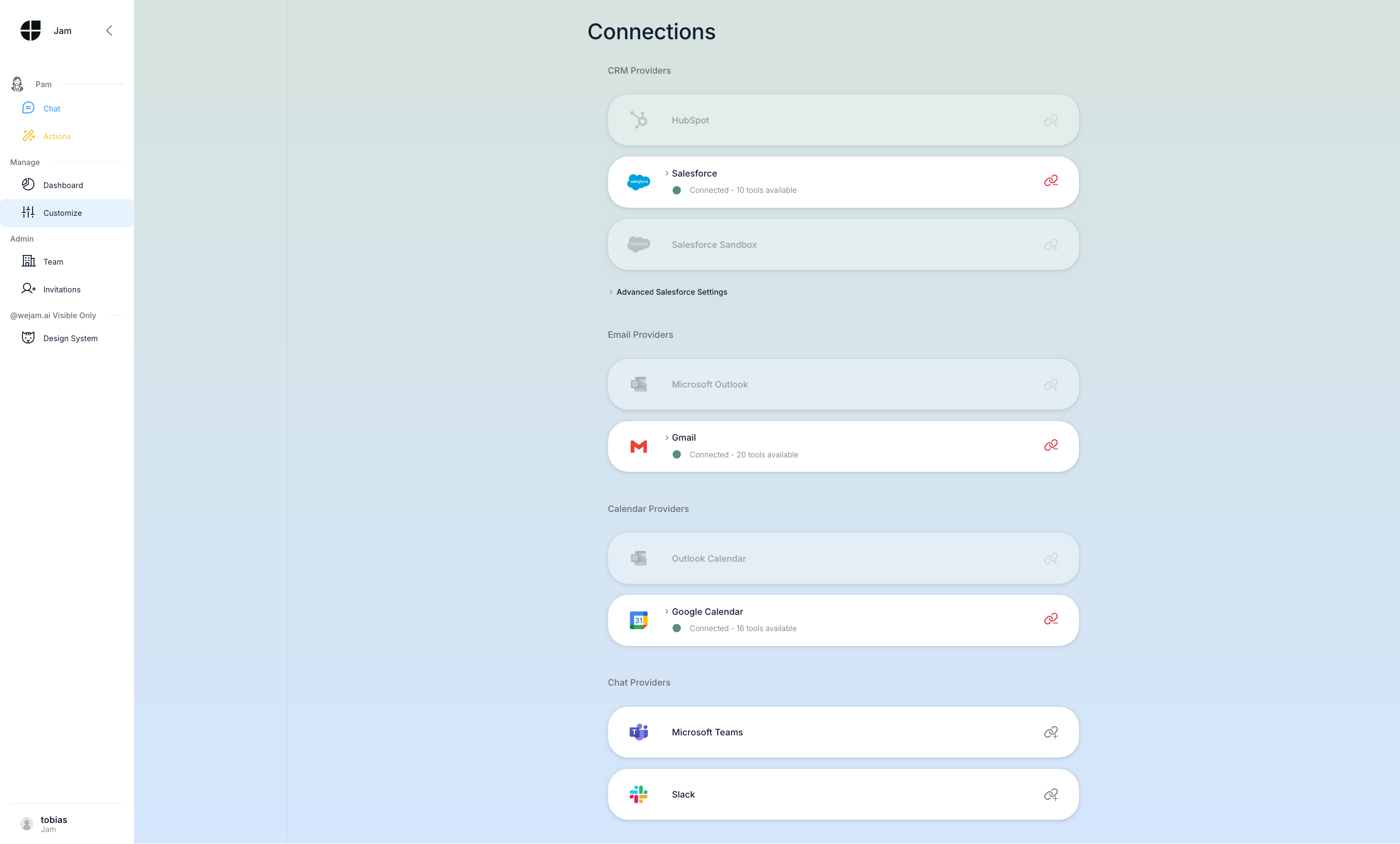 Each category contains one or more providers. You connect one provider per category - Jam Assistant uses whichever provider is connected. There is no limit on how many categories you connect simultaneously; connecting all four gives Jam Assistant the broadest set of capabilities.
Available Providers
CRM Providers
Email Providers
Calendar Providers
Chat Providers
Connecting a Provider
Before You Start - Salesforce Only
Connecting Salesforce requires two steps that must happen in order:- Your Salesforce Administrator must be invited to Jam Assistant with the Admin role (via the Users page on the platform)
- The admin must follow the Salesforce Admin Guide to install and approve the Jam Assistant Connected App in Salesforce
Step 1 - Find the Provider
Scroll to the Connections section and locate the provider you want to connect. Each row shows the provider logo, name, and current connection status.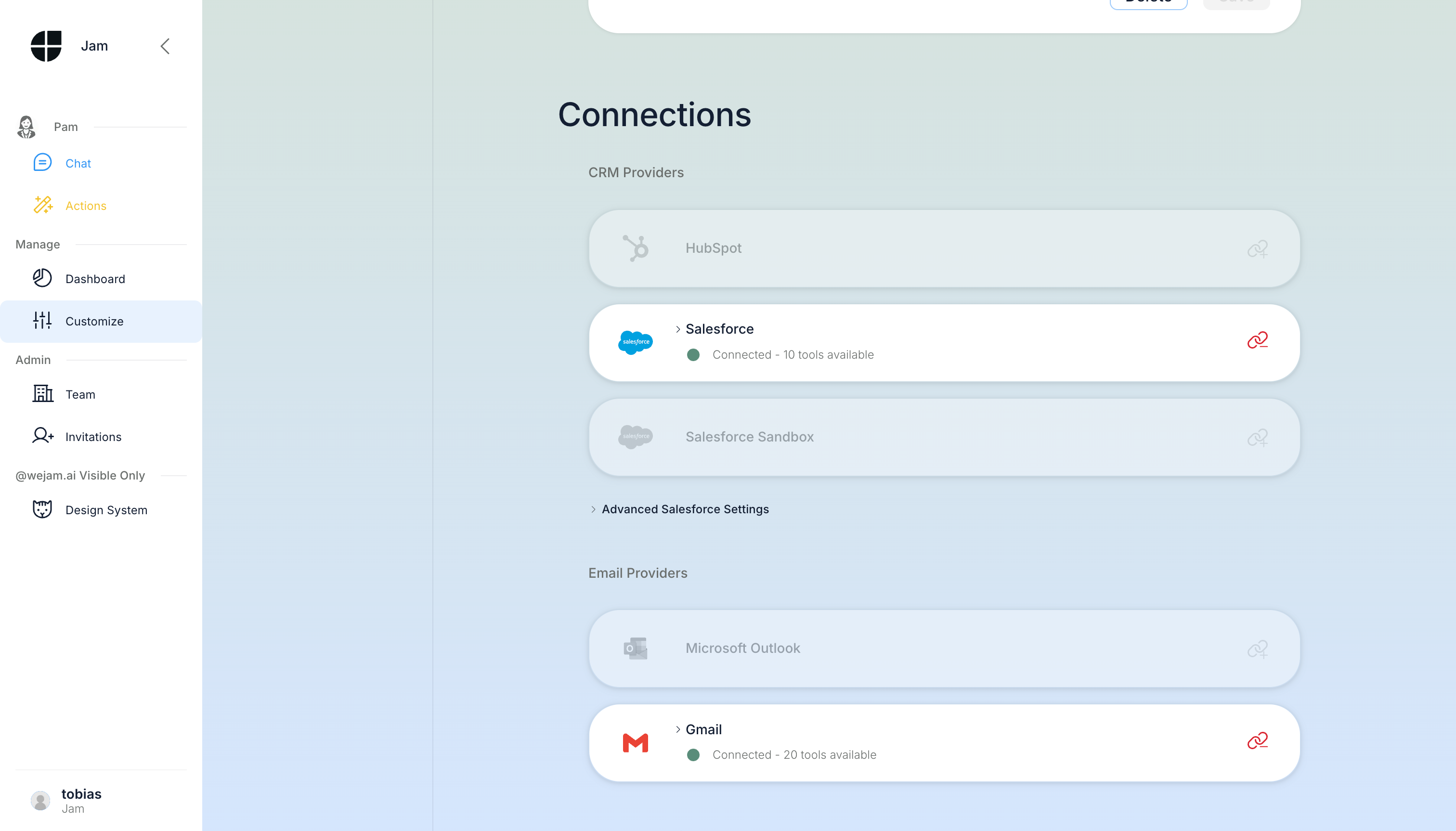 Providers that are not yet connected show a link icon (chain link) next to their name. Click anywhere on the provider row to start the connection flow.
Step 2 - Authorize via OAuth
Clicking a provider row redirects you to the provider’s OAuth authorization page. For Salesforce, you are redirected to Salesforce Login before being prompted to authorize: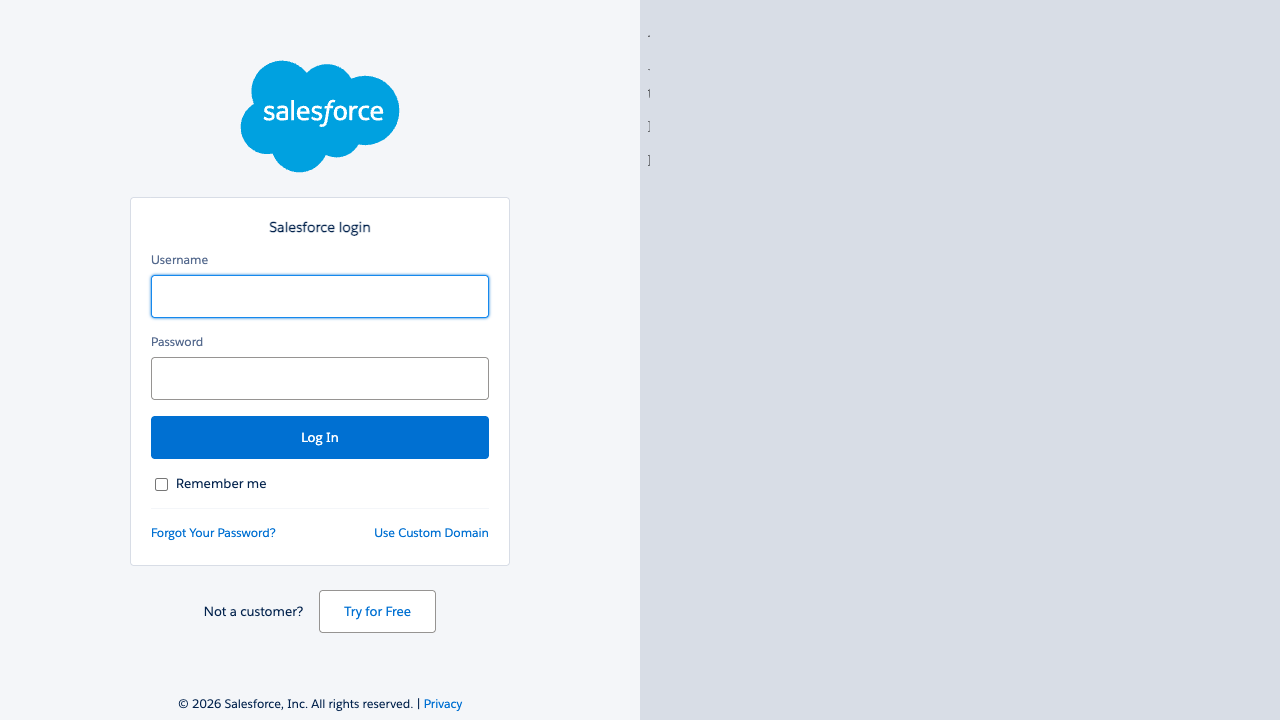
Note: Do not close the browser tab while the OAuth flow is in progress. After you authorize access, the provider redirects you back to https://link.wejam.ai automatically.
Step 3 - Confirm the Connected State
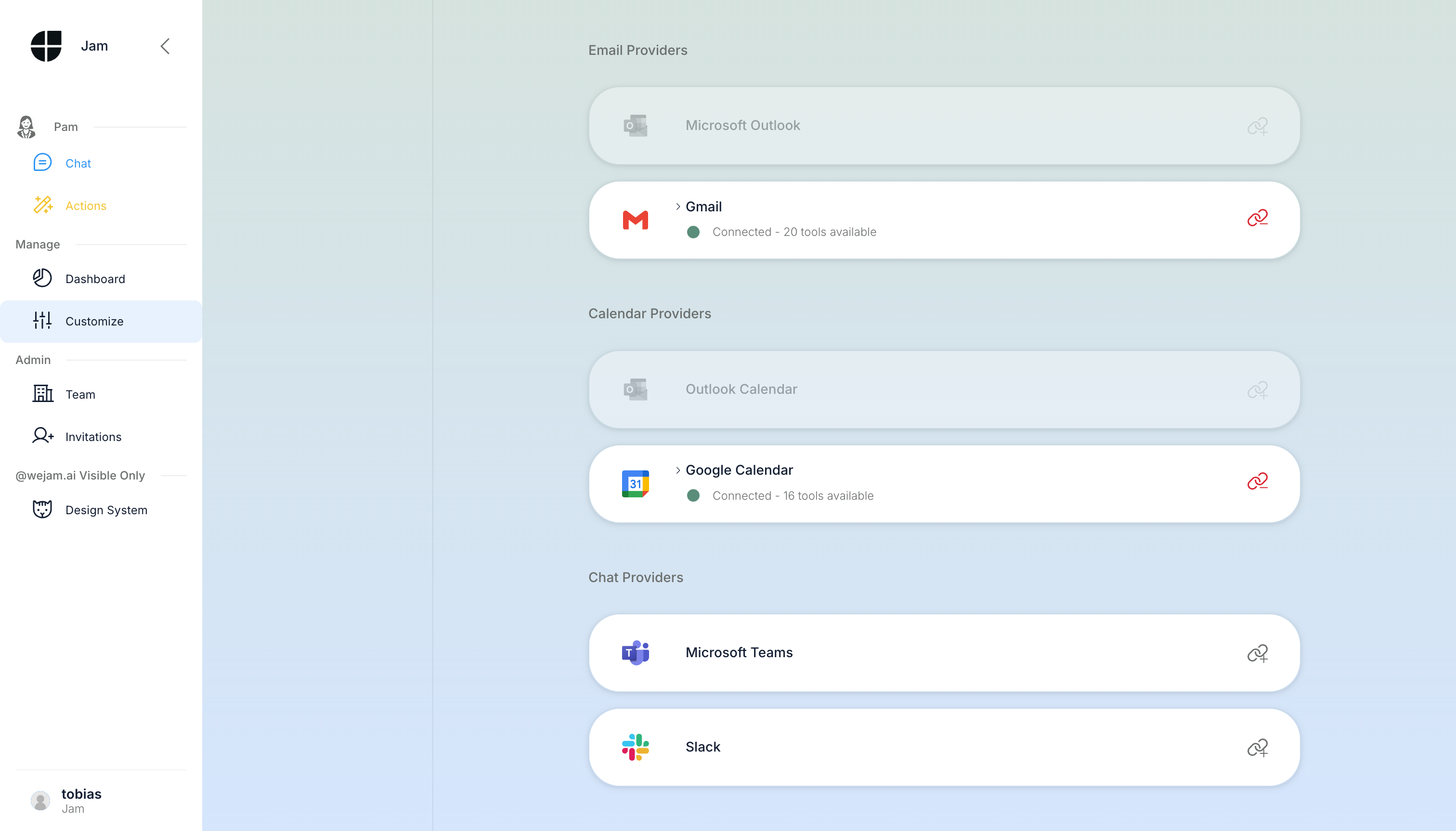
After successful authorization, the provider row updates to show a Connected chip with the number of available tools.
The Email and Calendar sections follow the same pattern:
Viewing Available Tools
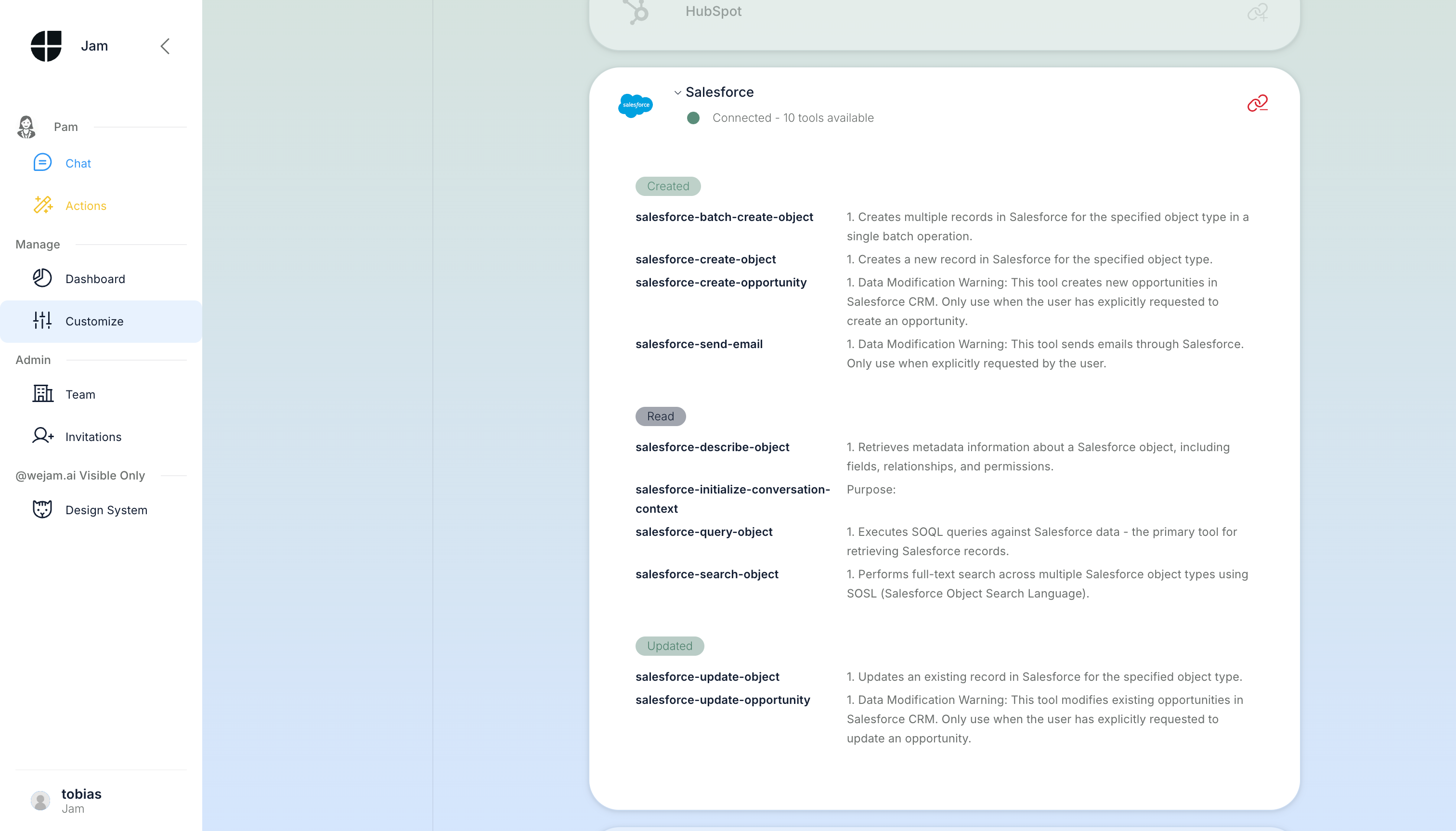
Click the provider row for any connected provider to expand the Tools panel. Tools are grouped into three categories:- Created - tools that write new Salesforce records, such as objects or opportunities
- Read - tools that retrieve Salesforce data, such as object metadata, SOQL queries, or SOSL search
- Updated - tools that modify existing Salesforce records, such as objects or opportunities
 Gmail’s 20 tools cover reading threads, searching mail, labeling messages, and creating drafts:
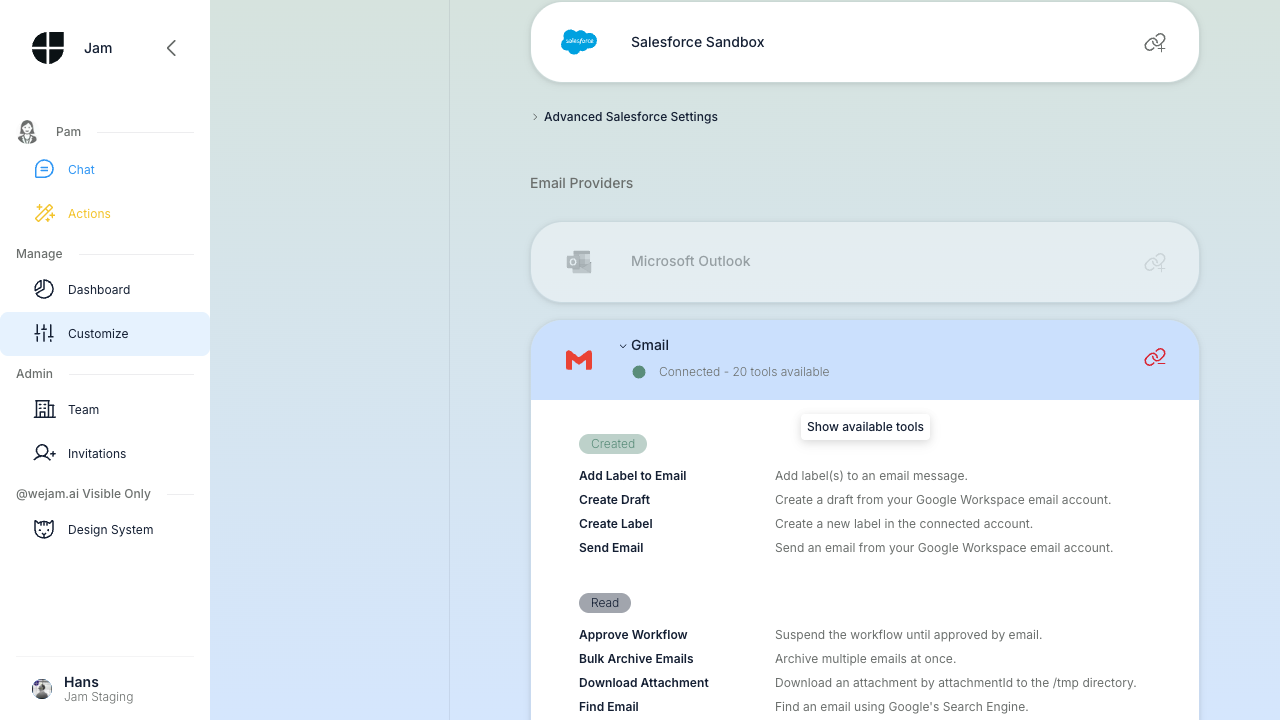 Tools are read-only in this view. Jam Assistant automatically gains access to all listed tools as soon as the provider is connected - no further configuration is needed.
Chat Providers
The Chat Providers section at the bottom of the Connections area lets you connect Slack or Microsoft Teams.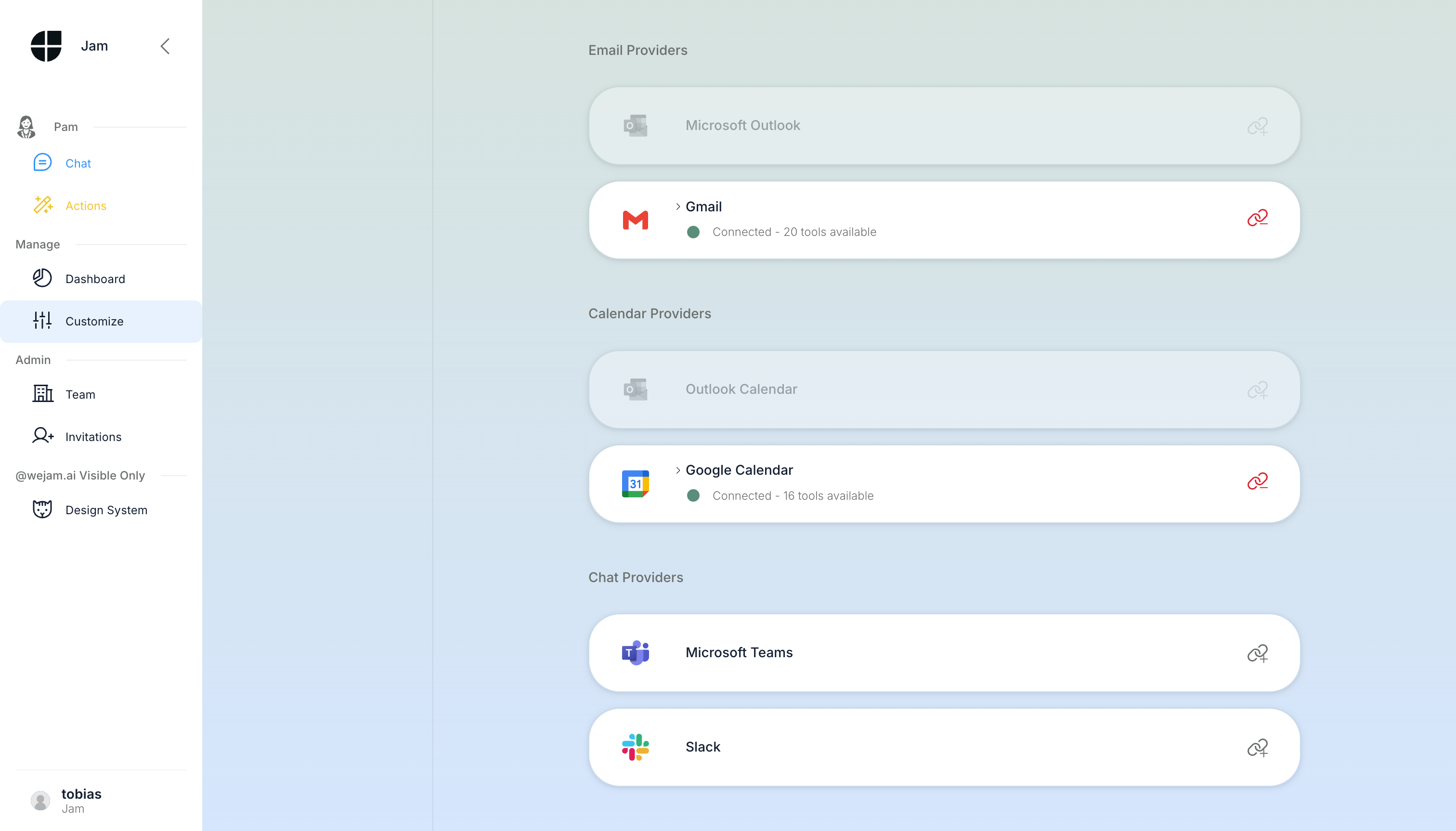 Connecting a chat provider allows Jam Assistant to send messages on your behalf to channels or direct messages from within a conversation.
Phone & WhatsApp
The top section of the Integrations page gives you three ways to reach Jam Assistant outside the web app:- WhatsApp - tap Message to open a WhatsApp conversation with Jam Assistant’s number
- Phonecall - tap the phone number to call Jam Assistant directly
- Speed Dial - scan the QR code to save Jam Assistant’s contact card
Saving Your Phone Number
Enter your mobile number in the Add your number to reach Jam Assistant via Phone field. Use international format with country code and no spaces, for example+4917123456789.
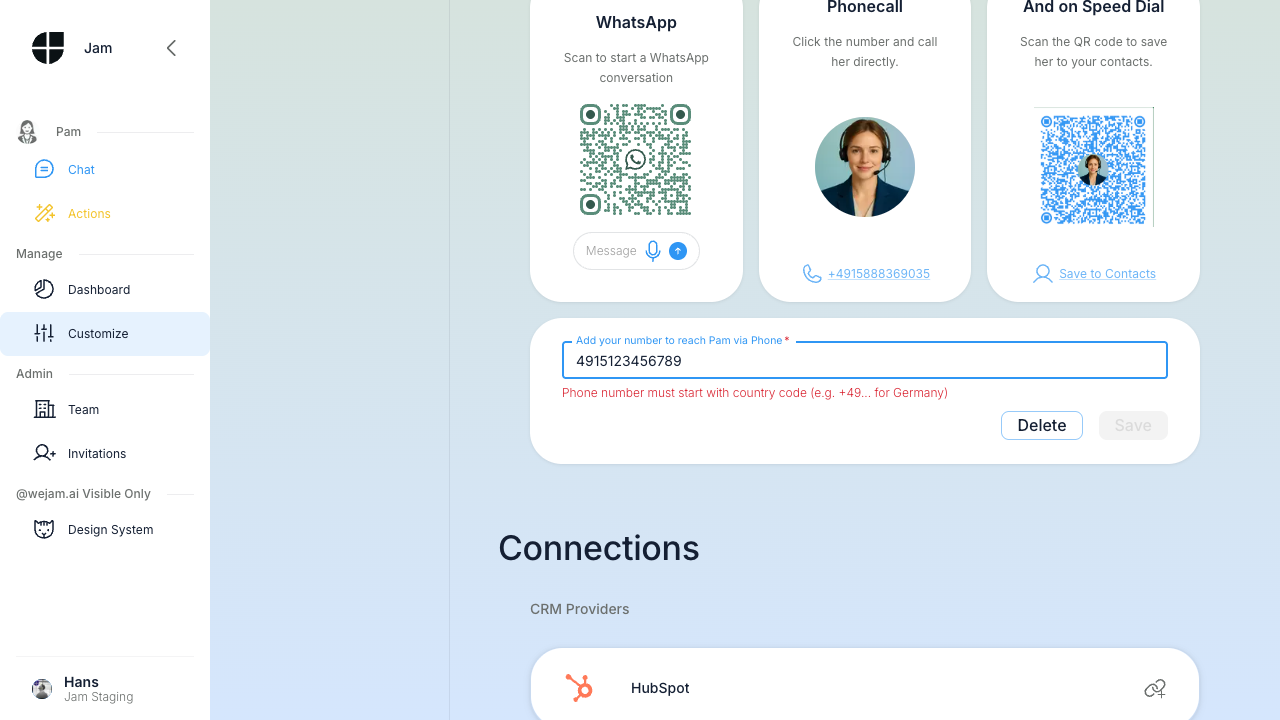 If the number does not start with a country code prefix such as
 +49, Jam Assistant shows a validation message and keeps Save disabled. Once the number is valid, click Save to confirm. Jam Assistant will use this number to identify you when you contact her via WhatsApp or phone. You can update or delete the number at any time using the Delete button beside the field.
Disconnecting a Provider
To remove a connection, hover over a connected provider row. A disconnect icon (broken chain link) appears on the right side of the row.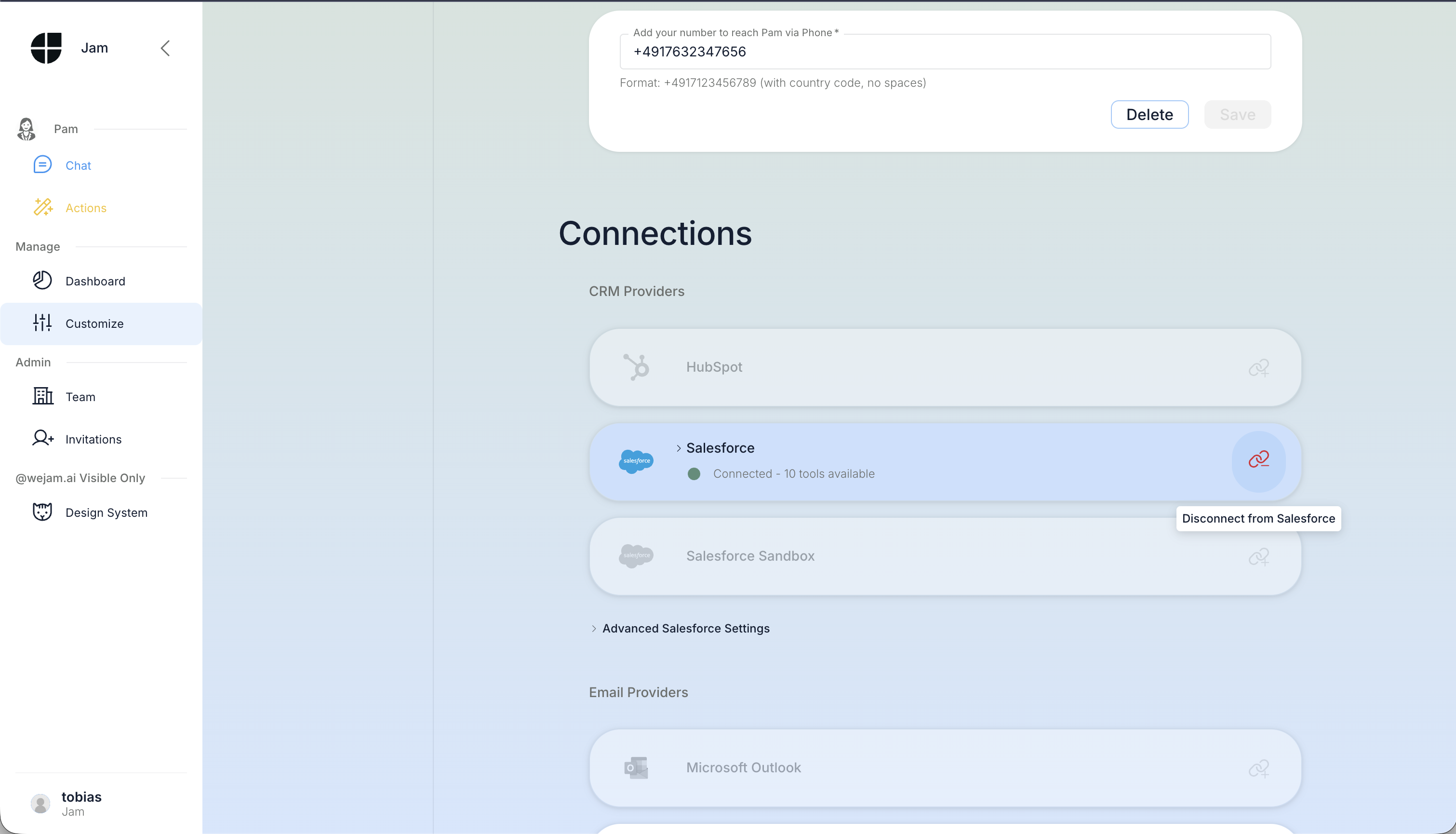 Click the disconnect icon to disconnect the provider. The provider returns to the unconnected state after the disconnect completes.
Note: Disconnecting a provider removes Jam Assistant’s access to all tools from that provider. Existing conversation history is preserved, but Jam Assistant cannot perform CRM or email actions until you reconnect.
All Provider States at a Glance
Once you have connected providers across multiple categories, the Connections section gives you a quick overview: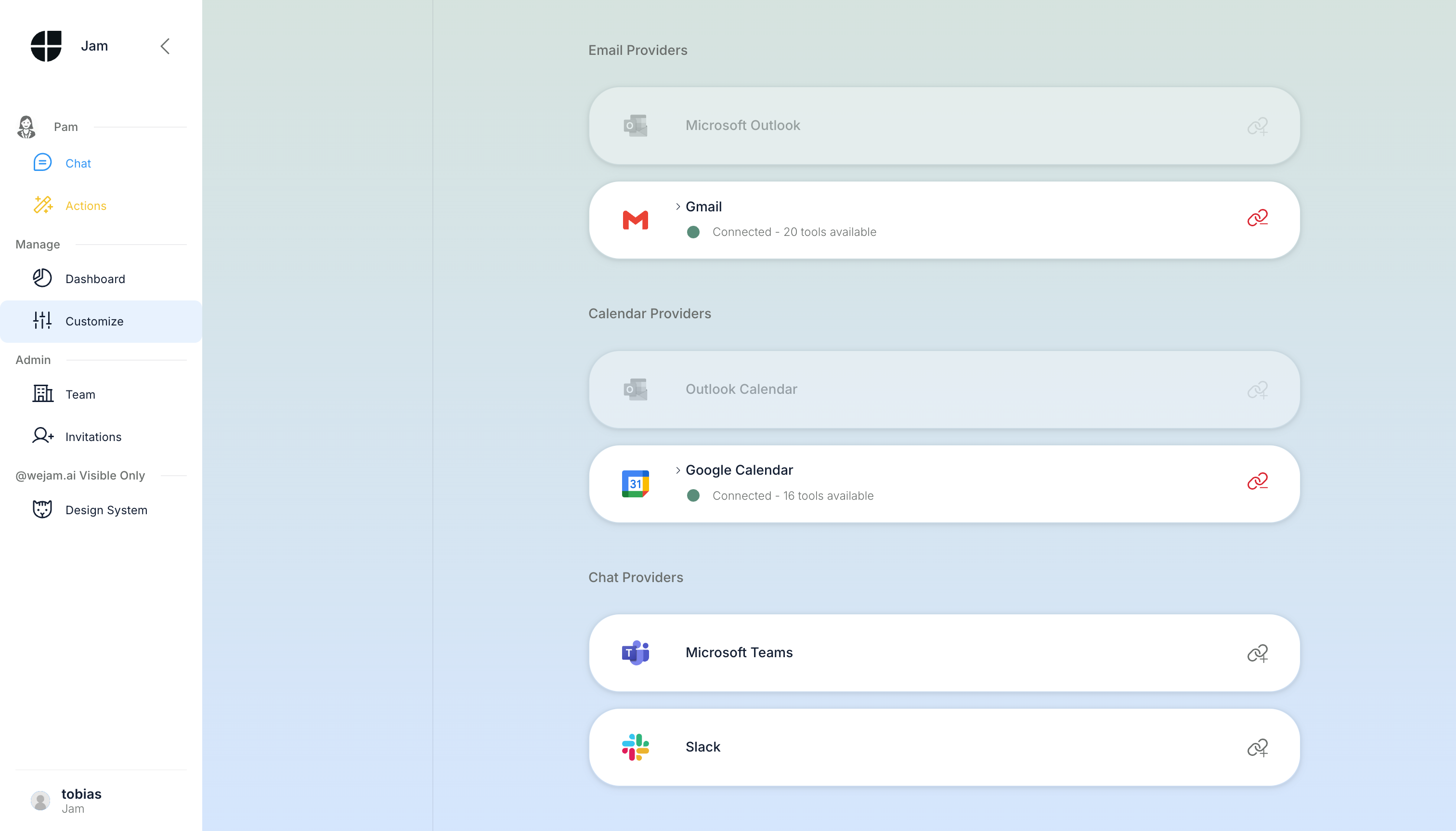
Best Practices
- Connect all four categories (CRM, Email, Calendar, Chat) to give Jam Assistant the full context she needs to assist with deals, meetings, and follow-ups.
- Use Salesforce Sandbox for testing and training before connecting your production Salesforce org.
- Reconnect after password changes - if you rotate your Google or Microsoft password, OAuth tokens may expire. Disconnect and reconnect the provider to refresh credentials.
- One provider per category - you cannot connect both Gmail and Outlook simultaneously. Disconnect one before connecting the other.
Troubleshooting
Related Documentation
- Allowlisting Jam Assistant in Salesforce - fixed IP address for IP-restricted Salesforce orgs
- Playbook - customize Jam Assistant’s behavior on top of your integrations
- WhatsApp - detailed WhatsApp channel setup
- Web Chat - see what Jam Assistant can do with connected tools