

Prerequisites
- A Jam Assistant account with at least one CRM integration connected (see Integrations)
- WhatsApp installed on your phone
- Your mobile number linked to Jam Assistant
Setup
Jam Assistant recognises you by your WhatsApp phone number. If your number is not linked yet, Jam Assistant sends you a link to connect it to your account.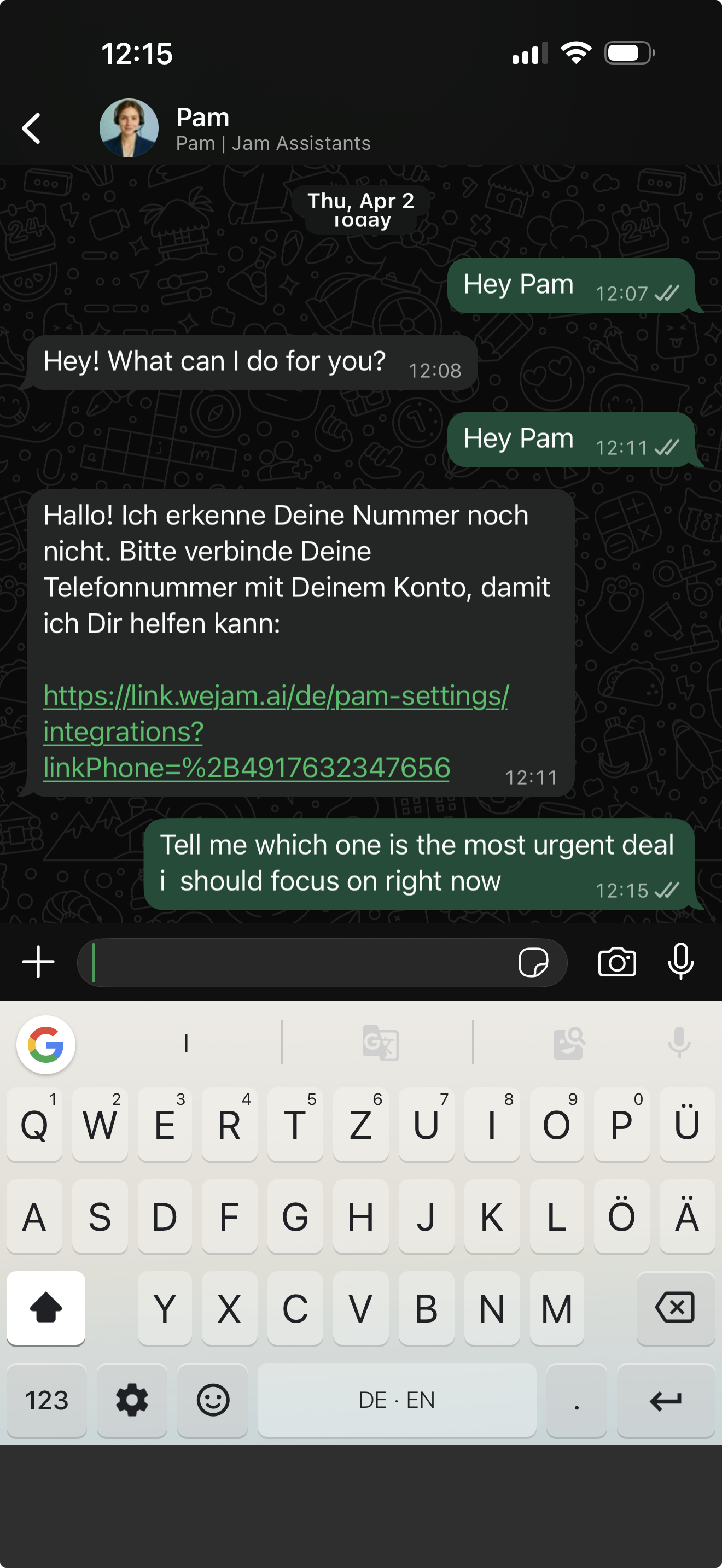 Open the link from WhatsApp while signed in to Jam Assistant. Jam Assistant opens Customize > Integrations and links the phone number automatically.
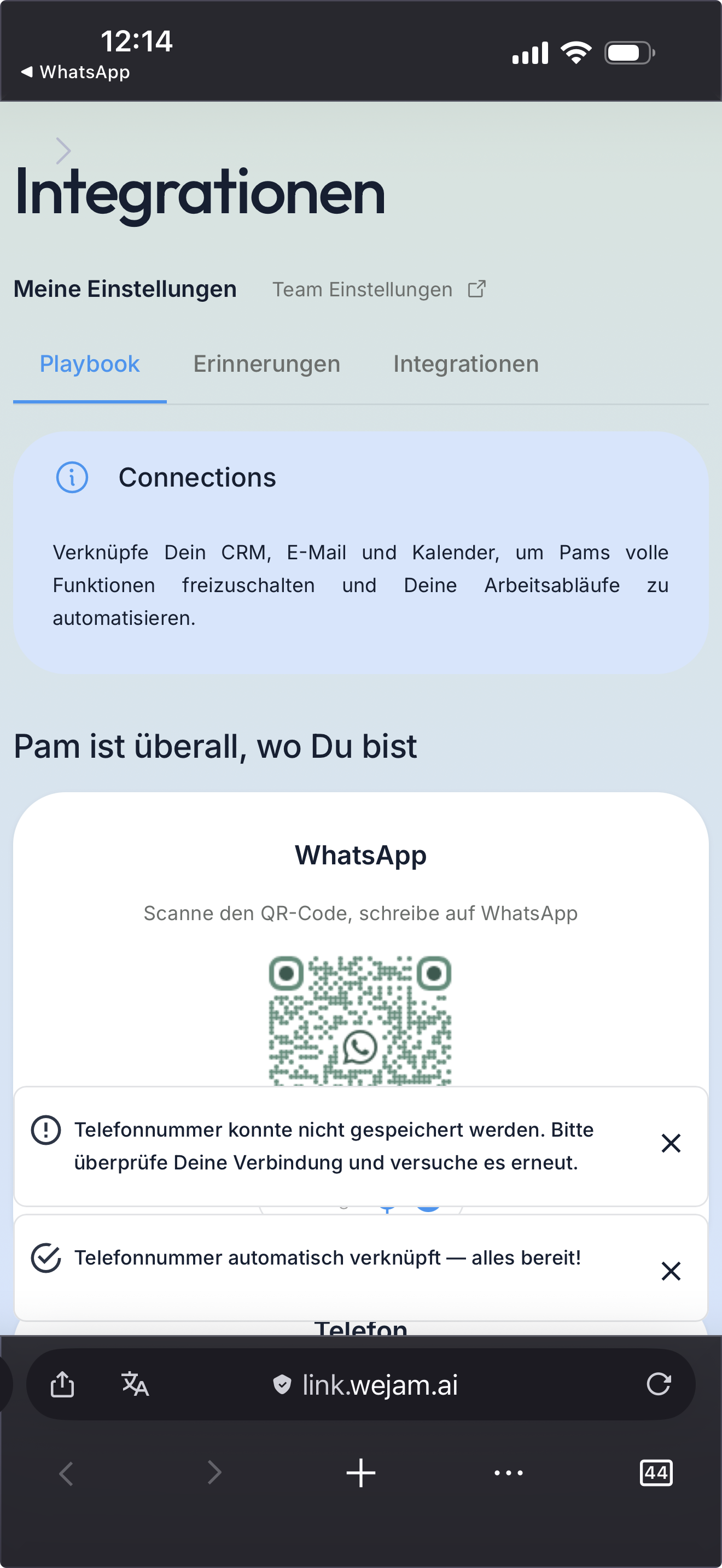 You can also link your number manually from Customize > Integrations in the Jam Assistant is everywhere you are section.
Asking CRM Questions
Ask Jam Assistant a question in plain language, the same way you would in web chat. Jam Assistant searches your CRM and replies directly in WhatsApp.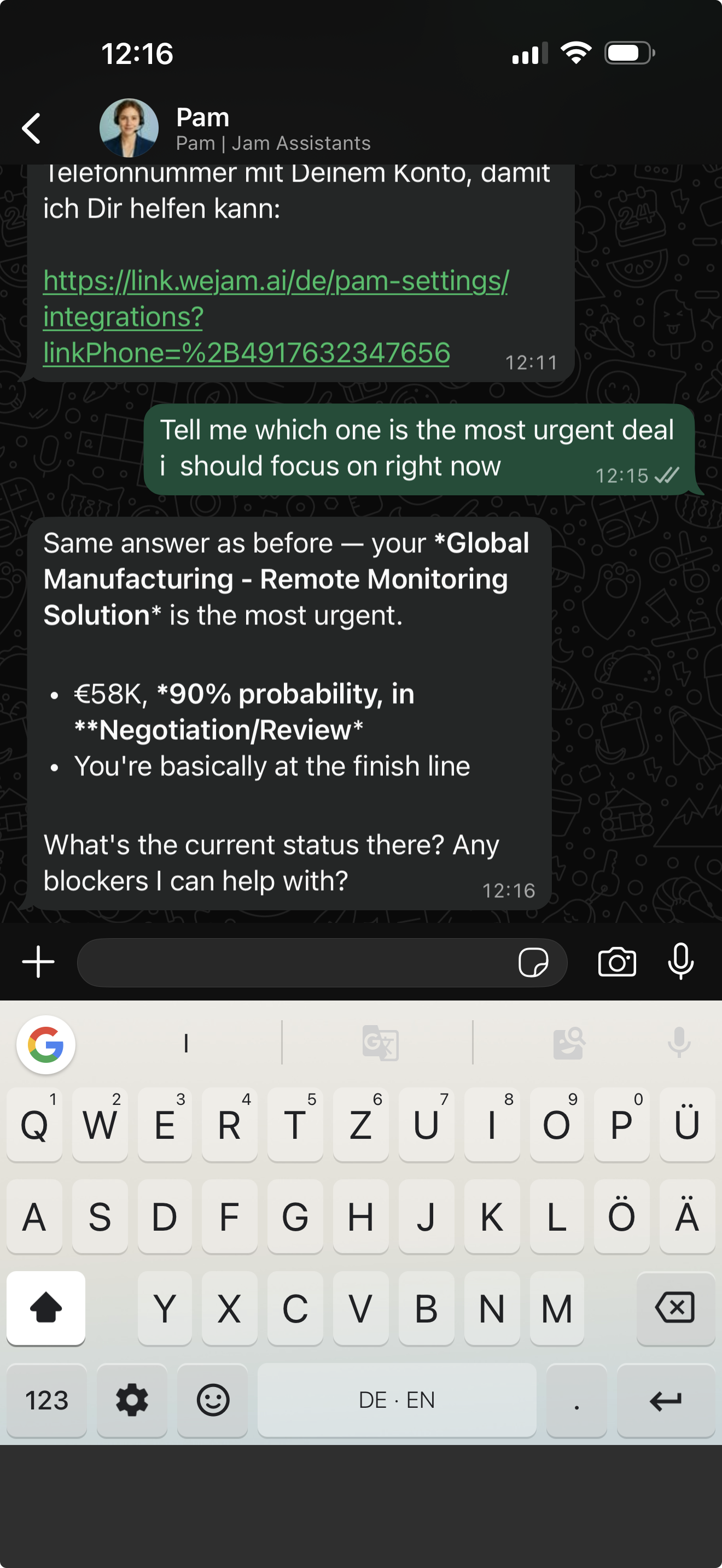 In this example, the rep asks which deal needs attention. Jam Assistant answers with the highest-priority opportunity, including amount, probability, stage, and a suggested next question.
Tip: Be specific when you can. “Which Global Manufacturing deal should I focus on?” is easier for Jam Assistant to answer than “which one is urgent?”
Sending Voice Notes
Record a WhatsApp voice note instead of typing. This is useful when you are walking between visits or want to capture a longer follow-up.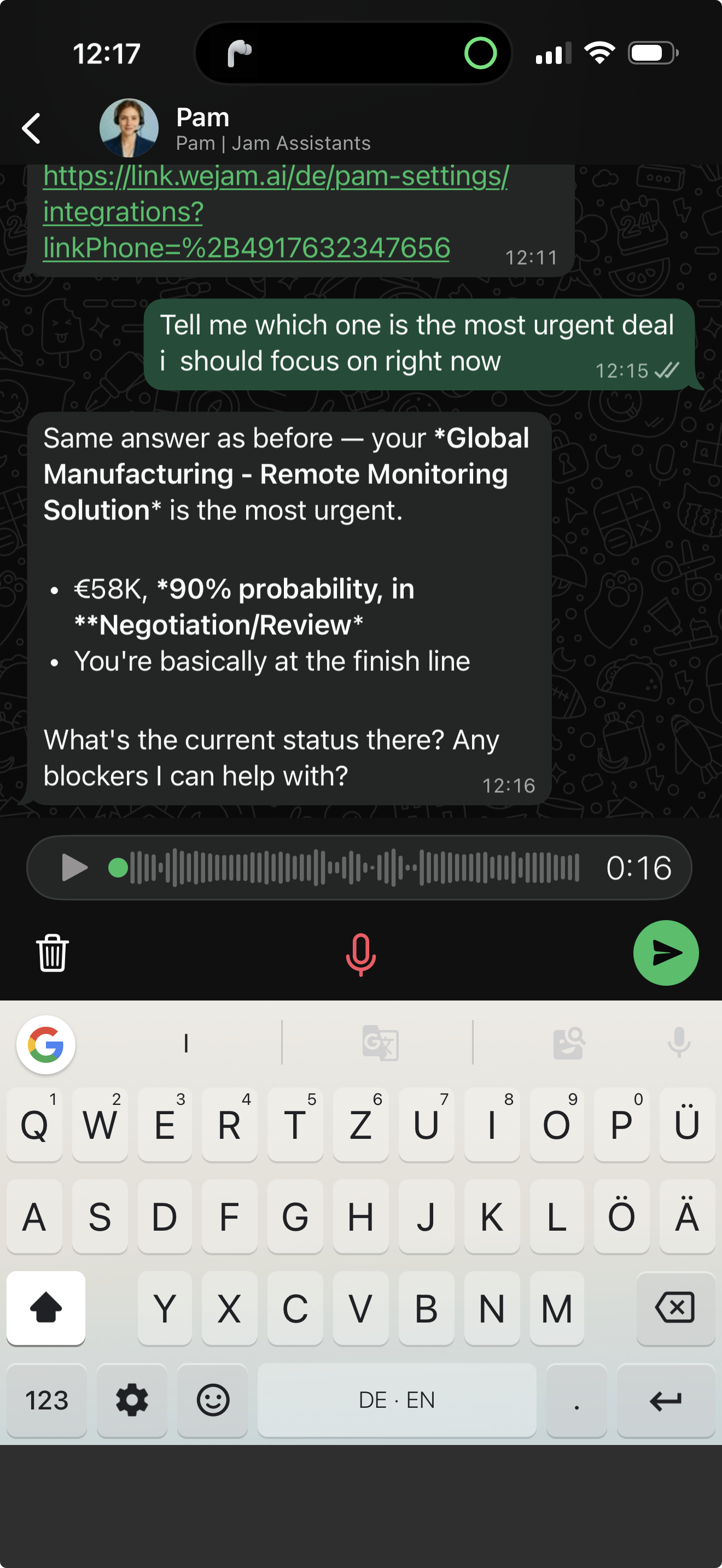 How it works:
- Hold the microphone icon in WhatsApp
- Speak naturally and include the CRM action you want Jam Assistant to take
- Review the recording if needed
- Tap Send
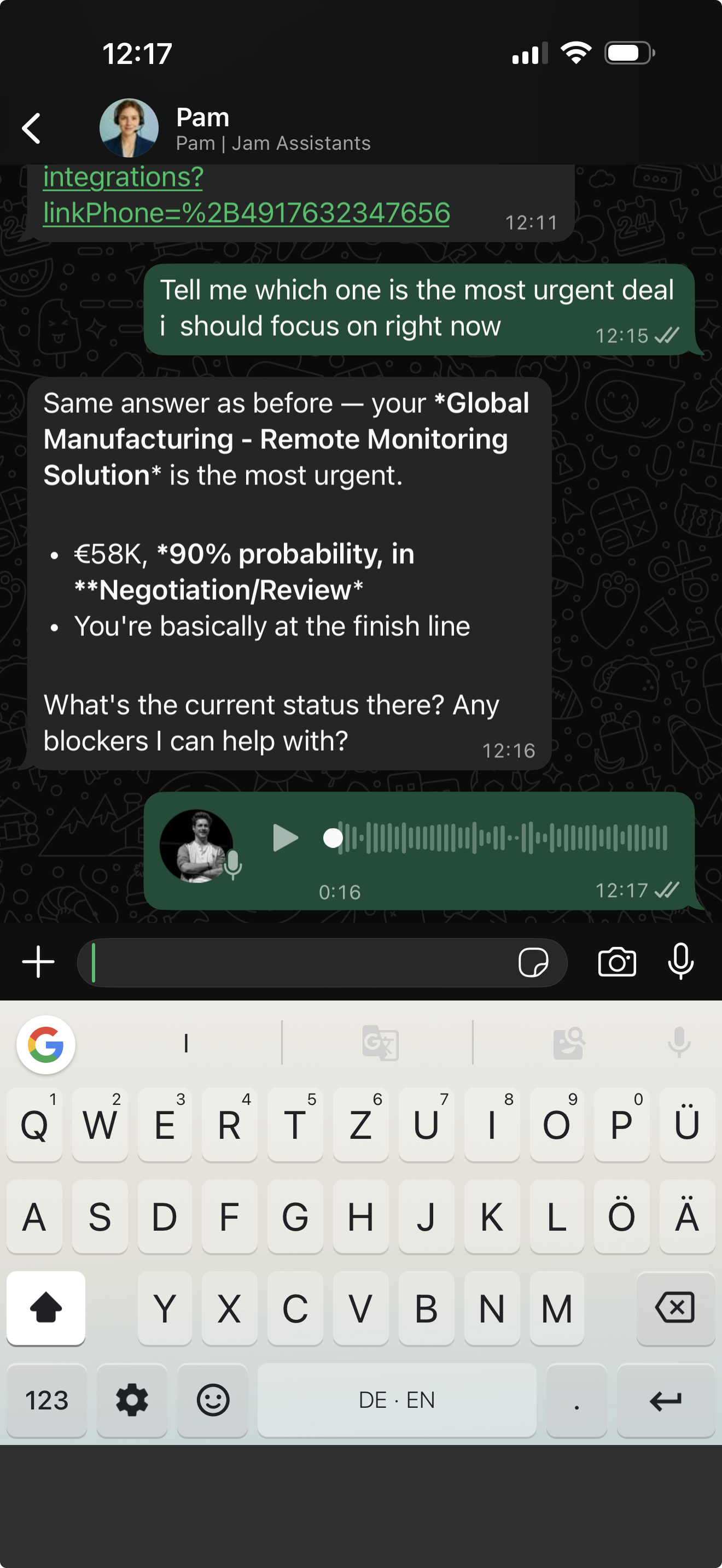 Jam Assistant transcribes the voice note, performs the requested action, and replies with the result.
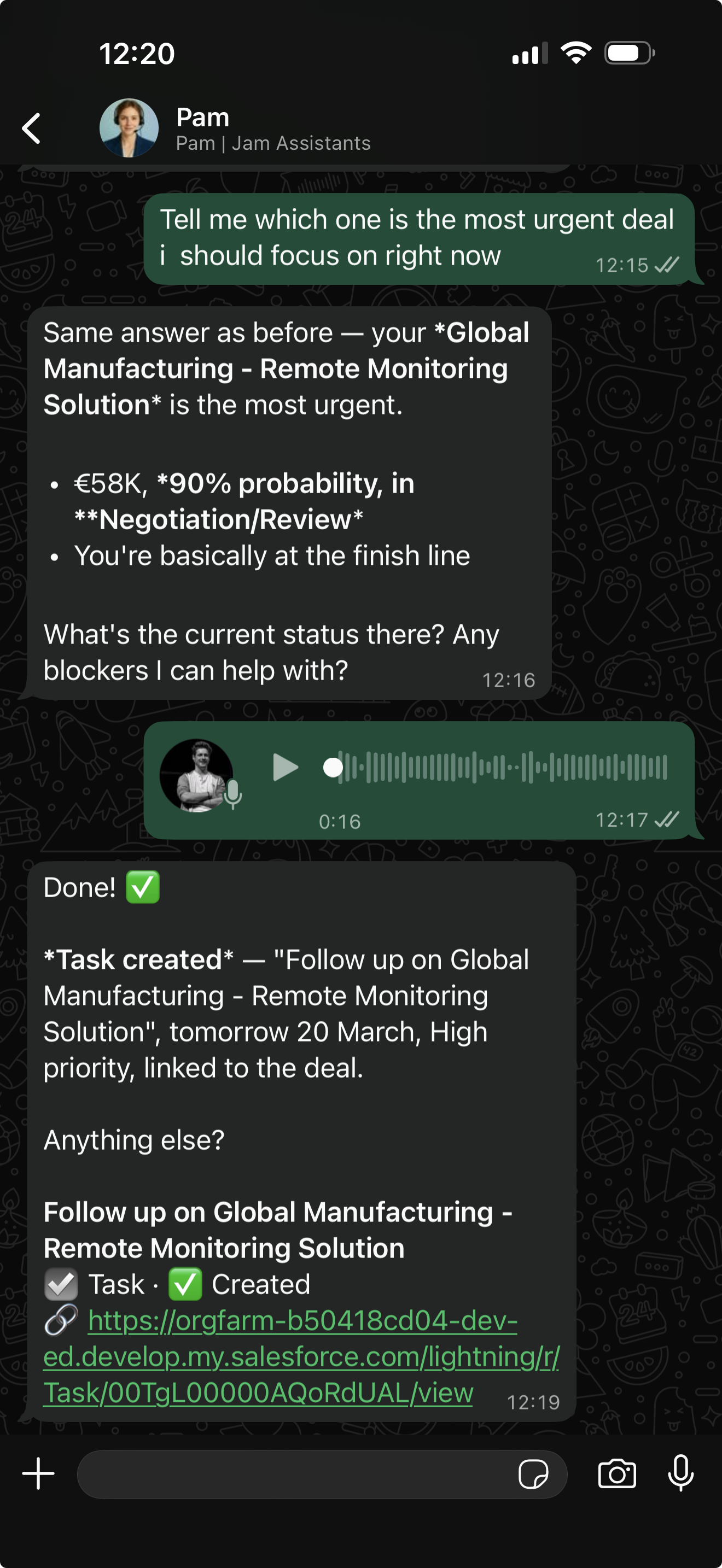 Here, Jam Assistant creates a high-priority follow-up task linked to the deal and includes a CRM link so you can open the task directly.
What Jam Assistant Can Do via WhatsApp
Everything available in web chat is available via WhatsApp:- Look up deals, contacts, and companies by name
- Update deal stages, amounts, close dates, and owners
- Log meeting notes and call summaries
- Create new contacts, tasks, and follow-up reminders
- Draft follow-up emails for your review
- Summarise account history and open items
How Sessions Work
WhatsApp conversations with Jam Assistant are persistent. Jam Assistant maintains context across messages in the same session. After discussing a deal, you can say “create a follow-up task for tomorrow” and Jam Assistant knows which deal you mean. Sessions also appear in your Chat History (the Actions page) with your web chat and voice sessions.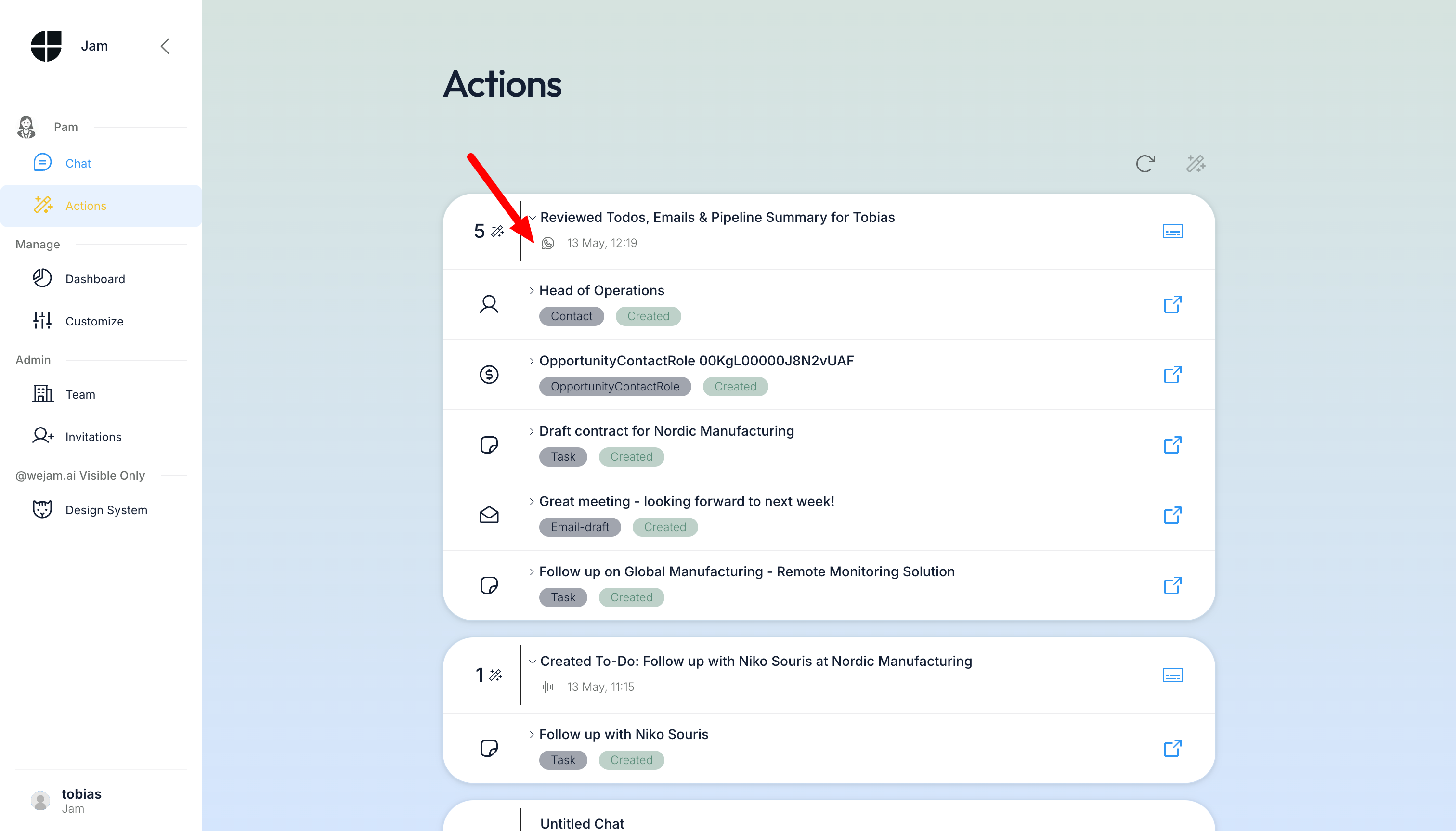
Best Practices
- Debrief immediately after meetings - before you start the car. The context is freshest and the update takes under a minute.
- Use voice for longer updates - voice messages are transcribed accurately and are faster than typing when you have a lot to say.
- Be specific with names - “TechStart” is better than “that startup I met today”. Jam Assistant searches your CRM by name.
- Ask Jam Assistant to confirm - end a debrief with “what did you update?” to get a summary of every CRM change made.
- Use slash commands - if you’ve defined a
/debriefcommand in your Playbook, it works on WhatsApp too. Just type/debrief.
Troubleshooting
Jam Assistant didn’t respond to my message WhatsApp messages are processed within a few seconds. If there’s no reply after 30 seconds, check your internet connection and try again. If the issue persists, check that your number is correctly registered in Customize > Integrations. Jam Assistant says it does not recognise my number Open the linking URL Jam Assistant sent in WhatsApp while signed in to the correct Jam Assistant account. If the automatic link does not complete, go to Customize > Integrations and link your number manually. Jam Assistant says it can’t find the deal or contact Be more specific with the name. If your CRM has multiple companies with similar names, include the full name or the country. You can also look up the exact name first: “Search for TechStart in HubSpot.” Voice message wasn’t transcribed correctly Speak clearly and include proper nouns (company names, contact names) slowly. If a name was misheard, correct it in a follow-up: “The company is TechStart, not Tech Start.” My WhatsApp session doesn’t appear in Chat History WhatsApp sessions appear in the Actions page after processing. If the session is missing, try refreshing the list. Sessions from unregistered numbers are not saved.Related Documentation
- Integrations - Register your phone number and connect your CRM
- Playbook - Define slash commands that work across WhatsApp, voice, and web chat
- Web Chat - The desktop equivalent of WhatsApp for Jam Assistant
- Voice Calls - Talk to Jam Assistant in the browser
- Telephony - Call Jam Assistant from any phone without WhatsApp
- Chat History - Review past WhatsApp sessions and CRM actions