

Personal Knowledge vs. Org Knowledge
There are two scopes, and where you manage each depends on which one:- Personal Knowledge (My Settings > Knowledge in link.wejam.ai) - visible only to you. Store your territory, key accounts, or preferences here. Fully editable in the Assistant app.
- Org Knowledge - shared across the whole organization; typically CRM schema and org-wide reference data. Managed by org admins at app.wejam.ai/assistant/memory. In the Assistant app, org admins see it as read-only under Org Settings > Org Knowledge, with a link across to the platform to make changes.
Managing Personal Knowledge
In My Settings > Knowledge, click any entry to expand it and view the content.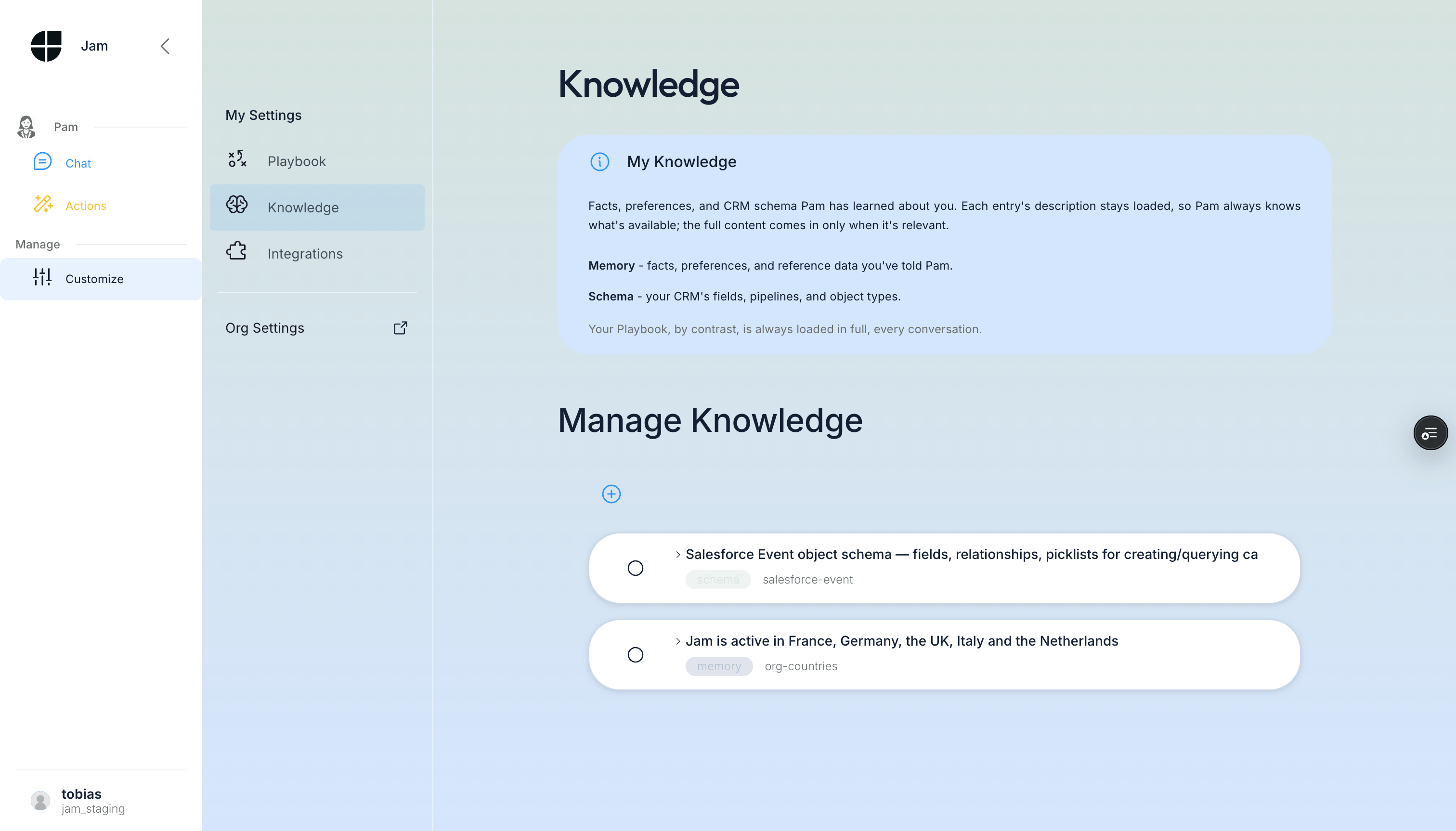
Adding a Knowledge Entry
- Click Add Memory
- Fill in the form:
- Type - Use
memoryfor anything you create by hand.schemaentries are normally produced by asking Jam Assistant to discover your CRM structure, so it’s best to let discovery create and refresh them - but you can create or hand-edit one yourself too, for example to fine-tune a proposal discovery got slightly wrong. - Unique Label - A machine-readable identifier (lowercase, hyphens only, e.g.
my-top-accounts). Cannot be changed after saving. - Description - A human-readable name shown in the list.
- Content - The actual knowledge you want Jam Assistant to remember.
- Type - Use
- Click Save - the entry appears immediately in your list.
What to store in personal Knowledge
Territory and account context:Editing or deleting an entry
Expand the entry, then use the Edit (pencil) or Delete (trash) button. The Unique Label can’t be changed after creation; everything else can. Deletion cannot be undone - if you want to temporarily disable an entry, clear its content instead of deleting it.Viewing Org Knowledge
Switch to Org Settings > Org Knowledge to see what your admin has shared with the whole org - typically CRM schema and org-wide reference data. This view is read-only in the Assistant app; a link takes admins to the platform to make changes.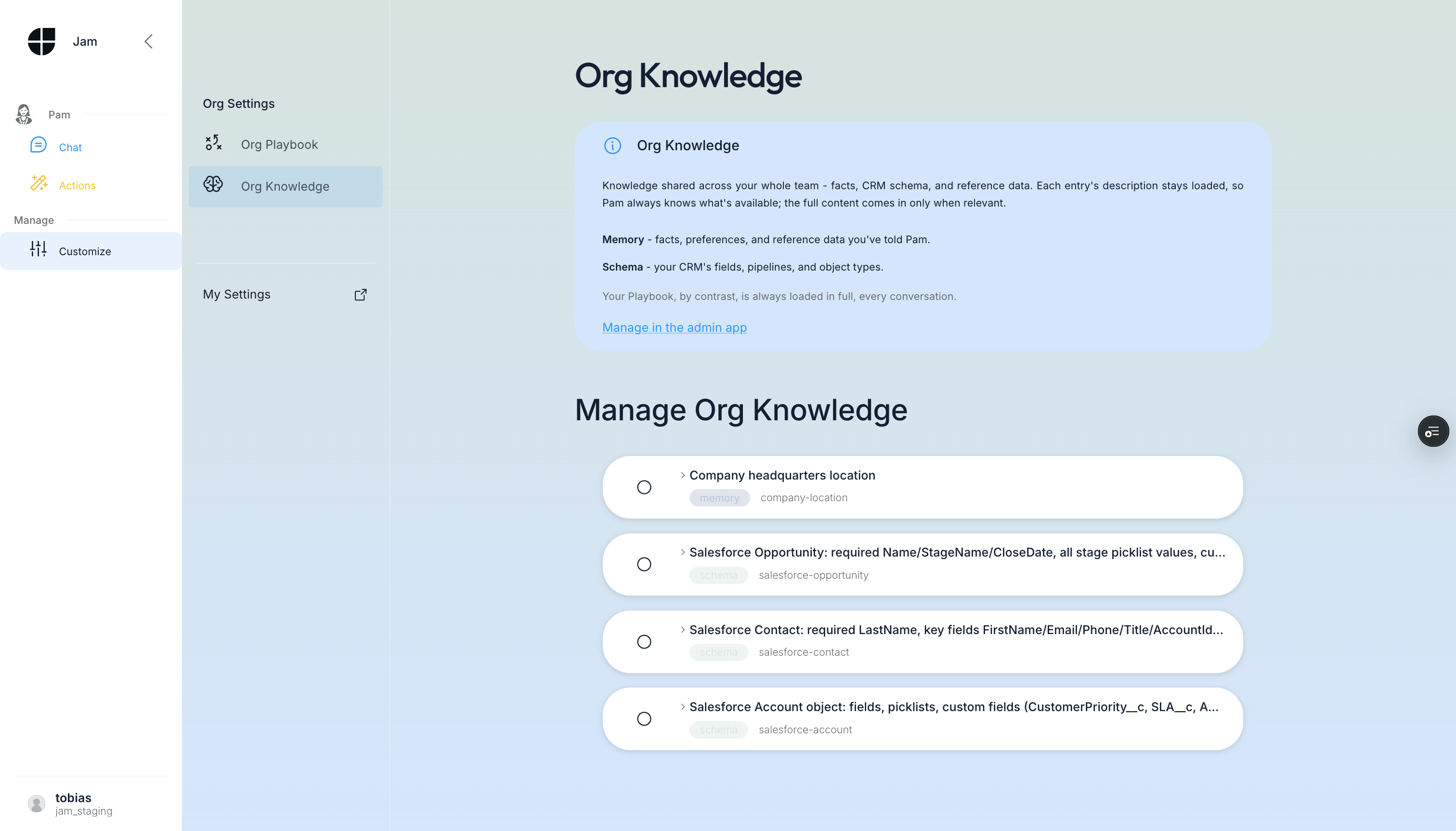
Managing Org Knowledge (admins, on the platform)
Org admins manage Org Knowledge at app.wejam.ai/assistant/memory, under Assistant > Manage > Org Knowledge: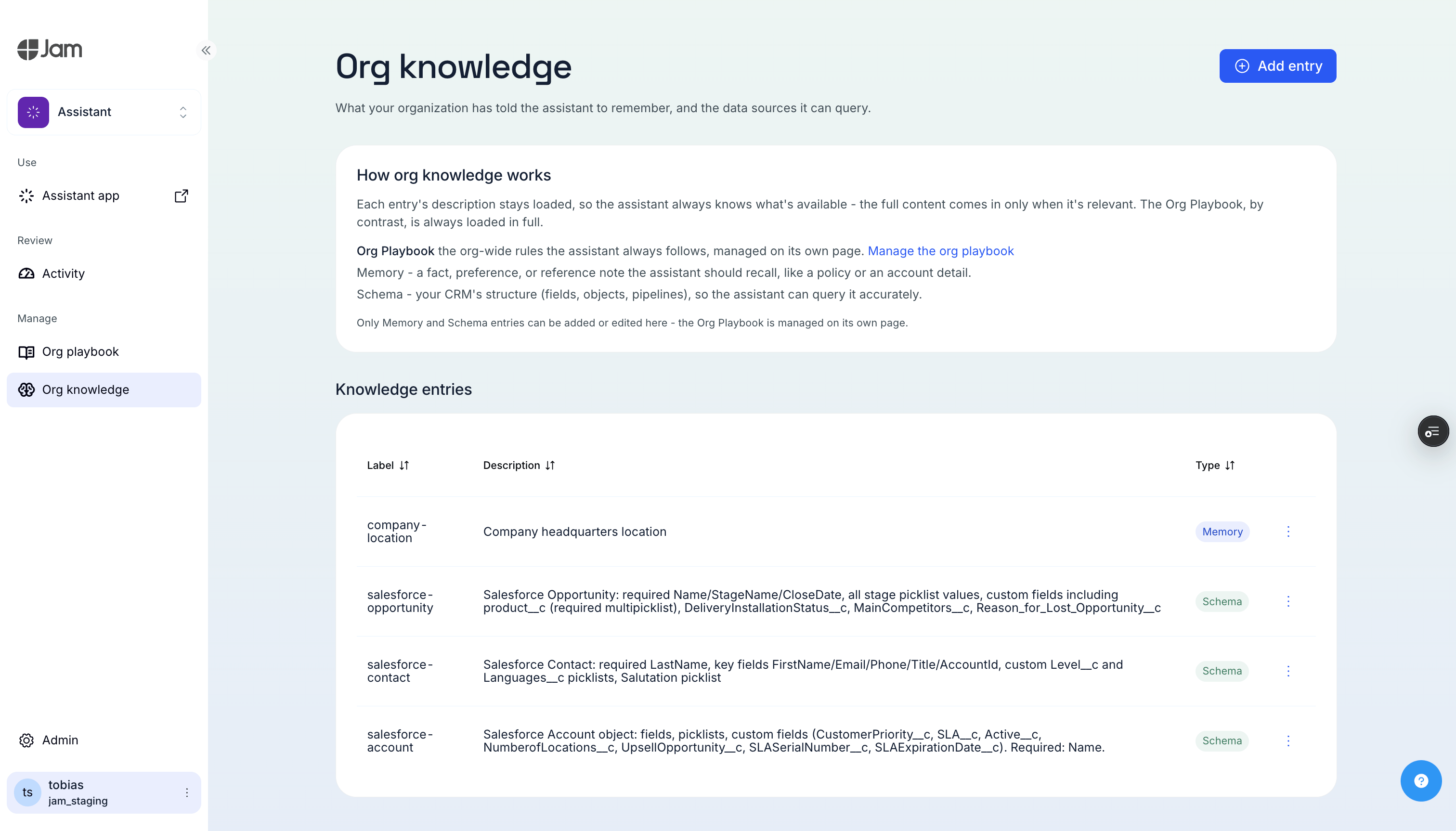
- Table of org-scoped entries with create, edit, and delete
- Only Memory and Schema entries can be created or edited here - the Org Playbook is managed on its own page
Example: a Schema entry
A Schema entry is a compact, structured writeup of one CRM object - not the raw field list, but the shape Jam Assistant needs to use it correctly (required fields, picklist values, custom fields, relationships). This is what discovery produces for a Salesforce Contact object:- Label:
salesforce-contact - Description:
Salesforce Contact: required LastName, key fields FirstName/Email/Phone/Title/AccountId, custom Level__c and Languages__c picklists, Salutation picklist - Content:
How Knowledge Loads
Both personal and Org Knowledge work the same way: every entry’s description stays loaded, so Jam Assistant always knows what exists. The full content of an entry loads only when a conversation actually needs it. This keeps every conversation fast, and it’s the key difference from your Playbook, which is small enough to stay loaded in full, every time.Best Practices
- Keep entries focused - “My territory” and “My key accounts” work better as two entries than one combined entry.
- Update seasonally - Personal entries like “my top accounts this quarter” need refreshing each quarter.
- Knowledge for facts, Playbook for rules - “My discount approval matrix is: up to 10% → manager…” belongs in Knowledge. “Always ask for approval before offering more than 10% discount” belongs in your Playbook.
- Check Org Knowledge before adding personal entries - if the fact is relevant to the whole team (product pricing, territory definitions), ask an org admin to add it at the org level instead.
Troubleshooting
Jam Assistant doesn’t seem to know about my custom CRM fields- Check Org Settings > Org Knowledge for schema entries. If they’re outdated or missing, ask an org admin to ask Jam Assistant to discover them - see Discovering Your CRM Schema.
- Make sure your HubSpot or Salesforce integration is connected (Customize > Integrations).
- An entry’s description stays loaded, but its full content loads on demand - Jam Assistant pulls it in when relevant, not in every message.
- Try asking directly: “What do you know about my top accounts?”
- Check that the entry’s content is clear and specific.
- Org Knowledge is admin-only, and even for admins it’s read-only inside the Assistant app - it’s managed on the platform. Ask an org admin to make the change at app.wejam.ai/assistant/memory.
Related Documentation
- Playbook - always-loaded rules for how Jam Assistant should behave
- Discovering Your CRM Schema - refresh your CRM structure after field or pipeline changes
- Integrations - connect HubSpot, Salesforce, email, and calendar
- Getting Started - initial setup and first conversation