

Overview
Note: This page documents the Actions screen - accessible from the sidebar under Jam Assistant > Actions. It is also referred to as “Chat History” throughout the app.Actions (Chat History) is your audit trail for every conversation Jam Assistant has had across all channels - web chat, voice calls, and WhatsApp. It shows which CRM records were created, updated, or deleted in each session, with direct links to the changed records in your CRM. Field service reps use it to verify that Jam Assistant correctly updated HubSpot or Salesforce after a call, and managers use it to audit CRM data quality over time.
Prerequisites
- You must be logged in to Jam Assistant at https://link.wejam.ai
- At least one conversation session must exist (Jam Assistant must have been used at least once)
- CRM actions are only shown for sessions where Jam Assistant performed a create, update, or delete in your CRM
Viewing Your Chat History
Step 1: Navigate to Actions
In the left sidebar under the Jam Assistant section, click Actions. This takes you to the Actions page - the central log of all past sessions.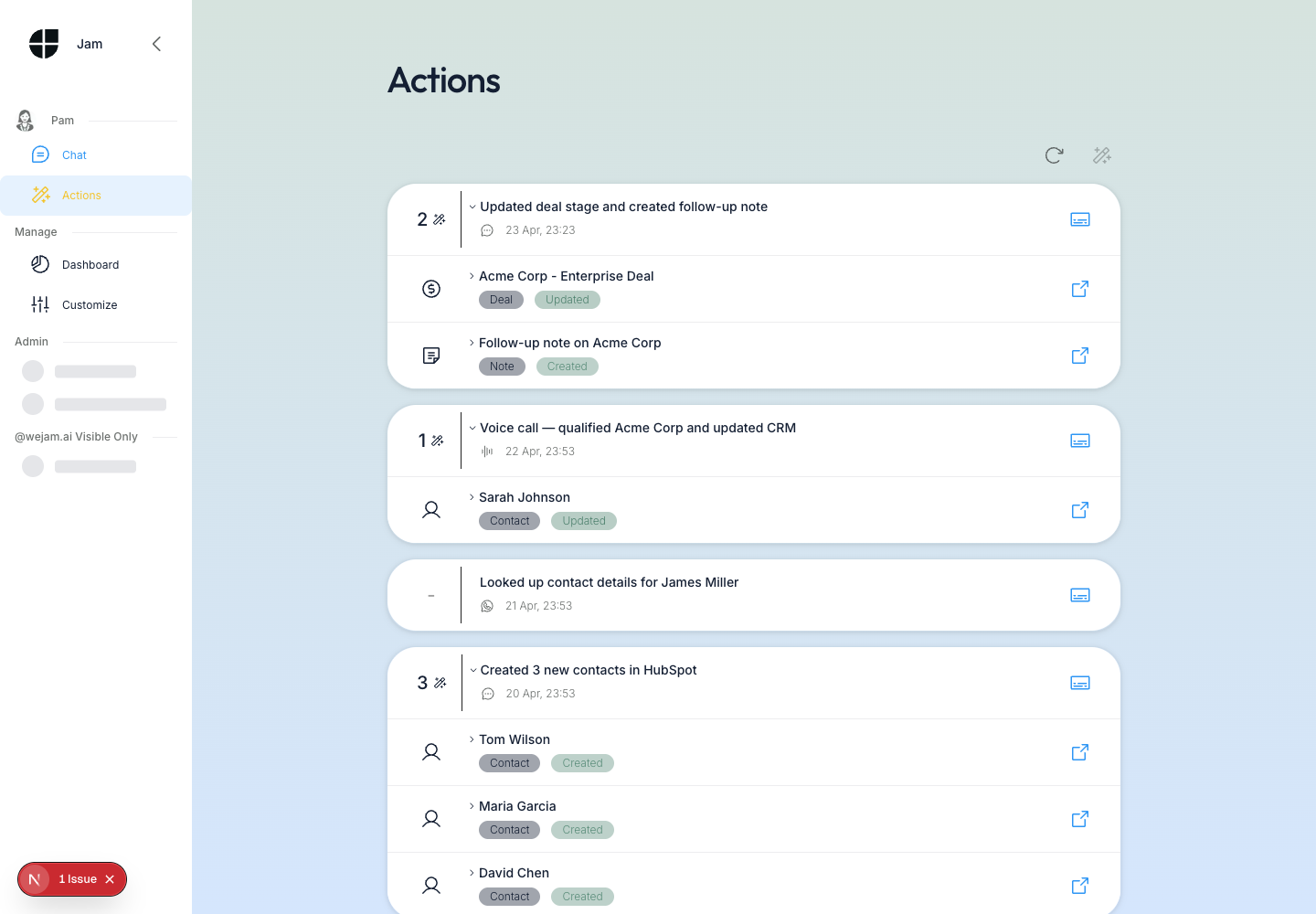 Each session card shows:
- Action count - the number in the top-left (e.g. “2”, “1”, “3”) followed by the magic wand icon. A dash (”-”) means no CRM actions were performed.
- Session title - auto-generated by Jam Assistant summarising what was done (e.g. “Updated deal stage and created follow-up note”).
- Channel icon - a chat bubble for web text chat, a waveform for voice calls, and the WhatsApp logo for WhatsApp sessions.
- Timestamp - when the session was last active.
- CRM action cards - each action is listed directly below the session header, showing the resource name, object type badge (e.g. Deal, Contact, Note), and status badge (Created, Updated, Deleted).
- Open in CRM icon - a small external link icon on each action card that opens the changed record directly in your CRM.
- See session details icon - an icon on the session header row that reopens the full conversation in the chat view.
Step 2: Understand the Session List Layout
Sessions are sorted most-recent first. Each session group consists of:- A session header card with the title, channel icon, timestamp, and action count.
- Action cards nested below, one per CRM change Jam Assistant made. Action cards can be expanded by clicking them to reveal the full CRM response data.
Filtering with View Mode
The magic wand icon button in the top-right corner of the Actions page toggles between two view modes.Show All (default)
All sessions appear in the list, regardless of whether Jam Assistant performed any CRM actions.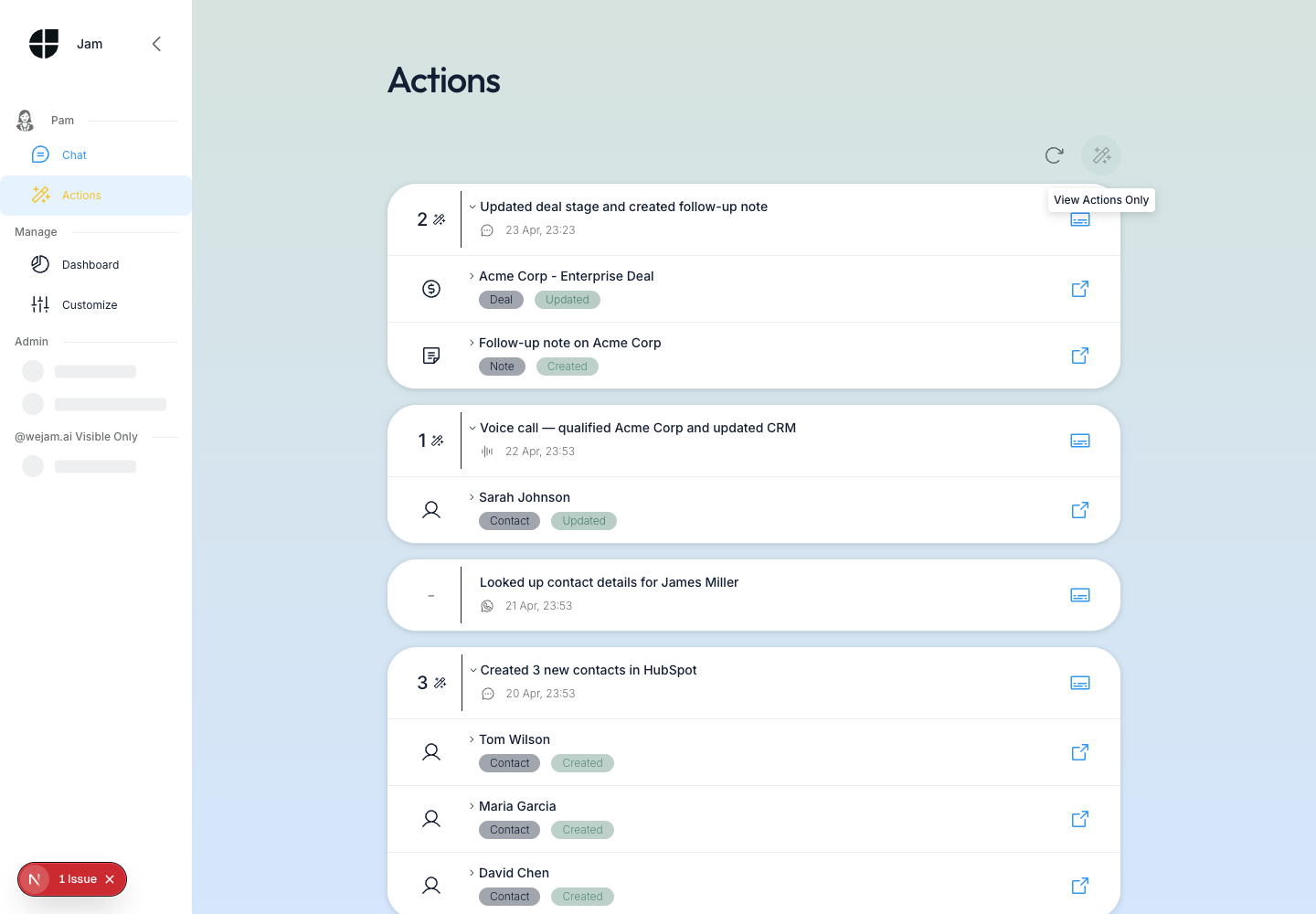 When you hover over the toggle button in Show All mode, the tooltip reads View Actions Only - indicating what will happen when you click.
View Actions Only
Click the magic wand toggle to switch to View Actions Only mode. Sessions with no CRM actions are hidden, leaving only the sessions where Jam Assistant made changes to your CRM. This is the fastest way to audit what Jam Assistant has changed.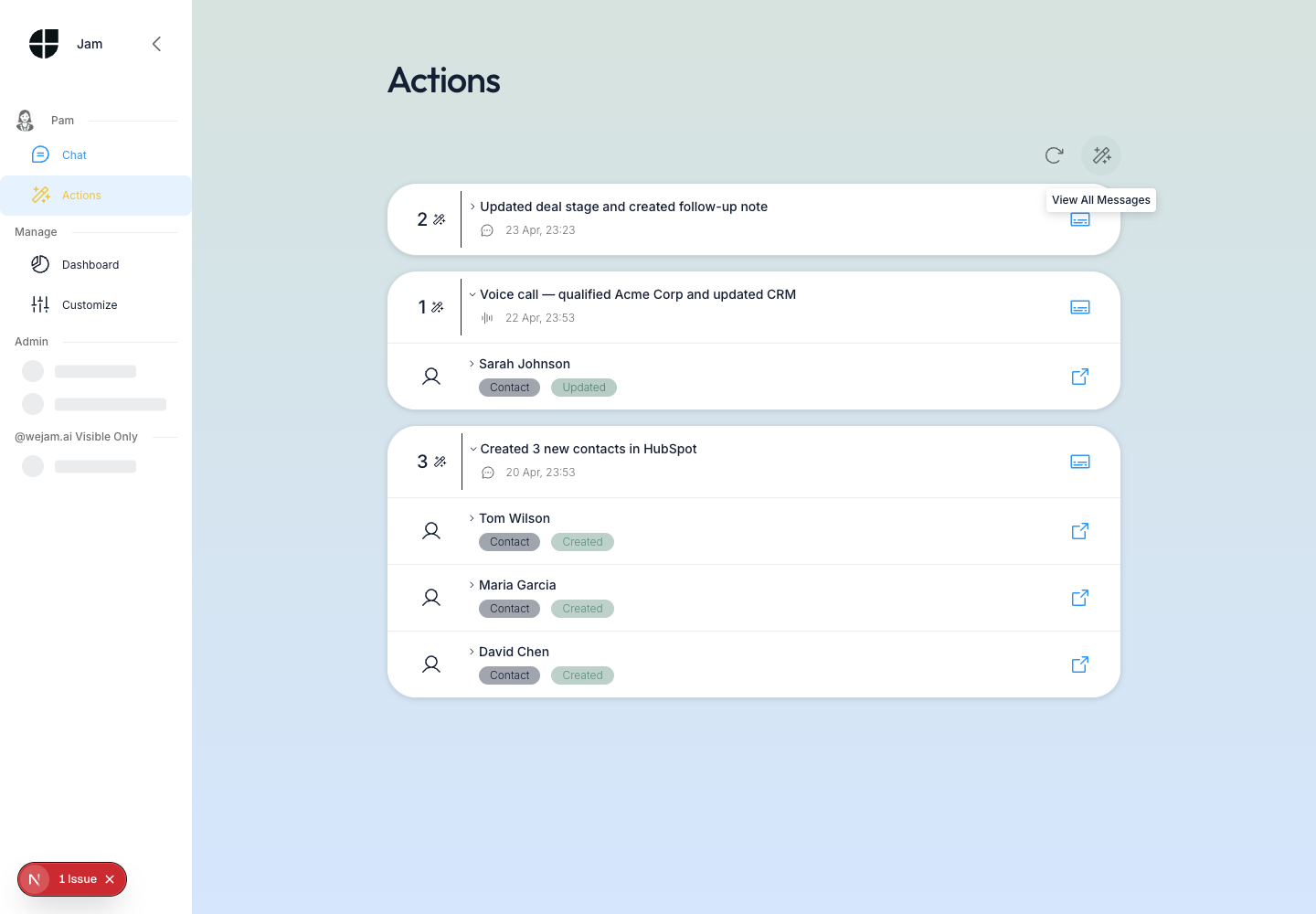 Notice that the WhatsApp session (“Looked up contact details for James Miller”) is no longer visible - it had no CRM actions, so it is filtered out. When in View Actions Only mode, the toggle tooltip changes to View All Messages, letting you return to the full list.
Reviewing CRM Actions from a Session
Each action card below a session header represents a single CRM operation. Action cards display:- Object icon - indicates the CRM object type (deal coin icon for deals, person icon for contacts, document icon for notes)
- Resource name - the exact name of the record that was changed (e.g. “Acme Corp - Enterprise Deal”, “Sarah Johnson”, “Tom Wilson”)
- Object type badge - grey badge showing the CRM object type (e.g. Deal, Contact, Note)
- Status badge - colour-coded badge showing Created (green), Updated (blue), or Deleted (red)
- Open in CRM link - an external link icon on the right that opens the record in your CRM
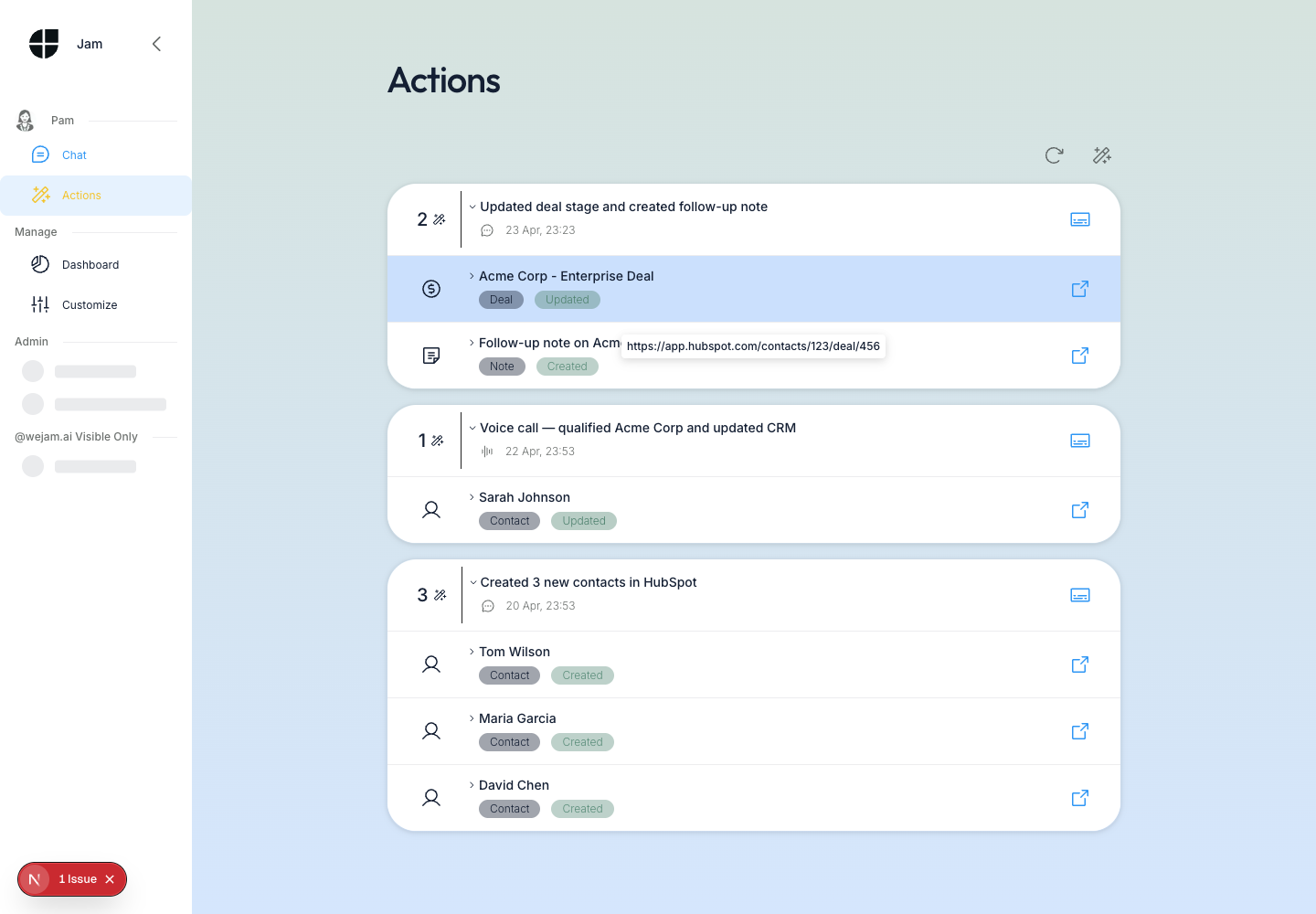 When you hover over the external link icon on an action card, the full CRM URL appears as a tooltip (e.g.
 https://app.hubspot.com/contacts/123/deal/456). Clicking that icon opens the record directly in HubSpot or Salesforce in a new tab.
You can click any action card row to expand it and view the full API response data, including resource metadata and the raw JSON response from your CRM.
Refreshing the Session List
The Refresh button (circular arrow icon) in the top-right corner reloads the session list from the server.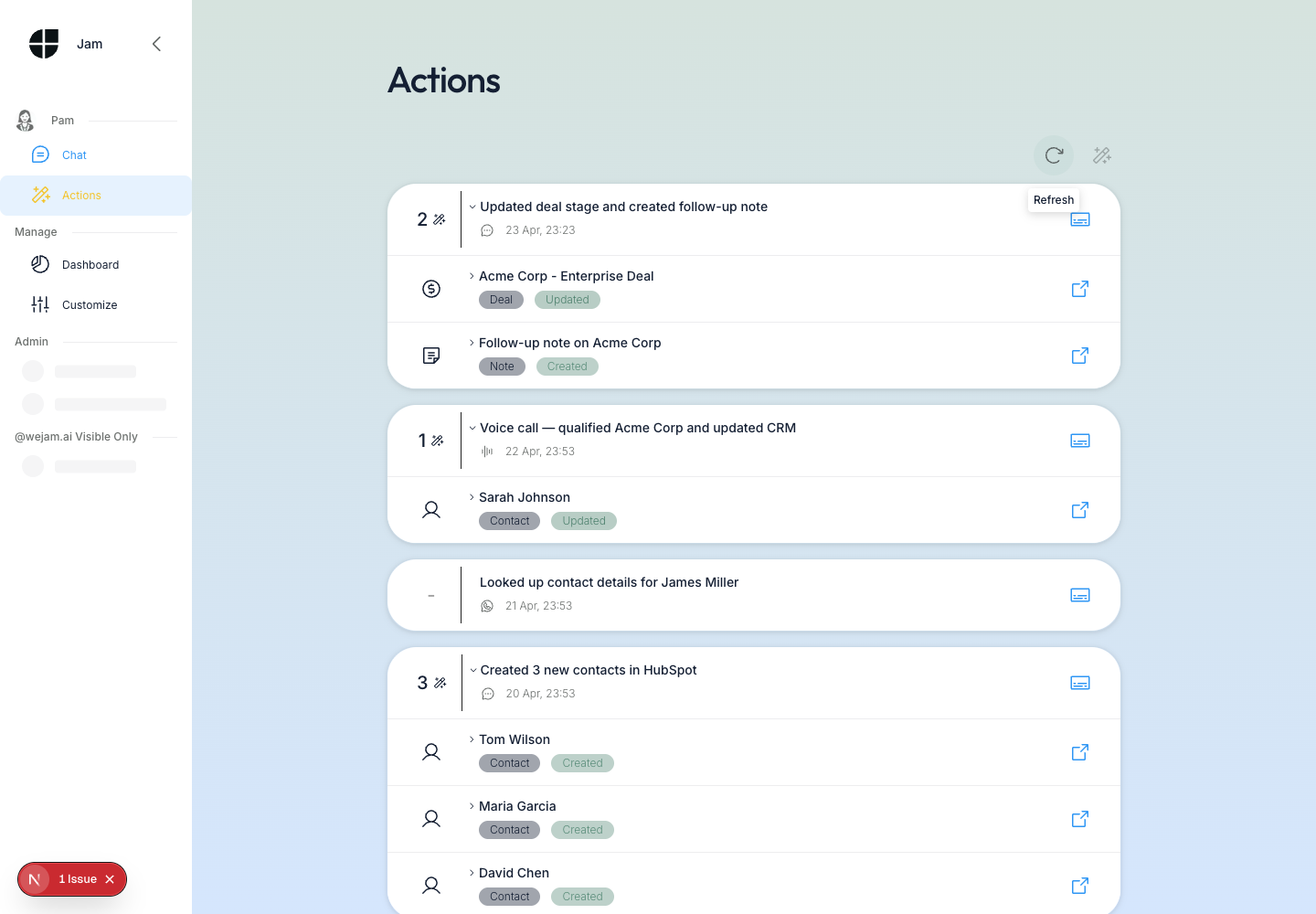 Use the refresh button when:
- You just finished a voice call and are waiting for the call summary title to appear
- You sent a WhatsApp message and want to check if it has been processed
- You believe a new session should be visible but the list has not updated
Best Practices
- Audit after calls - After every voice call, open Actions to confirm Jam Assistant correctly updated the CRM records you asked about. If a record is missing, you can go back to the chat and ask Jam Assistant to make the change again.
- Use “View Actions Only” for CRM audits - When reviewing data quality at the end of the day, switch to View Actions Only to focus only on sessions where Jam Assistant made changes. This removes lookup-only sessions from the view.
- Click through to the CRM record - The external link on each action card opens the exact record that was changed. Compare the values in your CRM with what Jam Assistant reported to catch any discrepancies.
- Check processing sessions - If a session shows no title, it is still being summarised. Click Refresh after a minute or two to see the completed title.
Troubleshooting
A session is missing from the list Sessions appear in reverse chronological order. If a session is not visible, it may have been from a different channel (check the channel filter or scroll down). Voice call sessions may take a minute or two to appear after the call ends - use the Refresh button. An action card shows no CRM link This means Jam Assistant performed the action but the CRM record did not return a URL. This can happen with some CRM object types. Click on the action card to expand it and inspect the full JSON response to find the record ID, then look it up manually in your CRM. The session list is empty If you see “No chat sessions found”, you have not yet had any conversations with Jam Assistant. Start a chat in the Chat view, ask Jam Assistant to do something in your CRM, then return to Actions. A WhatsApp session does not show WhatsApp sessions are only visible in Show All mode. If you are in View Actions Only mode, WhatsApp sessions without CRM actions will be hidden. Click the magic wand toggle to switch to Show All.Related Documentation
- Getting Started - First steps with Jam Assistant
- Playbook - What Jam Assistant can do in your CRM
- Web Chat - Using Jam Assistant’s text chat interface
- Voice Calls - Calling Jam Assistant from your browser
- WhatsApp - Messaging Jam Assistant via WhatsApp