

Overview
The demo is designed for two purposes:- First-time users who want to understand what Jam Assistant can do before connecting their CRM
- Sales managers and admins who want to onboard new team members with a hands-on example
Where to Find It
From the user menu
Click your name or avatar in the bottom-left corner of the sidebar to open the user menu, then select Demo.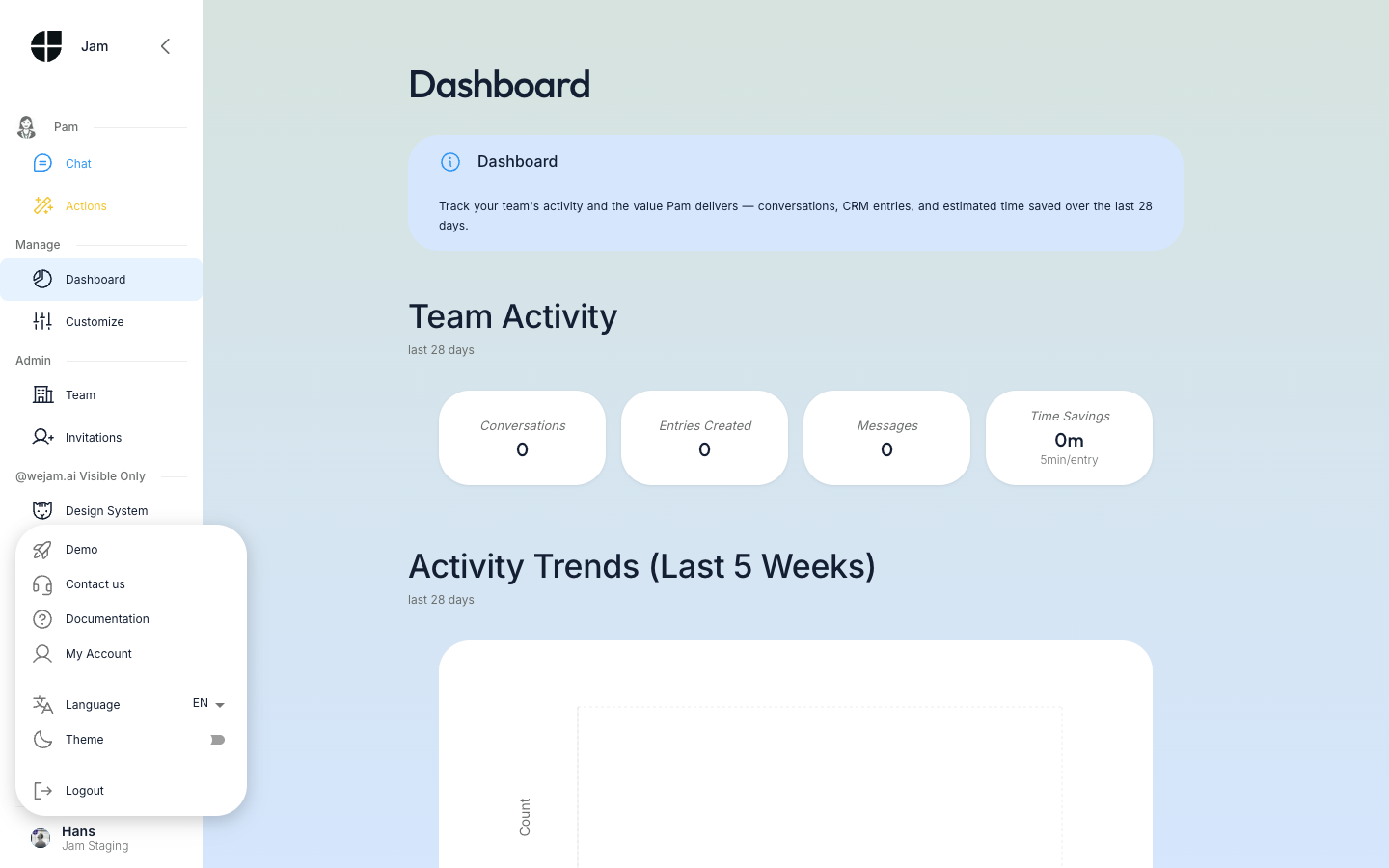 The user menu also includes Contact us, Documentation, My Account, Language, Theme, and Logout.
Direct URL
You can navigate directly tohttps://link.wejam.ai/demo - it redirects to the demo intro page. Share this link with new team members to let them start immediately.
The Demo Flow
The demo has four steps, each on its own page.Step 1: Intro
The first page introduces Jam Assistant with a short description and presents two choices:- Skip Demo and add Connections - go directly to the CRM integration setup
- Start Demo - begin the guided walkthrough
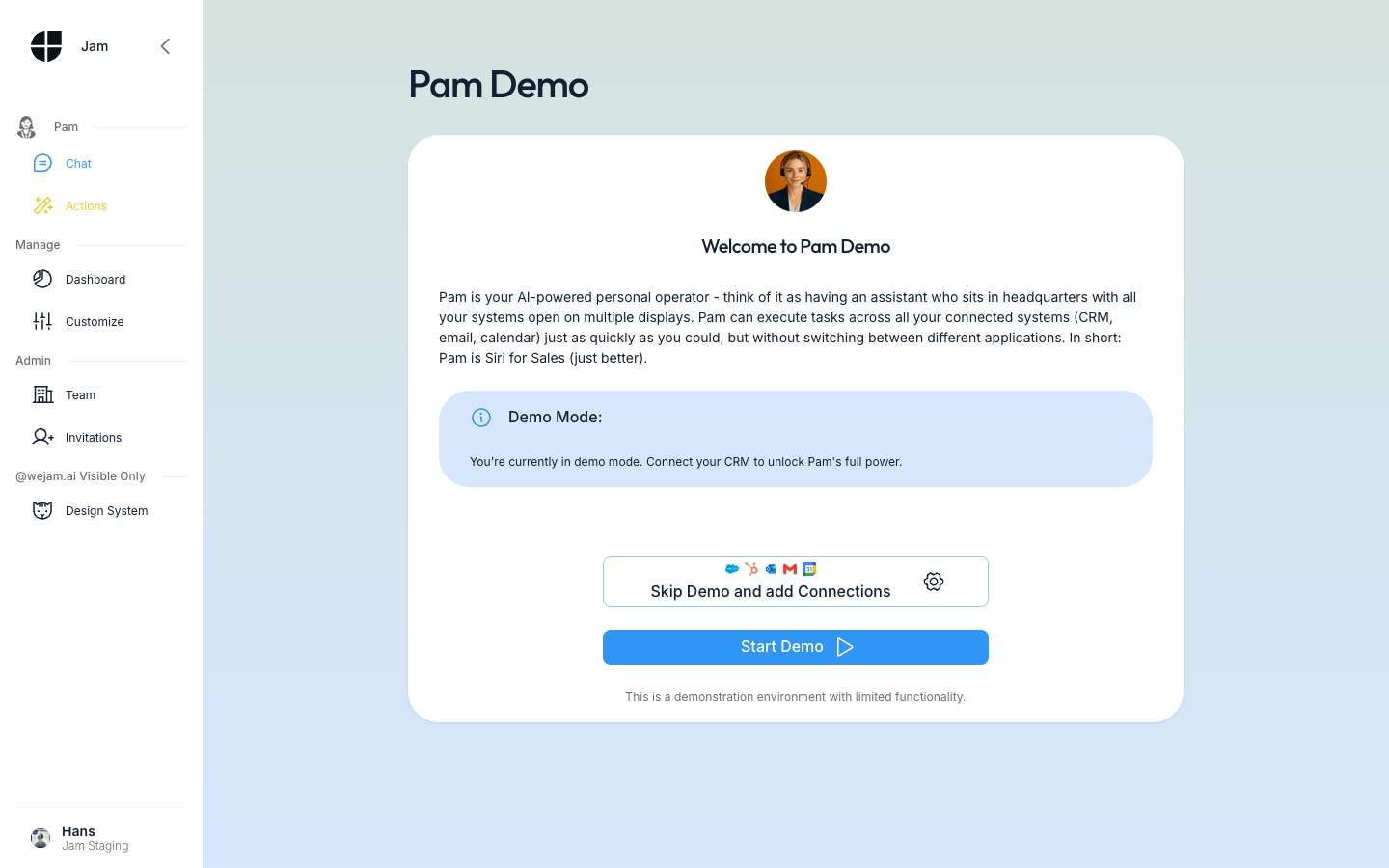 A Demo Mode notice reminds you that this is a demonstration environment with limited functionality. Click Start Demo to proceed.
Step 2: Briefing
The briefing presents a realistic sales scenario to set the context for your demo conversation with Jam Assistant.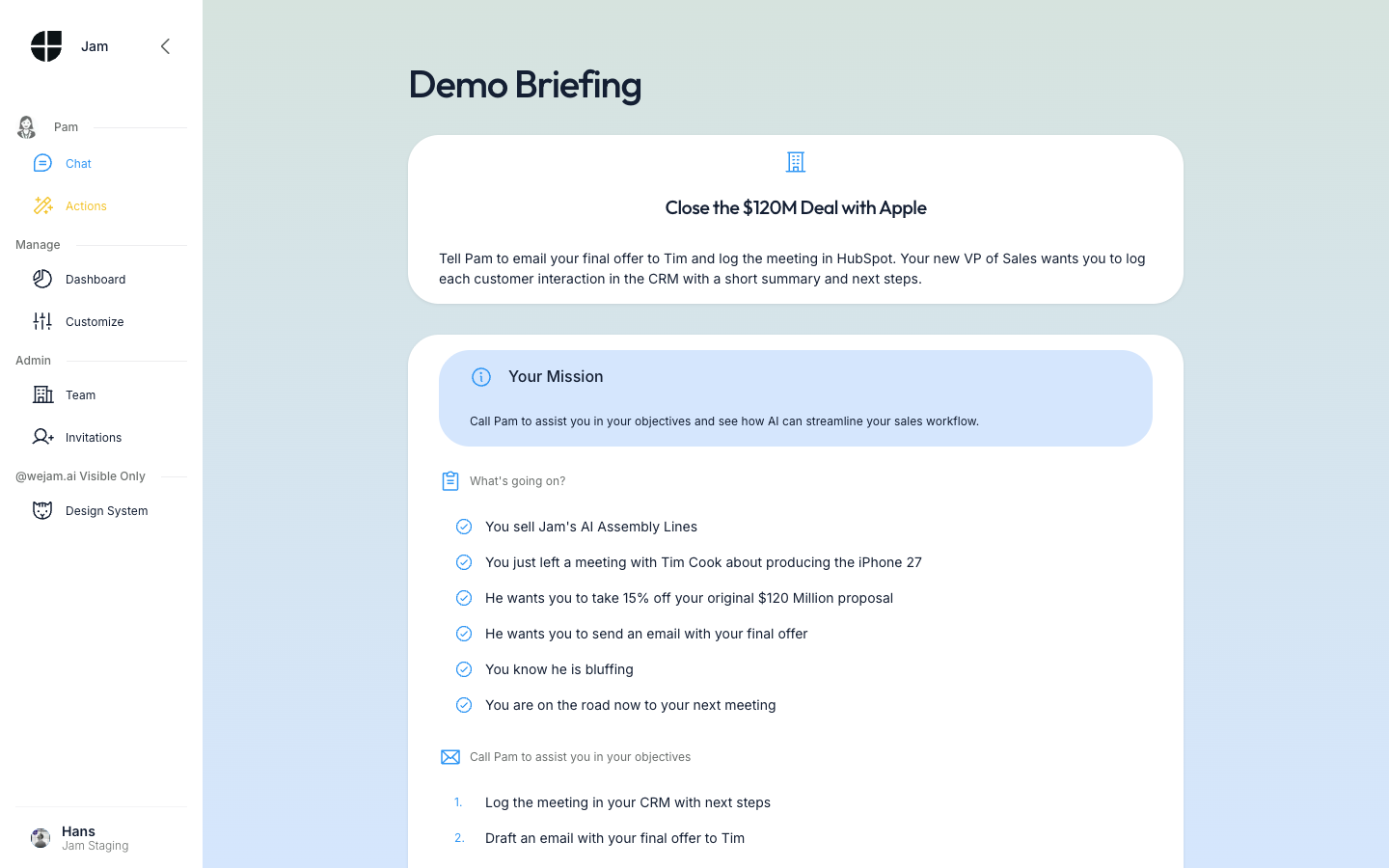 The scenario used is: “Close the $120M Deal with Apple” - you just left a meeting with Tim Cook about producing the iPhone 27. He wants a 15% discount and a final offer by email. Your three objectives are:
- Log the meeting in your CRM with next steps
- Draft an email with your final offer to Tim
- Ask if there are any tasks left for you today
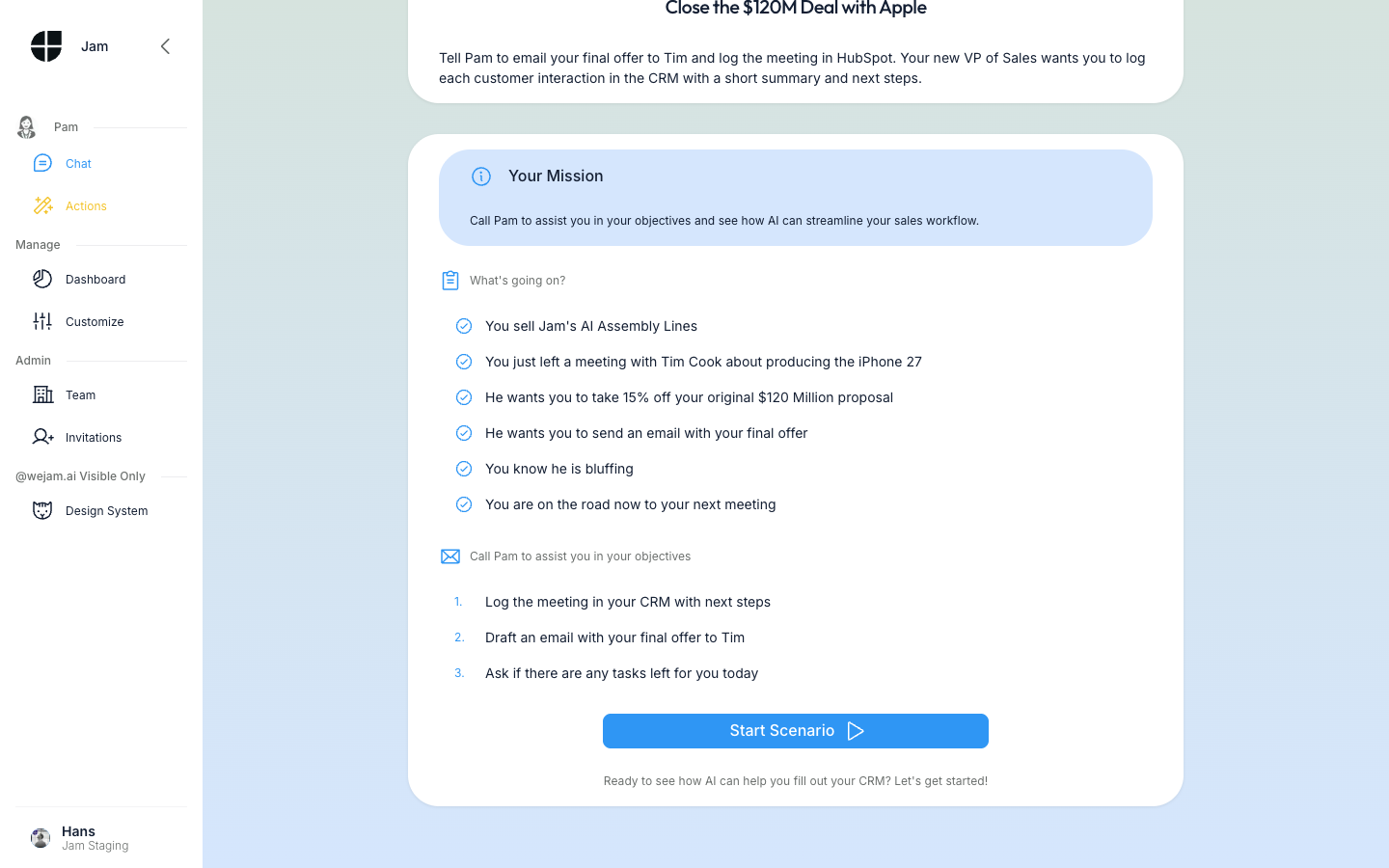 Click Start Scenario to enter the demo chat with Jam Assistant.
Step 3: Chat
You’re now in a live chat session with Jam Assistant, pre-loaded with the demo scenario context. The interface is identical to the real Jam Assistant chat.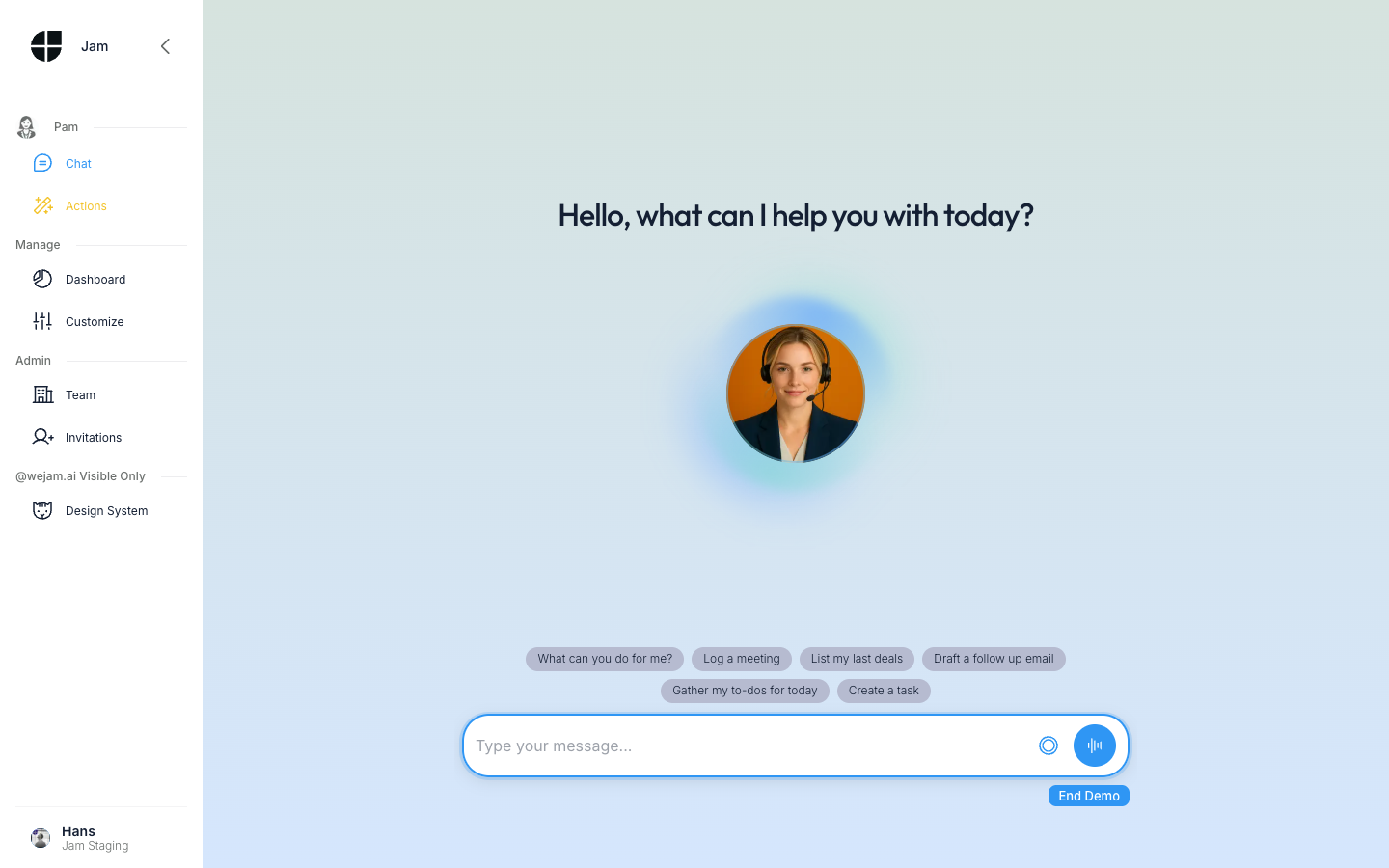 Six suggestion pills appear below the Jam Assistant avatar:
- What can you do for me?
- Log a meeting
- List my last deals
- Draft a follow up email
- Gather my to-dos for today
- Create a task
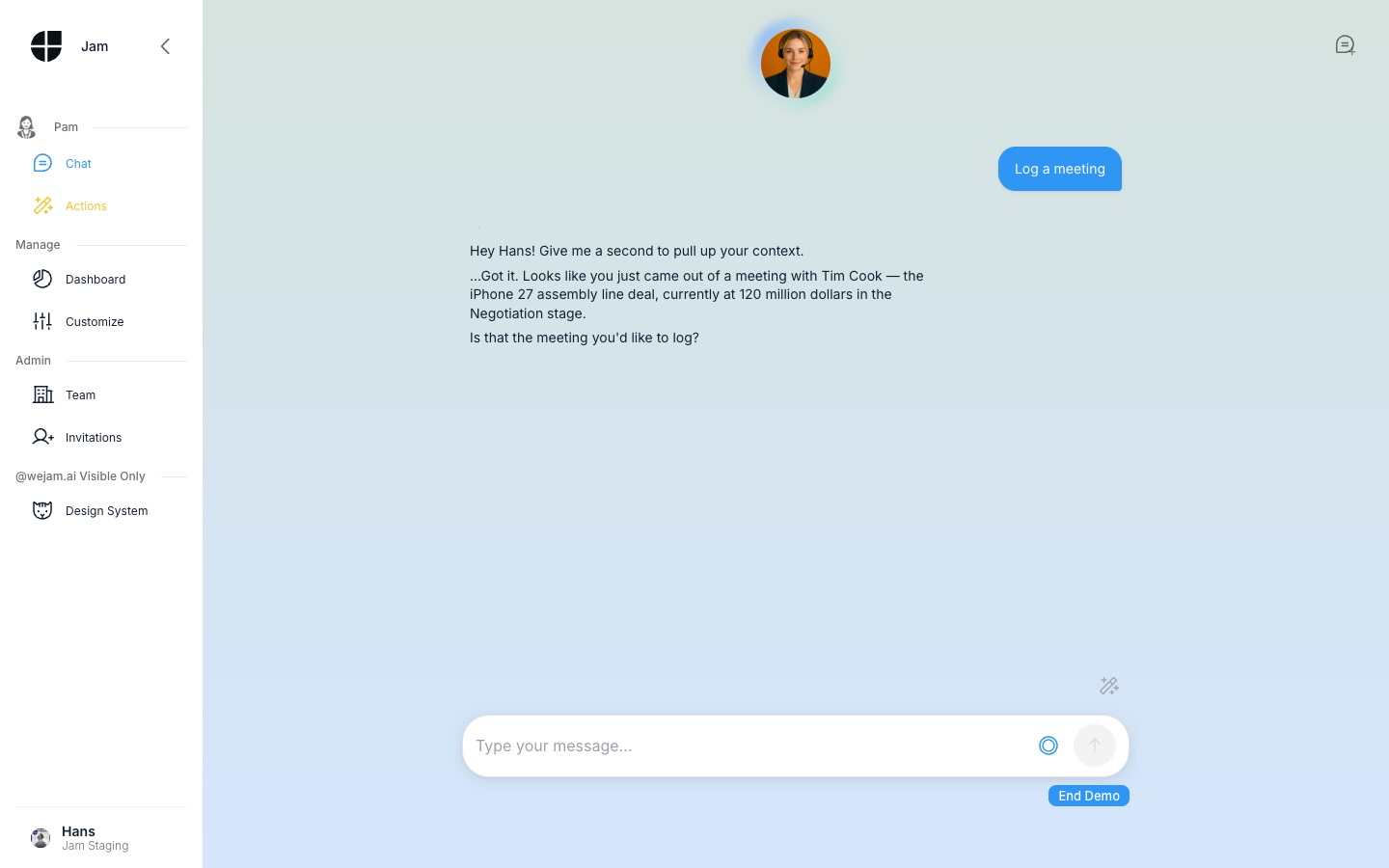 For example, clicking “Log a meeting” immediately returns:
“Hey Hans! Give me a second to pull up your context. …Got it. Looks like you just came out of a meeting with Tim Cook - the iPhone 27 assembly line deal, currently at 120 million dollars in the Negotiation stage. Is that the meeting you’d like to log?”This demonstrates how Jam Assistant reads your CRM context and responds with intelligent, deal-aware suggestions. The chat also includes voice recording (microphone icon) and voice mode buttons if you want to experience Jam Assistant’s voice capabilities during the demo. When you’re ready to finish, click the End Demo button in the bottom-right corner of the chat screen.
Step 4: Demo Complete
After clicking End Demo, you reach the completion screen.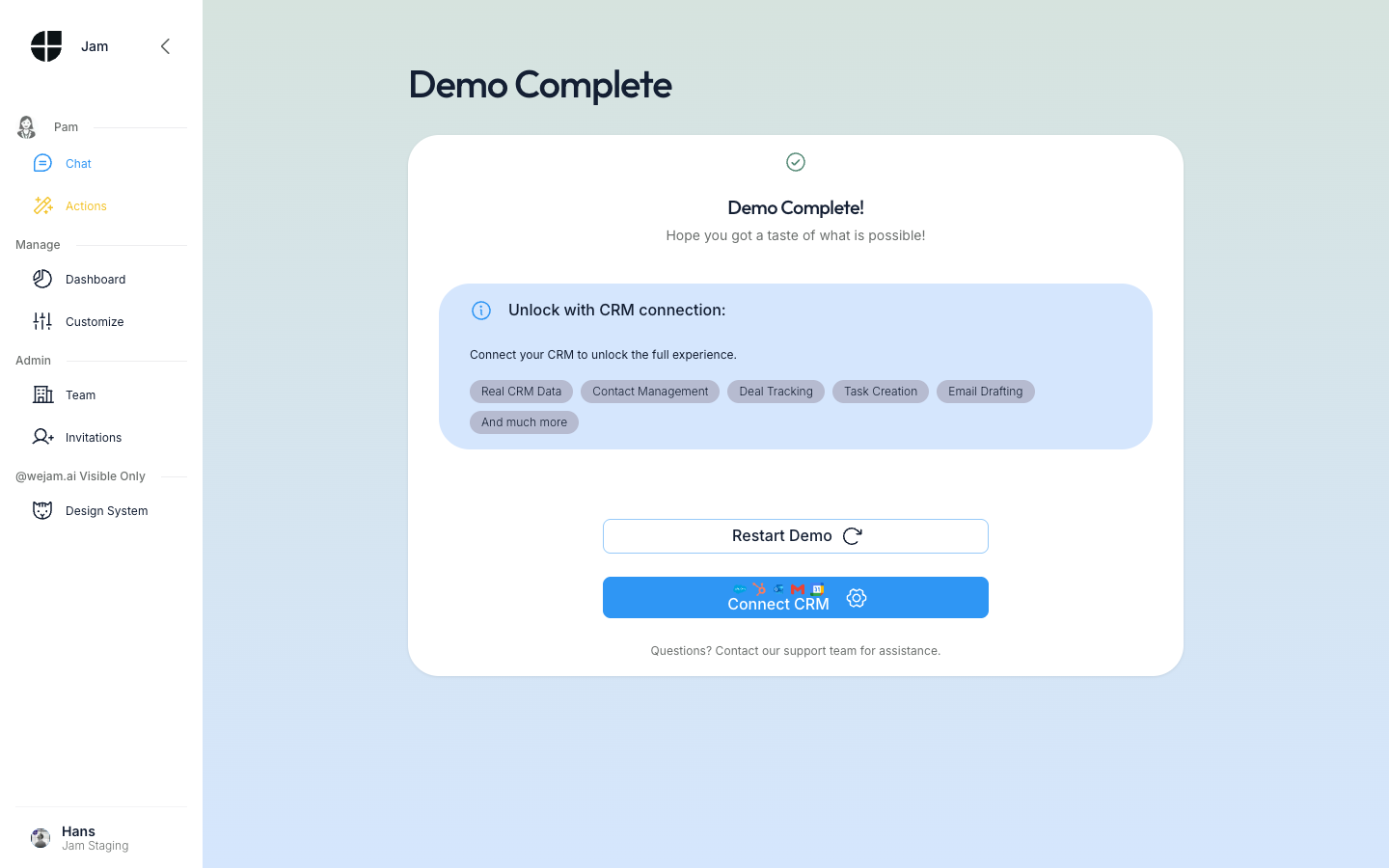 This page shows:
- A confirmation that the demo is complete
- The “Unlock with CRM connection” section listing features that become available with a real CRM: Real CRM Data, Contact Management, Deal Tracking, Task Creation, Email Drafting
- Restart Demo - run the demo again from the beginning
- Connect CRM - jump directly to the CRM integration setup (HubSpot, Salesforce, Outlook, Gmail, Google Calendar)
- A support link: “Questions? Contact our support team for assistance.”
After the Demo
Clicking Connect CRM takes you to the integrations setup where you can connect your real CRM. Once connected, Jam Assistant works with your actual contacts, deals, and tasks - not simulated data. Clicking the Chat or any other sidebar item navigates you back to the main app. The demo does not create any real CRM records or modify your Jam Assistant settings.Tips
- Onboarding new team members: Share
https://link.wejam.ai/demowith new hires before their first day. The demo takes about 5 minutes and gives a clear picture of Jam Assistant’s value. - Re-run at any time: Access the demo from the user menu whenever you want. The scenario always resets to the initial state.
- Voice in the demo: The demo chat supports voice recording. Tap the microphone icon and speak your request - Jam Assistant transcribes and responds just like in a real session.
- No data is modified: Everything in the demo uses simulated CRM data. Your real contacts and deals are untouched.
Related Documentation
- Getting Started - Set up Jam Assistant for the first time
- Integrations - Connect your CRM (HubSpot, Salesforce)
- Web Chat - Full chat interface documentation
- Voice Calls - Voice call features and setup