

Overview
Every conversation happens inside a single screen. Jam Assistant reads your message, calls the relevant CRM tools in the background, and returns a response with embedded action cards showing exactly what was created or updated. You never need to open your CRM manually. Accessed at https://link.wejam.ai after login.Prerequisites
- An active Jam Assistant account (see Getting Started)
- At least one CRM integration connected (HubSpot or Salesforce - see Integrations)
Step-by-Step Guide
1. Open the Chat Screen
After logging in, click Chat in the left sidebar. The Chat screen opens to the welcome view.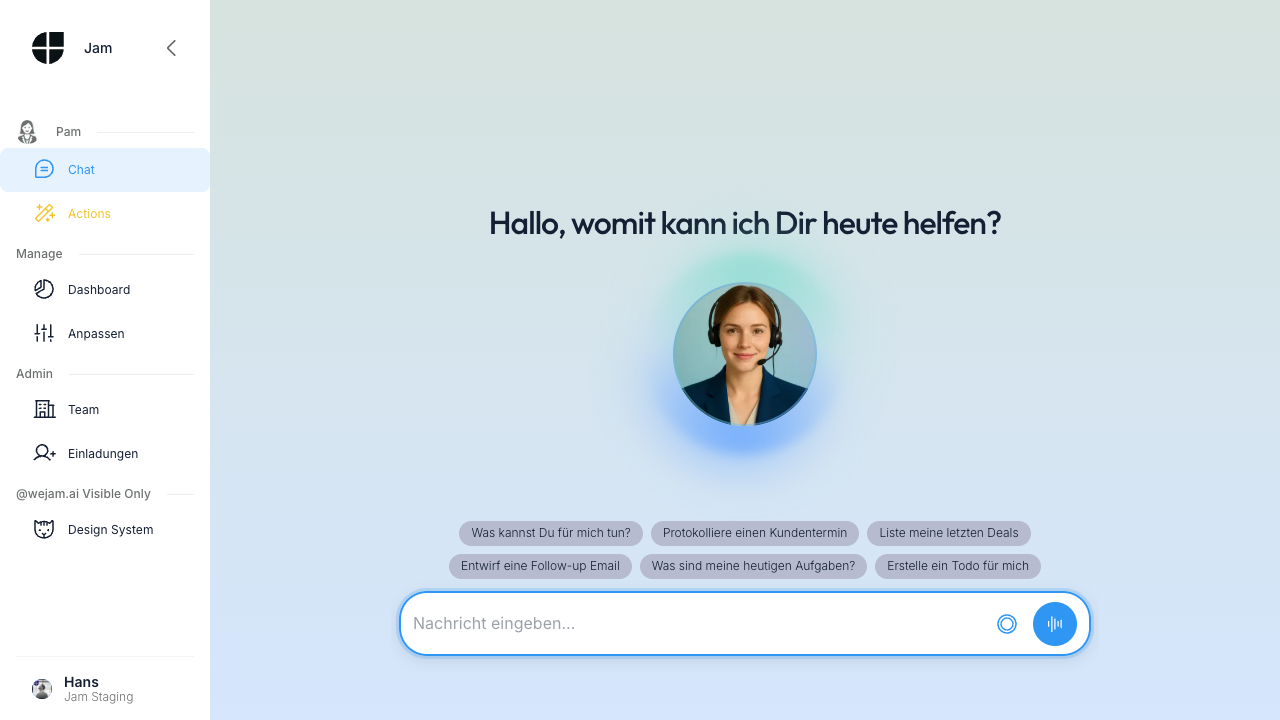 You will see:
- Jam Assistant’s avatar centered on screen - an animated indicator that Jam Assistant is ready
- Suggestion pills - quick-start prompts such as “List my recent deals”, “Log a customer meeting”, “Draft a follow-up email”, and “What are my tasks today?”
- Message input at the bottom with a microphone icon for voice dictation
2. Look Up Account Information
Type a question about a deal or contact directly into the message input and press Enter (or click the send button). Example:What's the latest on the Acme Corp deal?
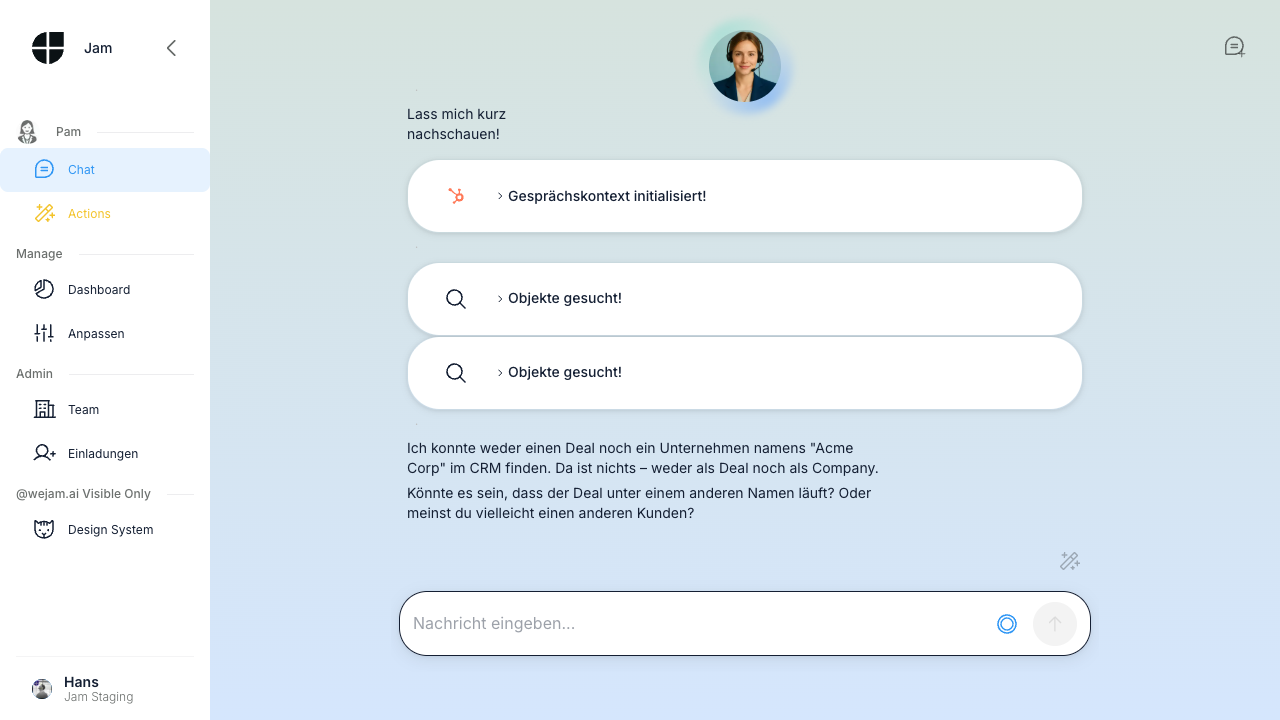 As Jam Assistant processes your request, you will see action cards appear in the conversation - one per CRM operation Jam Assistant performs. Each card shows:
- The operation type (search, read, create, update)
- The object type (Deal, Contact, Company, Note)
- A summary label such as “Objects searched!” or “Context initialized!”
Tip: Be specific. “What’s the latest on the Acme Corp deal?” returns more accurate results than “What deals do I have?“
3. Debrief After a Customer Meeting
After a meeting, describe what happened in a single message. Jam Assistant extracts the key facts and writes them back to your CRM. Example:I just met with Sarah from TechStart - they're interested in the enterprise plan, budget is around 80k, want to start Q2. Update the deal and log a note.
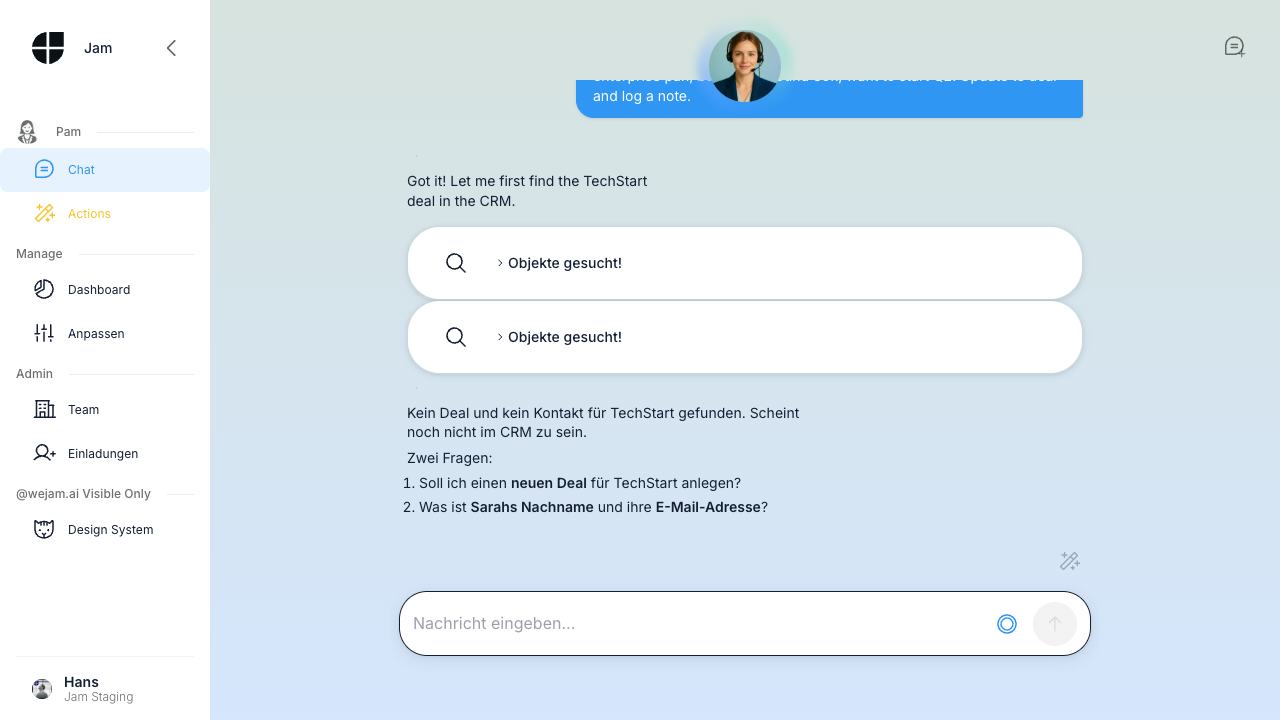 Jam Assistant will:
- Search your CRM for the TechStart deal and contact
- Update the deal with the new budget and timeline information
- Create a follow-up note capturing the meeting summary
4. Review Action Cards
Each CRM action card is expandable. Click on a card to see details including the direct CRM link for the affected record.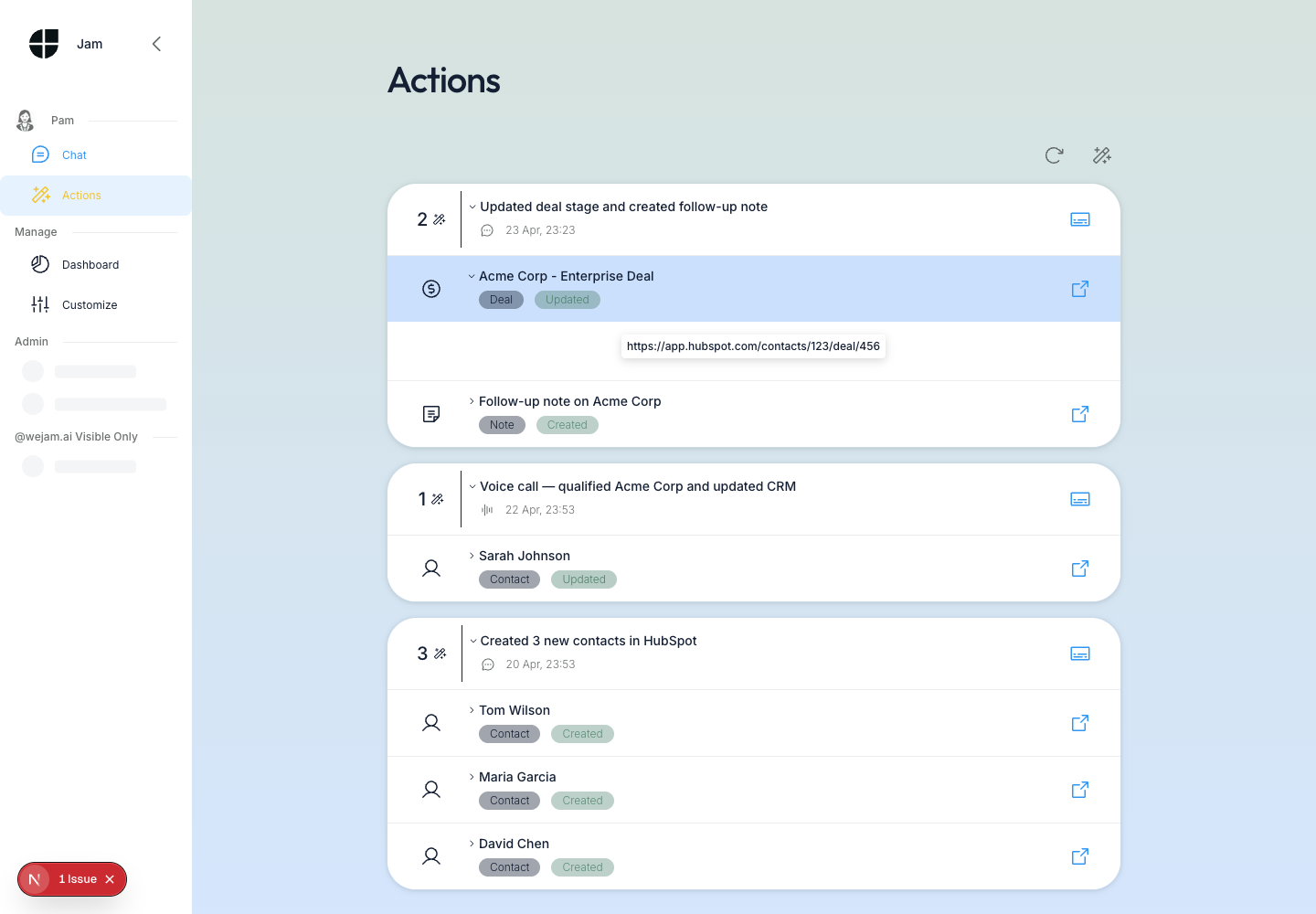 Action cards show:
- Record name (e.g., “Acme Corp - Enterprise Deal”)
- Object type badge (Deal, Contact, Note, etc.)
- Status badge (Created, Updated)
- External link icon to open the record directly in HubSpot or Salesforce
5. Switch to “Show Actions Only” View
To see only what Jam Assistant did - without the conversational text - click the wand icon (bottom right of the message input area). This toggles to Actions Only view.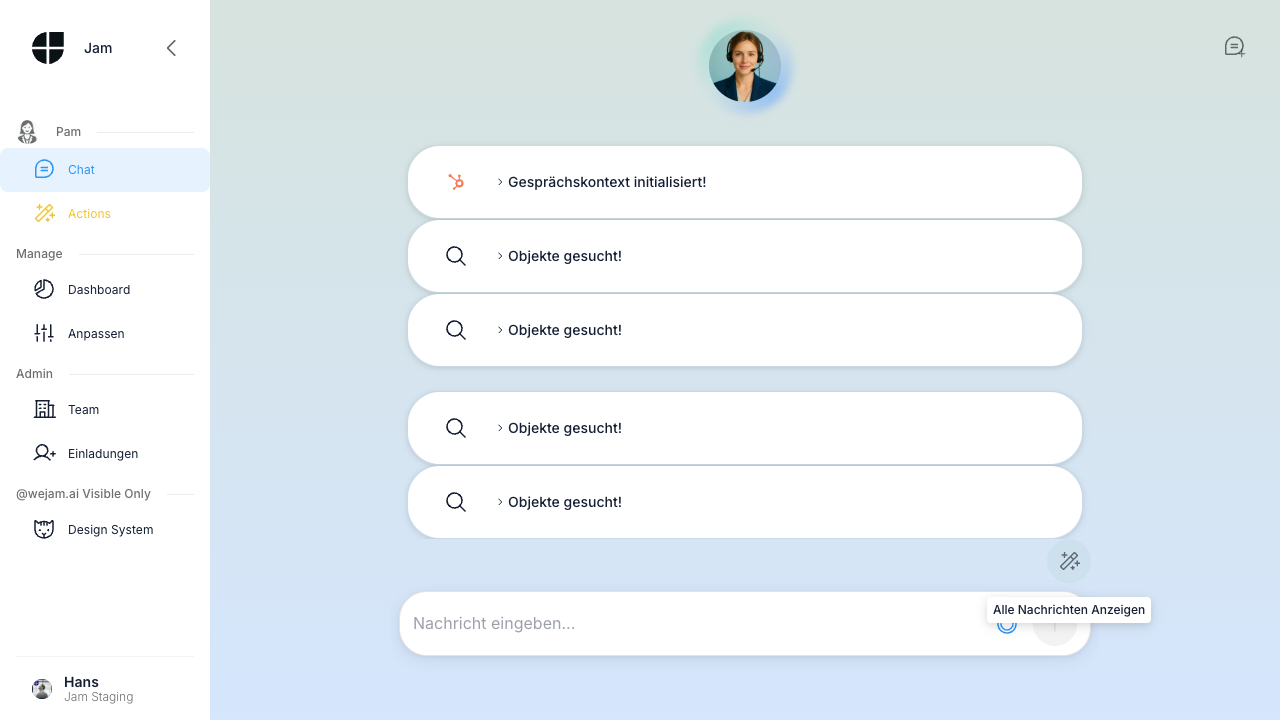 In Actions Only mode:
- All text messages are hidden
- Only CRM action cards are displayed
- The toggle shows “Show All Messages” - click it to return to the full conversation
6. Review All CRM Changes in the Actions Page
For a persistent, session-level view of every CRM change Jam Assistant made, click Actions in the sidebar. The Actions page lists every past session grouped by date, with a count of CRM changes and the action cards for each record affected.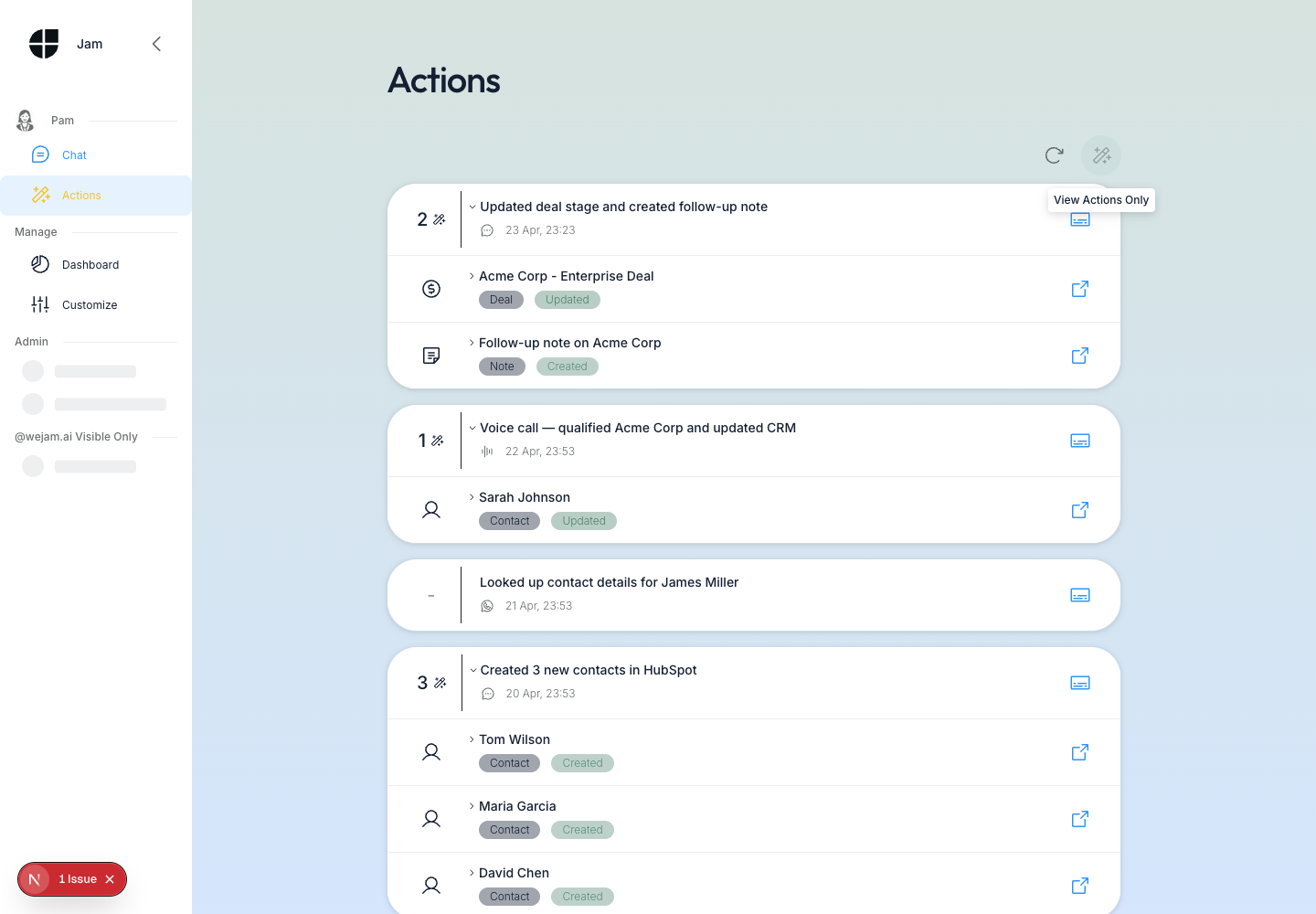 Each session entry shows:
- Session summary - a one-line description auto-generated by Jam Assistant (e.g., “Updated deal stage and created follow-up note”)
- Timestamp and channel icon - chat bubble for web chat, phone icon for voice
- Action cards - expanded list of every record created or updated, with direct CRM links
- “See session details” button - opens the original conversation in Chat History
7. Start a New Chat
When you want to start a fresh conversation without the context of the current one, click New Chat (the speech bubble icon in the top-right corner of the chat header).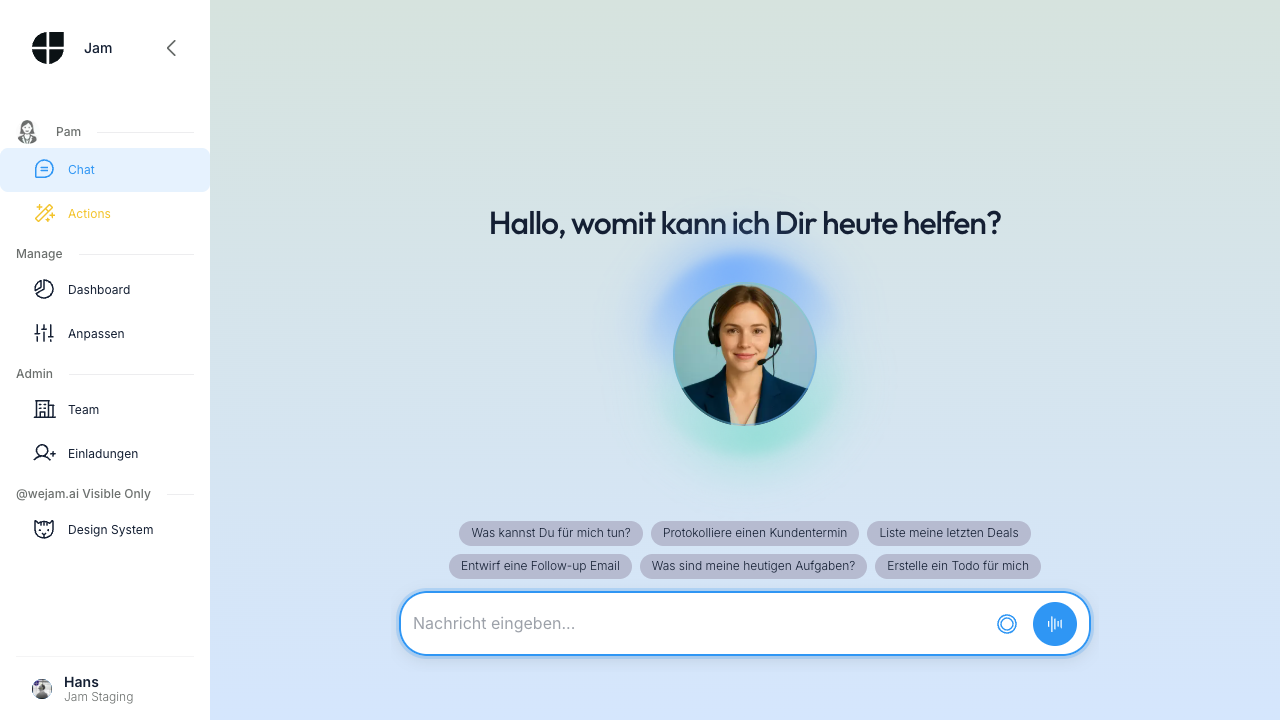 Jam Assistant resets to the welcome view with suggestion pills. Your previous conversation is automatically saved and visible in Chat History.
8. Access Chat History
Your past conversations are preserved in Chat History. Navigate there by clicking Actions in the sidebar. Each row represents one session, with a Jam Assistant-generated title describing what happened.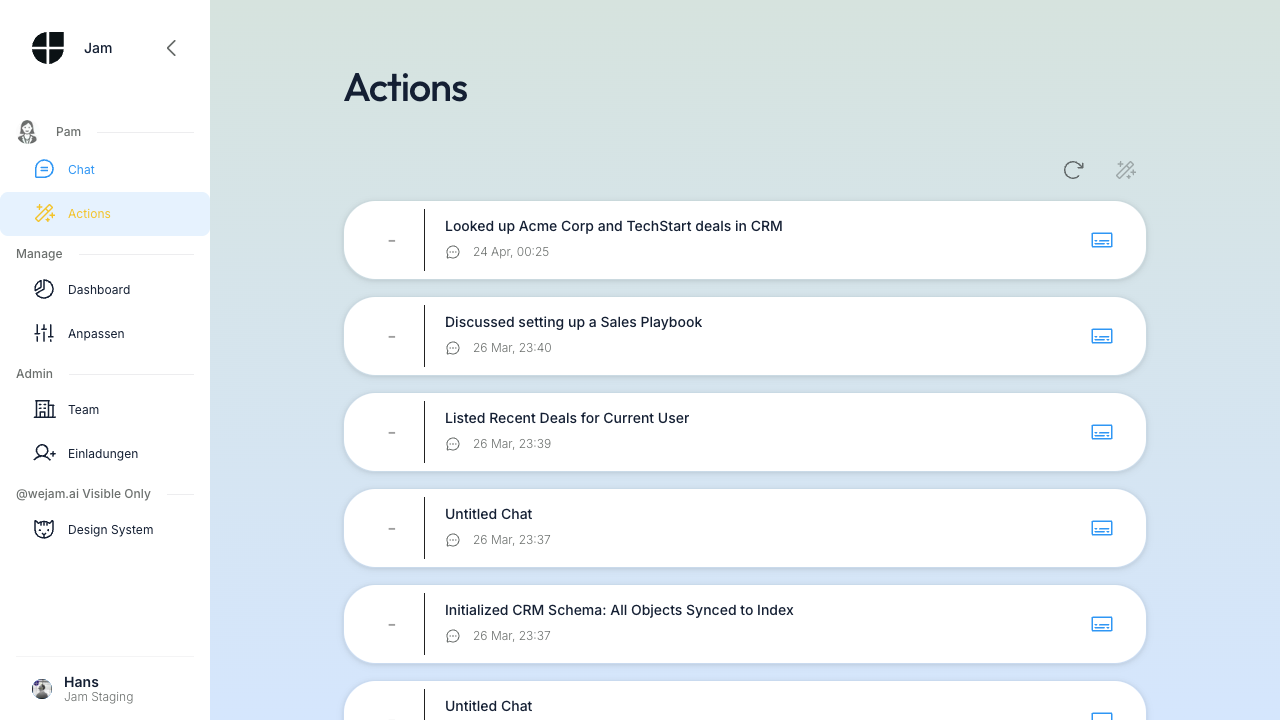 Click the session icon on the right of any row to open that conversation and continue where you left off.
Best Practices
- Debrief immediately after meetings. The fresher your notes, the more accurate the CRM update. Jam Assistant works best when the context is clear.
- Give Jam Assistant the full picture in one message. “I met with Sarah from TechStart, budget 80k, start Q2, update the deal and log a note” is more efficient than multiple back-and-forth messages.
- Use the Actions Only view to verify. After any multi-step request, switch to Actions Only to confirm every CRM change was made correctly before leaving the chat.
- Name your contacts precisely. If your CRM has both “TechStart Inc.” and “TechStart Ltd.”, include enough detail for Jam Assistant to find the right one.
- Jam Assistant remembers context within a session. You can say “now move it to Proposal stage” after discussing a specific deal - Jam Assistant knows which deal you mean.
Troubleshooting
Jam Assistant says she can’t find the deal or contact The record may not exist in your CRM yet, or the name you used may differ from what’s in the CRM. Try rephrasing with the exact company or contact name as it appears in HubSpot or Salesforce. Action cards appear but no final response This can happen if Jam Assistant is still streaming the response. Wait a few seconds - the text response follows the action cards. The CRM action card shows an error Your CRM integration may have lost its connection or a required field is missing. Go to Integrations and re-authorize your CRM connection. If the issue persists, check the specific field requirements in your CRM settings. Voice dictation does not start Click the microphone icon in the message input area. Your browser will prompt for microphone permission - allow it. On iOS Safari, microphone access must be enabled in device Settings under Safari.Related Documentation
- Getting Started - Login and initial setup
- Integrations - Connect HubSpot or Salesforce
- Actions - Full view of all CRM changes across sessions
- Chat History - Browse and revisit past conversations
- Voice Calls - Use Jam Assistant hands-free when you can’t type
- WhatsApp - Chat with Jam Assistant via WhatsApp on mobile