> ## Documentation Index
> Fetch the complete documentation index at: https://docs.wejam.ai/llms.txt
> Use this file to discover all available pages before exploring further.
# Playbook
> Always-loaded rules - personal and org-wide - that guide how Jam Assistant behaves.
Your Playbook is Jam Assistant's control center: rules that stay loaded in full, in every conversation - unlike [Knowledge](/external/assistant/knowledge), where only each entry's description stays loaded and the full content comes in when relevant. There are two layers:
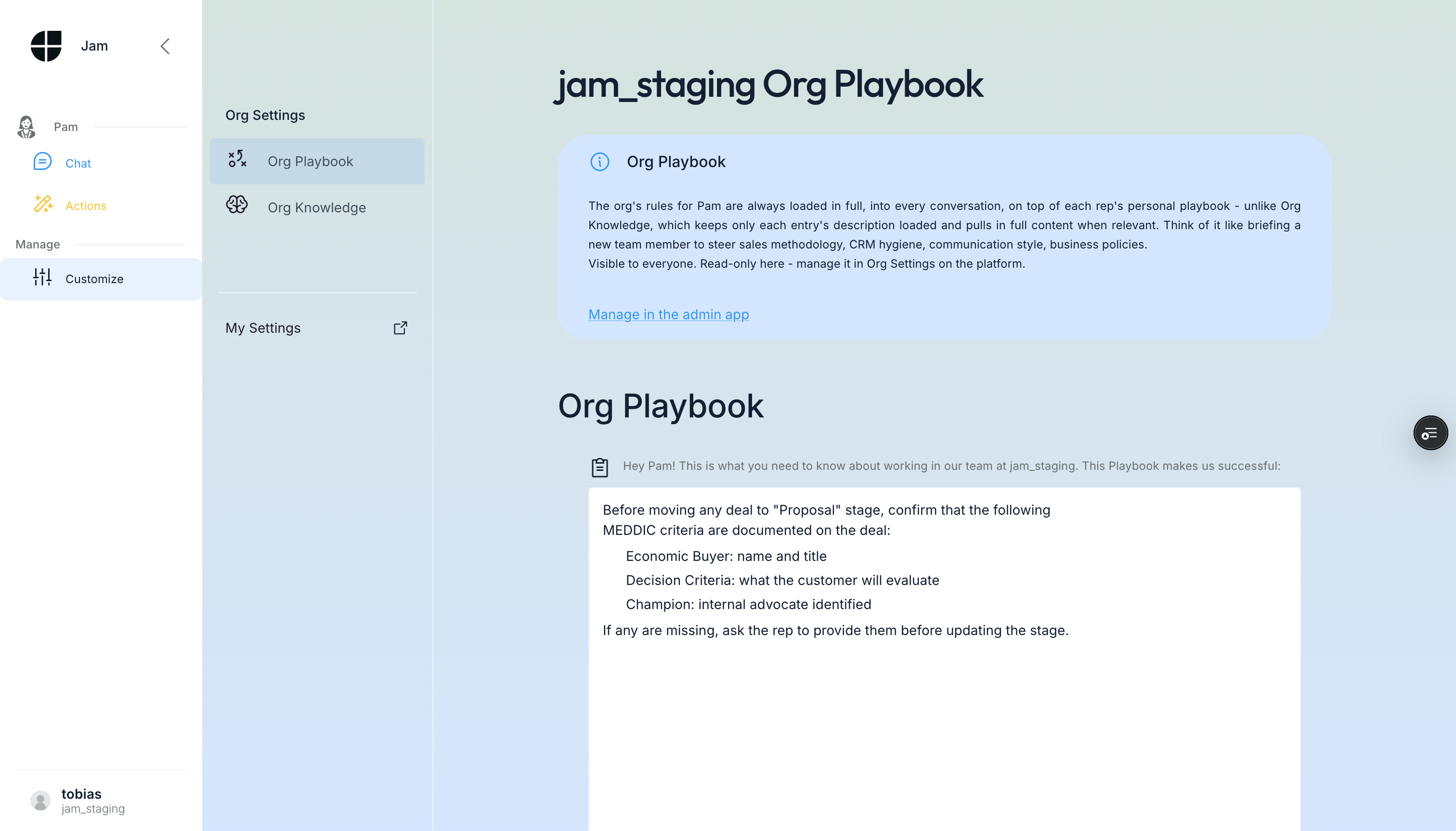
* **Org Playbook** - Rules that apply to every member of your organization, across every channel. Managed by admins at [app.wejam.ai/assistant/playbook](https://app.wejam.ai/assistant/playbook); visible read-only under **Org Settings > Org Playbook** in the Assistant app.
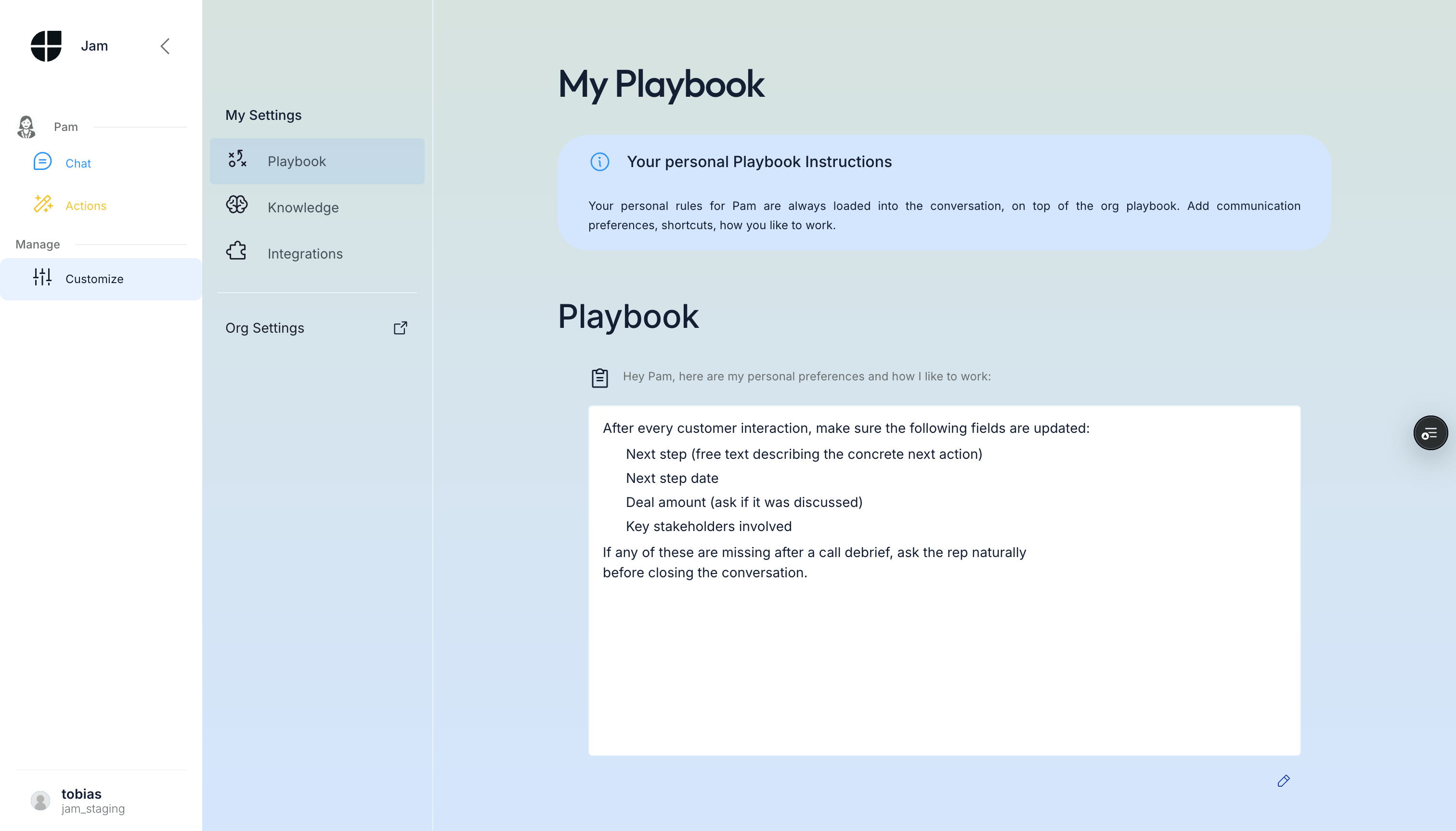
* **My Playbook** (**My Settings > Playbook**) - Your own shortcuts and preferences, layered on top of the org playbook. Every member can edit their own.
Org rules are active in the background - shaping every conversation - but only admins can edit them, and only on the platform.
 ***
## Managing the Org Playbook (admins, on the platform)
Org rules are the most powerful way to steer Jam Assistant across your organization. Every conversation Jam Assistant has - whether by chat, voice, WhatsApp, or phone - is shaped by these rules.
Org admins manage the Org Playbook at [app.wejam.ai/assistant/playbook](https://app.wejam.ai/assistant/playbook), under **Assistant > Manage > Org Playbook**.
***
## Managing the Org Playbook (admins, on the platform)
Org rules are the most powerful way to steer Jam Assistant across your organization. Every conversation Jam Assistant has - whether by chat, voice, WhatsApp, or phone - is shaped by these rules.
Org admins manage the Org Playbook at [app.wejam.ai/assistant/playbook](https://app.wejam.ai/assistant/playbook), under **Assistant > Manage > Org Playbook**.
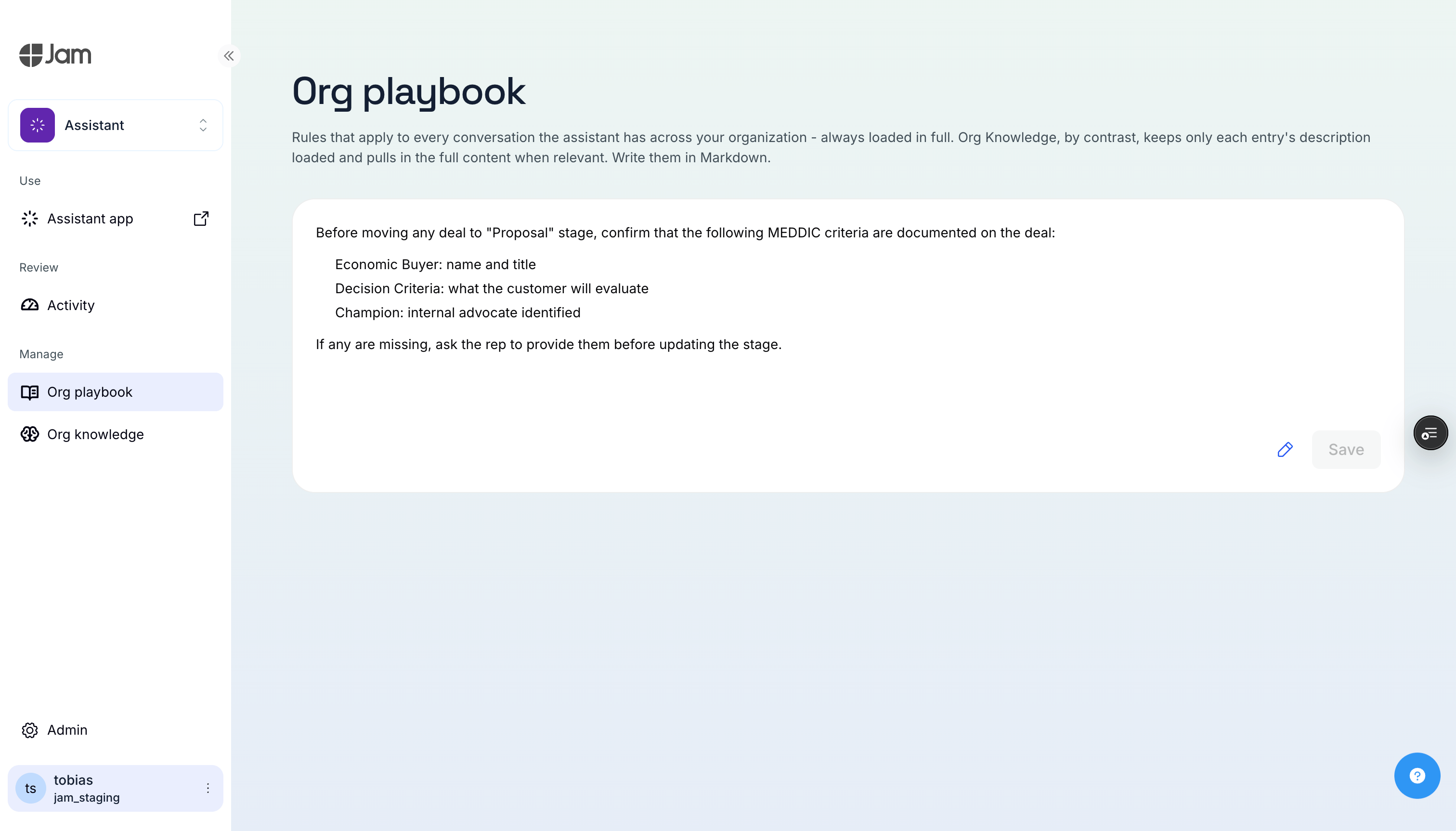 In the Assistant app itself, admins see the same content read-only under **Org Settings > Org Playbook**, with a link across to the platform to make changes.
 ### How It Works
Org rules are free-form text that becomes part of Jam Assistant's system prompt. Write them in natural language, exactly as you'd brief a new team member. Jam Assistant sees them as:
> "Specific instructions on how to behave while working here at \[Your Company]"
On the platform, click **Edit the org playbook**, make your changes, then click **Save** - the rule is immediately active for every member.
### Example: Adding an Org Rule
Here is an example objection-tracking rule for the org playbook:
```
# Call Debriefs
- After every customer call, ask about objections and log them as a note tagged [Objection: category]
```
### What to Include
**Sales methodology:**
```
Use the MEDDIC framework for opportunity qualification.
When reviewing a deal, always check: Metrics, Economic Buyer,
Decision Criteria, Decision Process, Identify Pain, Champion.
```
**CRM hygiene rules:**
```
After every customer interaction, update the deal with:
- Next step and next step date
- Updated deal amount if discussed
- Key stakeholders mentioned
All contacts must include job title and decision-making authority level.
```
**Company policies:**
```
Never move a deal to "Closed Won" without a signed contract.
All meetings must include a calendar invite to the customer.
Do not send emails to C-level contacts without explicit approval.
```
**Tone and communication style:**
```
Use formal language in German-speaking markets.
Keep call summaries under 5 bullet points.
Always address contacts by their last name in initial outreach.
```
**Product knowledge:**
```
Our enterprise plan starts at EUR 50,000/year.
Implementation typically takes 6-8 weeks.
Our main competitors are X, Y, and Z - never mention them negatively.
```
**Strategic intelligence collection:**
```
After every customer call, ask if there were any objections.
Categorize them: price, timeline, missing feature, competitor, internal politics.
Log each objection as a note tagged [Objection: category].
```
**Campaign pushes:**
```
This week, mention our new API integration to every contact in the
Technology segment. Key talking points: [...]
After mentioning it, log their response as a note tagged [API Feedback].
```
See [Playbook Recipes](/external/assistant/playbook-recipes) for many more examples.
### Best Practices
1. **Be specific** - "Update the deal stage after every call" works better than "Keep CRM up to date"
2. **Use examples** - Show Jam Assistant what good looks like
3. **Set priorities** - If two rules could conflict, be explicit about which wins
4. **Iterate** - Start with 3-5 rules, observe, refine
5. **Think in campaigns** - Update weekly to match your sales rhythm
6. **Keep it current** - Remove stale rules (last quarter's pricing, ended campaigns)
### File Uploads (Coming Soon)
A future update will allow you to attach documents (PDFs, playbooks, pricing sheets) as additional context.
***
## My Settings
Every member can define personal skills and preferences that layer on top of the org rules under My Settings. Jam Assistant sees both - org rules first, then your personal additions. See the screenshot at the top of this page for what this looks like.
### Skills (Slash Commands)
Define personal "slash commands" by writing patterns into your personal playbook. These work across all channels - type `/prep` in web chat or say "slash prep" on a voice call.
```
When I say "/prep [company name]":
1. Pull the account summary and recent activities
2. List all open deals with stage, amount, and next steps
3. Show key contacts and their roles
4. Draft 3 talking points based on the above
```
```
When I say "/debrief":
1. Ask me who I met with and at which company
2. Ask what we discussed
3. Then: update the deal, log a meeting note, create follow-up tasks
```
```
When I say "/todo":
1. Gather all my open tasks from CRM
2. Check my calendar for meetings today and tomorrow
3. Check my email for anything flagged
4. Present everything as a single prioritized list
```
#### Writing Your First Slash Command
Click **Edit** in your personal Playbook section, then describe how Jam Assistant should behave when you use a particular phrase:
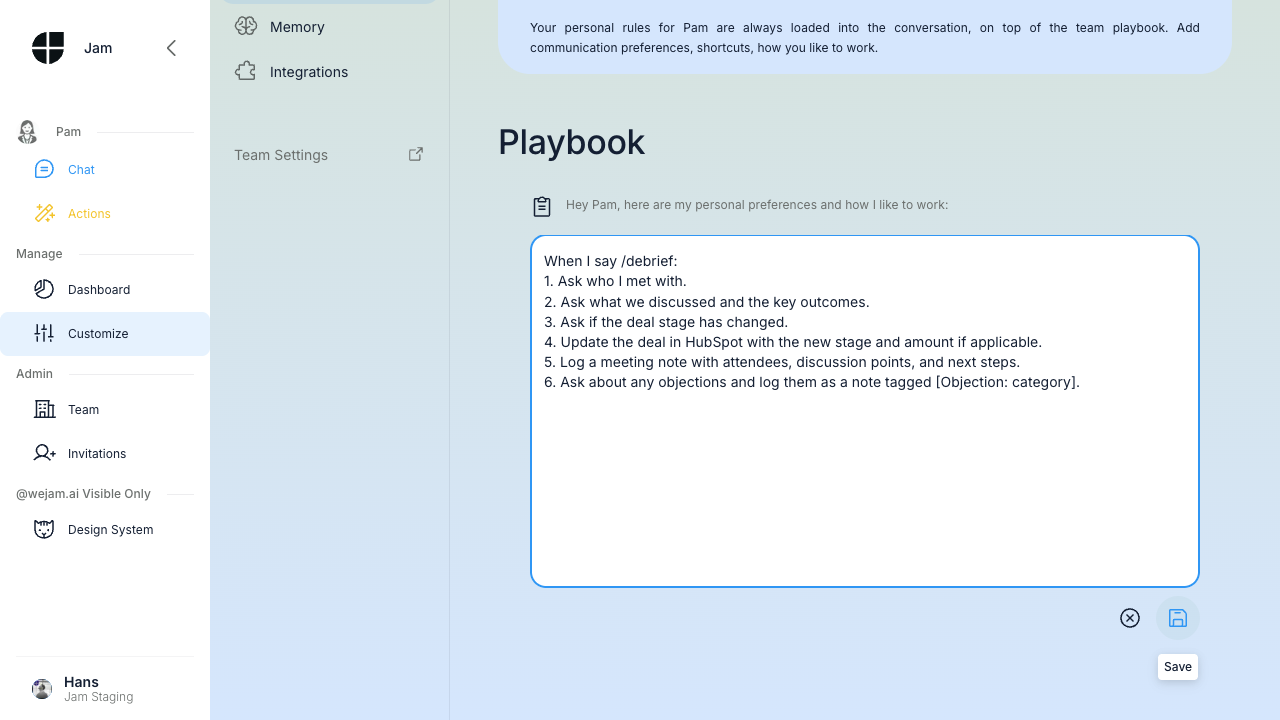
Click **Save** - the instruction is immediately active.
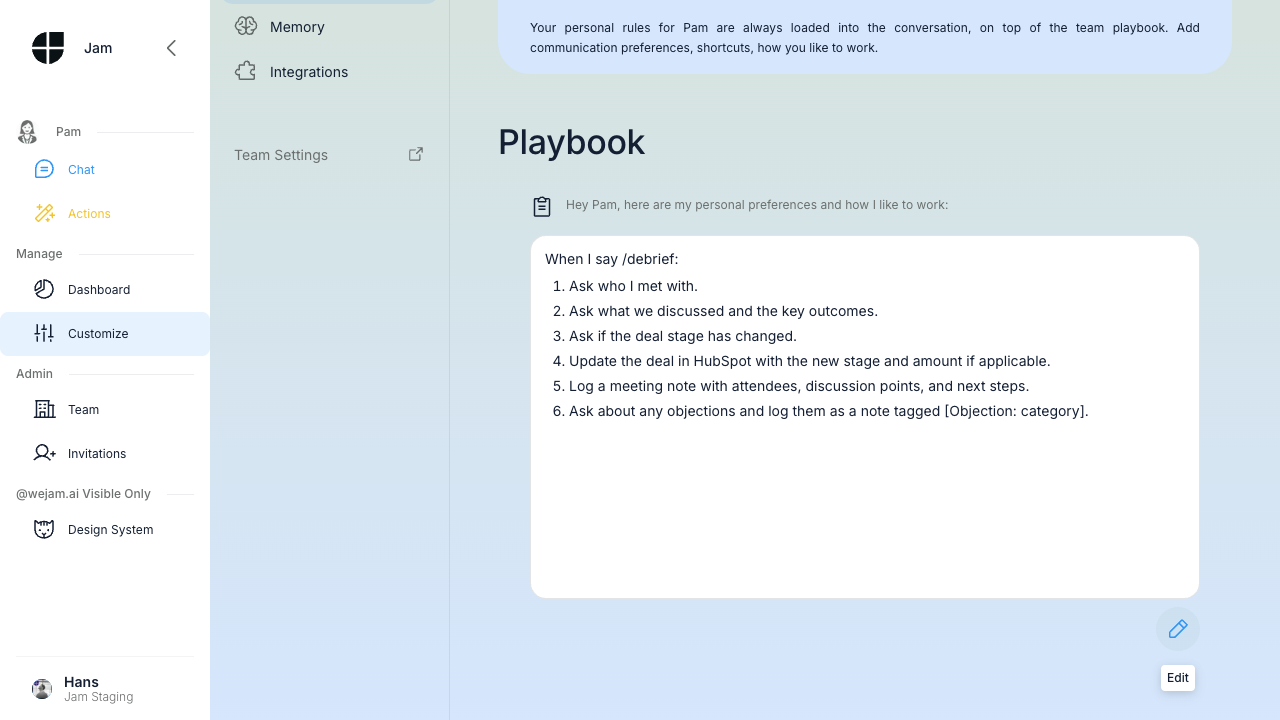
See [Playbook Recipes](/external/assistant/playbook-recipes) for more skill examples.
### Preferences
```
I prefer concise summaries - no more than 3 bullet points.
Don't list all contacts on a deal unless I ask.
```
### Territory and Account Context
```
My territory is DACH (Germany, Austria, Switzerland).
Default language for customer communication is German.
My key accounts are: Acme Corp, TechStart GmbH, Enterprise AG.
```
### Tips
* Personal rules are for *your* preferences - use org rules for org-wide process
* Start small: 2-3 rules, see how Jam Assistant adapts, then refine
* Be direct: "Do X" works better than "It would be nice if you could maybe try to X"
* If a personal rule contradicts an org rule, Jam Assistant generally favors the more specific one. For critical org rules, admins should be explicit: "This overrides personal preferences"
***
## How Org + Personal Work Together
Jam Assistant builds its context in layers:
1. **Org rules** - The org-wide foundation (process, policies, knowledge)
2. **Personal rules** - Individual preferences and skills layered on top
This means an admin can set "always ask about objections after a call" for the whole org, while each rep can define their own `/debrief` workflow for how *they* want to capture meeting notes. The org rule ensures the data gets collected; the personal skill makes it feel natural for each individual.
***
## Slash Commands in Action
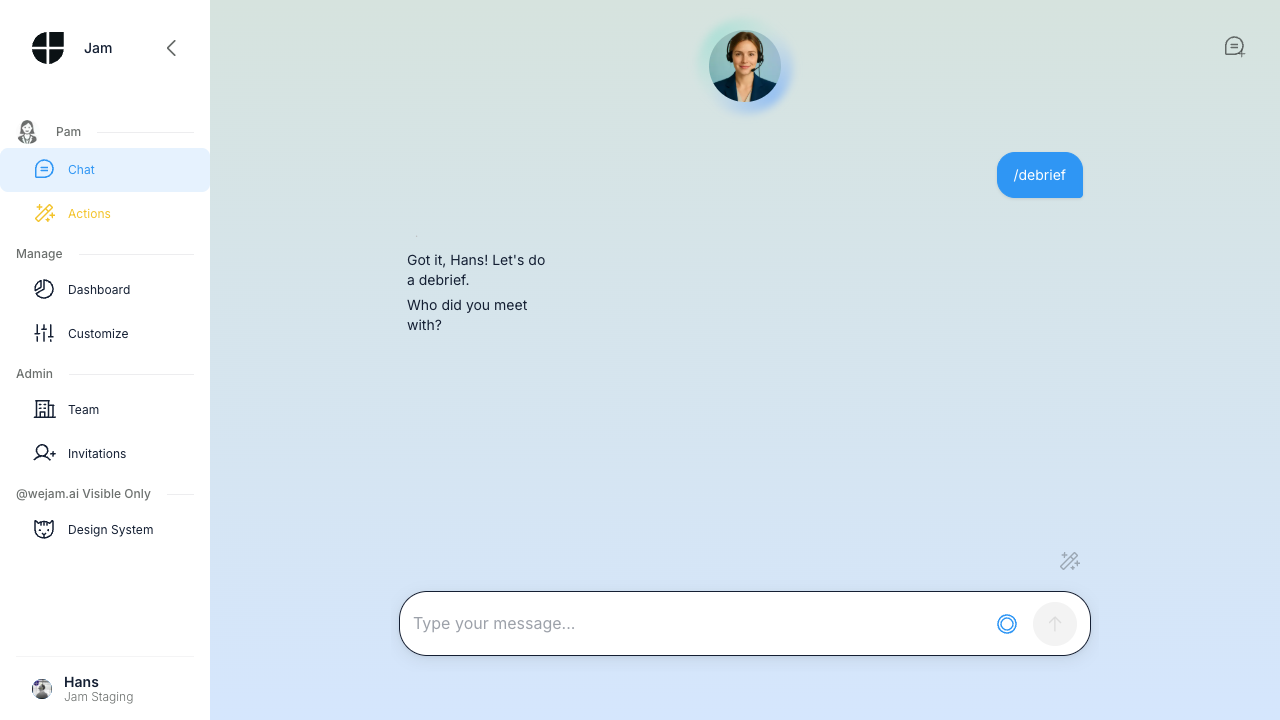
Once you have saved a slash command to your personal playbook, use it directly in chat. Type `/debrief` (or whichever phrase you defined) and Jam Assistant immediately follows your personal workflow:
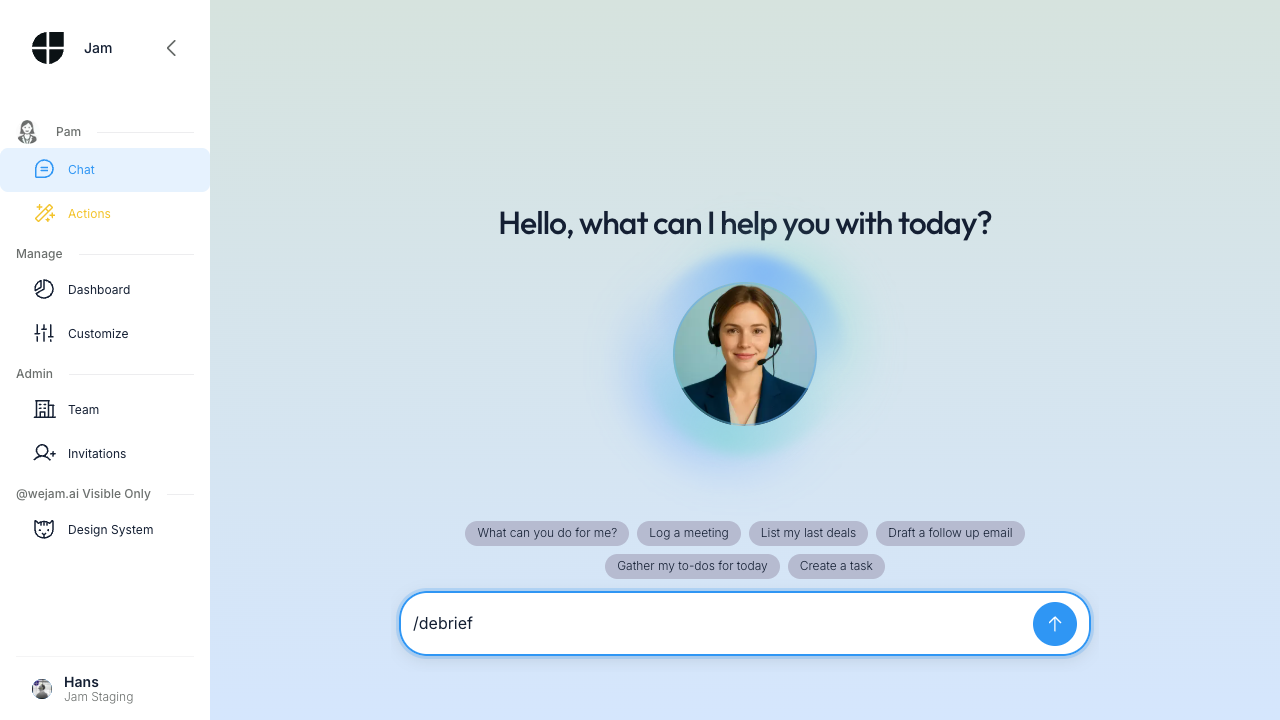
Jam Assistant recognizes your command and begins the defined sequence - in this case, asking who you met with first:
***
## Troubleshooting
**Jam Assistant isn't following my org rule**
* Make sure the rule is saved (the Save button should be gone and the Edit pencil icon should be visible)
* Keep instructions clear and unambiguous
* If you have a long playbook, Jam Assistant reads the whole thing, but the most recent/specific instructions tend to win when there is a conflict
**My slash command is being treated as plain text**
* Ensure you defined the trigger phrase exactly as you type it (e.g., `/debrief` not `debrief`)
* Save after editing - unsaved changes are not active
**Org rules not visible to members**
* Org rules are loaded automatically; members don't need to configure anything
* Only admins can edit org rules - other members see a read-only view
**I want to override an org rule for myself**
* Add a personal rule that is more specific. For example, if the org rule says "address all contacts formally," your personal rule can say "in my chats with contacts in California, use first names"
***
## Related Documentation
* [Playbook Recipes](/external/assistant/playbook-recipes) - Copy-paste templates for common instructions
* [Knowledge](/external/assistant/knowledge) - Facts and CRM schema Jam Assistant fetches on demand about your team and accounts
* [Integrations](/external/assistant/integrations) - Connect HubSpot, Salesforce, email, and calendar
### How It Works
Org rules are free-form text that becomes part of Jam Assistant's system prompt. Write them in natural language, exactly as you'd brief a new team member. Jam Assistant sees them as:
> "Specific instructions on how to behave while working here at \[Your Company]"
On the platform, click **Edit the org playbook**, make your changes, then click **Save** - the rule is immediately active for every member.
### Example: Adding an Org Rule
Here is an example objection-tracking rule for the org playbook:
```
# Call Debriefs
- After every customer call, ask about objections and log them as a note tagged [Objection: category]
```
### What to Include
**Sales methodology:**
```
Use the MEDDIC framework for opportunity qualification.
When reviewing a deal, always check: Metrics, Economic Buyer,
Decision Criteria, Decision Process, Identify Pain, Champion.
```
**CRM hygiene rules:**
```
After every customer interaction, update the deal with:
- Next step and next step date
- Updated deal amount if discussed
- Key stakeholders mentioned
All contacts must include job title and decision-making authority level.
```
**Company policies:**
```
Never move a deal to "Closed Won" without a signed contract.
All meetings must include a calendar invite to the customer.
Do not send emails to C-level contacts without explicit approval.
```
**Tone and communication style:**
```
Use formal language in German-speaking markets.
Keep call summaries under 5 bullet points.
Always address contacts by their last name in initial outreach.
```
**Product knowledge:**
```
Our enterprise plan starts at EUR 50,000/year.
Implementation typically takes 6-8 weeks.
Our main competitors are X, Y, and Z - never mention them negatively.
```
**Strategic intelligence collection:**
```
After every customer call, ask if there were any objections.
Categorize them: price, timeline, missing feature, competitor, internal politics.
Log each objection as a note tagged [Objection: category].
```
**Campaign pushes:**
```
This week, mention our new API integration to every contact in the
Technology segment. Key talking points: [...]
After mentioning it, log their response as a note tagged [API Feedback].
```
See [Playbook Recipes](/external/assistant/playbook-recipes) for many more examples.
### Best Practices
1. **Be specific** - "Update the deal stage after every call" works better than "Keep CRM up to date"
2. **Use examples** - Show Jam Assistant what good looks like
3. **Set priorities** - If two rules could conflict, be explicit about which wins
4. **Iterate** - Start with 3-5 rules, observe, refine
5. **Think in campaigns** - Update weekly to match your sales rhythm
6. **Keep it current** - Remove stale rules (last quarter's pricing, ended campaigns)
### File Uploads (Coming Soon)
A future update will allow you to attach documents (PDFs, playbooks, pricing sheets) as additional context.
***
## My Settings
Every member can define personal skills and preferences that layer on top of the org rules under My Settings. Jam Assistant sees both - org rules first, then your personal additions. See the screenshot at the top of this page for what this looks like.
### Skills (Slash Commands)
Define personal "slash commands" by writing patterns into your personal playbook. These work across all channels - type `/prep` in web chat or say "slash prep" on a voice call.
```
When I say "/prep [company name]":
1. Pull the account summary and recent activities
2. List all open deals with stage, amount, and next steps
3. Show key contacts and their roles
4. Draft 3 talking points based on the above
```
```
When I say "/debrief":
1. Ask me who I met with and at which company
2. Ask what we discussed
3. Then: update the deal, log a meeting note, create follow-up tasks
```
```
When I say "/todo":
1. Gather all my open tasks from CRM
2. Check my calendar for meetings today and tomorrow
3. Check my email for anything flagged
4. Present everything as a single prioritized list
```
#### Writing Your First Slash Command
Click **Edit** in your personal Playbook section, then describe how Jam Assistant should behave when you use a particular phrase:

Click **Save** - the instruction is immediately active.

See [Playbook Recipes](/external/assistant/playbook-recipes) for more skill examples.
### Preferences
```
I prefer concise summaries - no more than 3 bullet points.
Don't list all contacts on a deal unless I ask.
```
### Territory and Account Context
```
My territory is DACH (Germany, Austria, Switzerland).
Default language for customer communication is German.
My key accounts are: Acme Corp, TechStart GmbH, Enterprise AG.
```
### Tips
* Personal rules are for *your* preferences - use org rules for org-wide process
* Start small: 2-3 rules, see how Jam Assistant adapts, then refine
* Be direct: "Do X" works better than "It would be nice if you could maybe try to X"
* If a personal rule contradicts an org rule, Jam Assistant generally favors the more specific one. For critical org rules, admins should be explicit: "This overrides personal preferences"
***
## How Org + Personal Work Together
Jam Assistant builds its context in layers:
1. **Org rules** - The org-wide foundation (process, policies, knowledge)
2. **Personal rules** - Individual preferences and skills layered on top
This means an admin can set "always ask about objections after a call" for the whole org, while each rep can define their own `/debrief` workflow for how *they* want to capture meeting notes. The org rule ensures the data gets collected; the personal skill makes it feel natural for each individual.
***
## Slash Commands in Action
Once you have saved a slash command to your personal playbook, use it directly in chat. Type `/debrief` (or whichever phrase you defined) and Jam Assistant immediately follows your personal workflow:

Jam Assistant recognizes your command and begins the defined sequence - in this case, asking who you met with first:

***
## Troubleshooting
**Jam Assistant isn't following my org rule**
* Make sure the rule is saved (the Save button should be gone and the Edit pencil icon should be visible)
* Keep instructions clear and unambiguous
* If you have a long playbook, Jam Assistant reads the whole thing, but the most recent/specific instructions tend to win when there is a conflict
**My slash command is being treated as plain text**
* Ensure you defined the trigger phrase exactly as you type it (e.g., `/debrief` not `debrief`)
* Save after editing - unsaved changes are not active
**Org rules not visible to members**
* Org rules are loaded automatically; members don't need to configure anything
* Only admins can edit org rules - other members see a read-only view
**I want to override an org rule for myself**
* Add a personal rule that is more specific. For example, if the org rule says "address all contacts formally," your personal rule can say "in my chats with contacts in California, use first names"
***
## Related Documentation
* [Playbook Recipes](/external/assistant/playbook-recipes) - Copy-paste templates for common instructions
* [Knowledge](/external/assistant/knowledge) - Facts and CRM schema Jam Assistant fetches on demand about your team and accounts
* [Integrations](/external/assistant/integrations) - Connect HubSpot, Salesforce, email, and calendar