> ## Documentation Index
> Fetch the complete documentation index at: https://docs.wejam.ai/llms.txt
> Use this file to discover all available pages before exploring further.
# Knowledge
> The facts, CRM schema, and reference data Jam Assistant recalls on demand during conversations.
Knowledge is Jam Assistant's reference store - facts, preferences, and CRM schema. Every entry's description stays loaded, so Jam Assistant always knows what's available; the full content comes in only when a conversation actually needs it. Where your [Playbook](/external/assistant/playbook) is a set of rules that is *always* loaded in full, Knowledge keeps just the descriptions on hand and pulls in full content on demand.
Knowledge has two entry types today, with more planned:
| Type | What it holds |
| ---------- | ----------------------------------------------------------------------------------------------------------------------------------------------------------------- |
| **Memory** | A fact, preference, or reference note - a policy, an account detail, how you like to work |
| **Schema** | Your CRM's structure (objects, fields, pipelines) for one object type, normally produced by [asking Jam Assistant to discover it](/external/assistant/crm-schema) |
***
## Personal Knowledge vs. Org Knowledge
There are two scopes, and where you manage each depends on which one:
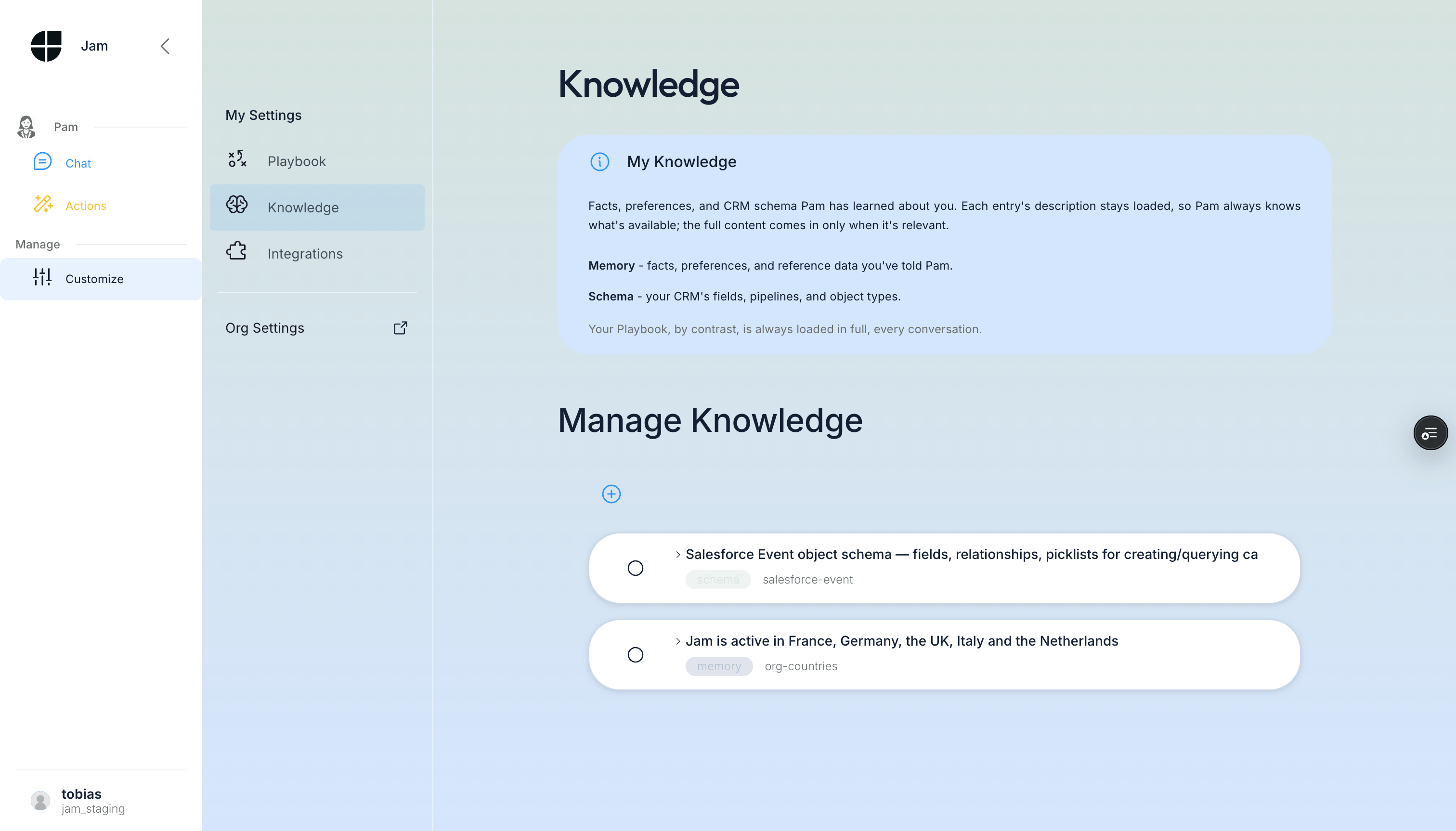
* **Personal Knowledge** (**My Settings > Knowledge** in [link.wejam.ai](https://link.wejam.ai)) - visible only to you. Store your territory, key accounts, or preferences here. Fully editable in the Assistant app.
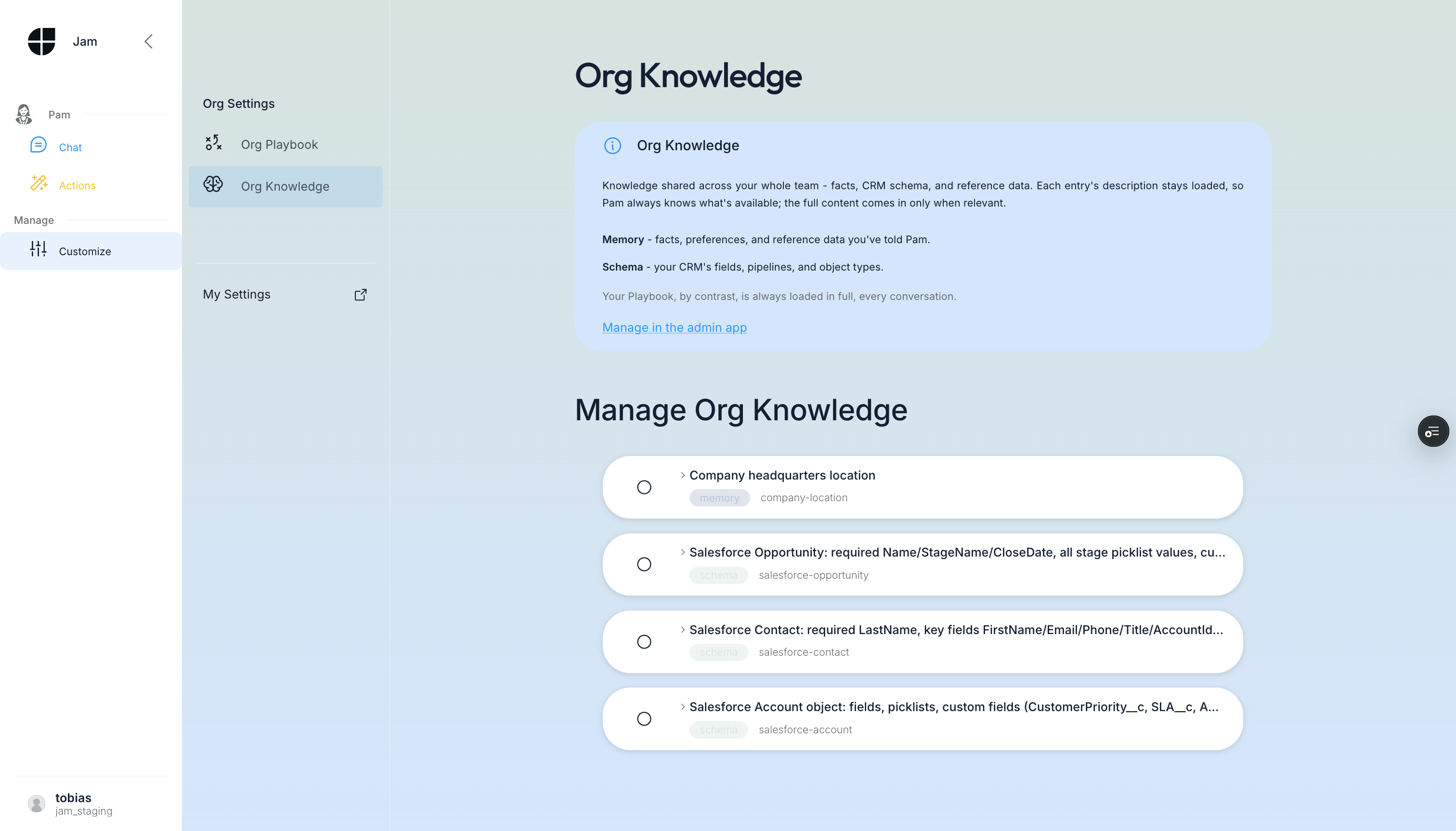
* **Org Knowledge** - shared across the whole organization; typically CRM schema and org-wide reference data. **Managed by org admins at [app.wejam.ai/assistant/memory](https://app.wejam.ai/assistant/memory)**. In the Assistant app, org admins see it as **read-only** under **Org Settings > Org Knowledge**, with a link across to the platform to make changes.
***
## Managing Personal Knowledge
In **My Settings > Knowledge**, click any entry to expand it and view the content.
 ### Adding a Knowledge Entry
1. Click **Add Memory**
2. Fill in the form:
* **Type** - Use `memory` for anything you create by hand. `schema` entries are normally produced by [asking Jam Assistant to discover your CRM structure](/external/assistant/crm-schema), so it's best to let discovery create and refresh them - but you can create or hand-edit one yourself too, for example to fine-tune a proposal discovery got slightly wrong.
* **Unique Label** - A machine-readable identifier (lowercase, hyphens only, e.g. `my-top-accounts`). Cannot be changed after saving.
* **Description** - A human-readable name shown in the list.
* **Content** - The actual knowledge you want Jam Assistant to remember.
3. Click **Save** - the entry appears immediately in your list.
### What to store in personal Knowledge
**Territory and account context:**
```
My territory is DACH (Germany, Austria, Switzerland).
My top accounts this quarter are: Acme Corp, TechStart GmbH, Enterprise AG.
My quota is EUR 800,000 for Q2 2026.
```
**Working preferences:**
```
I prefer deal summaries in bullet form - no more than 5 points.
My manager is Sarah Chen. I report pipeline every Monday morning.
```
**Reference data:**
```
Standard contract length: 12 months, 24 months, or 36 months.
Discount approval matrix: up to 10% → direct manager, 10-20% → VP Sales, >20% → CEO.
```
### Editing or deleting an entry
Expand the entry, then use the **Edit** (pencil) or **Delete** (trash) button. The Unique Label can't be changed after creation; everything else can. Deletion cannot be undone - if you want to temporarily disable an entry, clear its content instead of deleting it.
***
## Viewing Org Knowledge
Switch to **Org Settings > Org Knowledge** to see what your admin has shared with the whole org - typically CRM schema and org-wide reference data. This view is read-only in the Assistant app; a link takes admins to the platform to make changes.
### Adding a Knowledge Entry
1. Click **Add Memory**
2. Fill in the form:
* **Type** - Use `memory` for anything you create by hand. `schema` entries are normally produced by [asking Jam Assistant to discover your CRM structure](/external/assistant/crm-schema), so it's best to let discovery create and refresh them - but you can create or hand-edit one yourself too, for example to fine-tune a proposal discovery got slightly wrong.
* **Unique Label** - A machine-readable identifier (lowercase, hyphens only, e.g. `my-top-accounts`). Cannot be changed after saving.
* **Description** - A human-readable name shown in the list.
* **Content** - The actual knowledge you want Jam Assistant to remember.
3. Click **Save** - the entry appears immediately in your list.
### What to store in personal Knowledge
**Territory and account context:**
```
My territory is DACH (Germany, Austria, Switzerland).
My top accounts this quarter are: Acme Corp, TechStart GmbH, Enterprise AG.
My quota is EUR 800,000 for Q2 2026.
```
**Working preferences:**
```
I prefer deal summaries in bullet form - no more than 5 points.
My manager is Sarah Chen. I report pipeline every Monday morning.
```
**Reference data:**
```
Standard contract length: 12 months, 24 months, or 36 months.
Discount approval matrix: up to 10% → direct manager, 10-20% → VP Sales, >20% → CEO.
```
### Editing or deleting an entry
Expand the entry, then use the **Edit** (pencil) or **Delete** (trash) button. The Unique Label can't be changed after creation; everything else can. Deletion cannot be undone - if you want to temporarily disable an entry, clear its content instead of deleting it.
***
## Viewing Org Knowledge
Switch to **Org Settings > Org Knowledge** to see what your admin has shared with the whole org - typically CRM schema and org-wide reference data. This view is read-only in the Assistant app; a link takes admins to the platform to make changes.
 ### Managing Org Knowledge (admins, on the platform)
Org admins manage Org Knowledge at [app.wejam.ai/assistant/memory](https://app.wejam.ai/assistant/memory), under **Assistant > Manage > Org Knowledge**:
### Managing Org Knowledge (admins, on the platform)
Org admins manage Org Knowledge at [app.wejam.ai/assistant/memory](https://app.wejam.ai/assistant/memory), under **Assistant > Manage > Org Knowledge**:
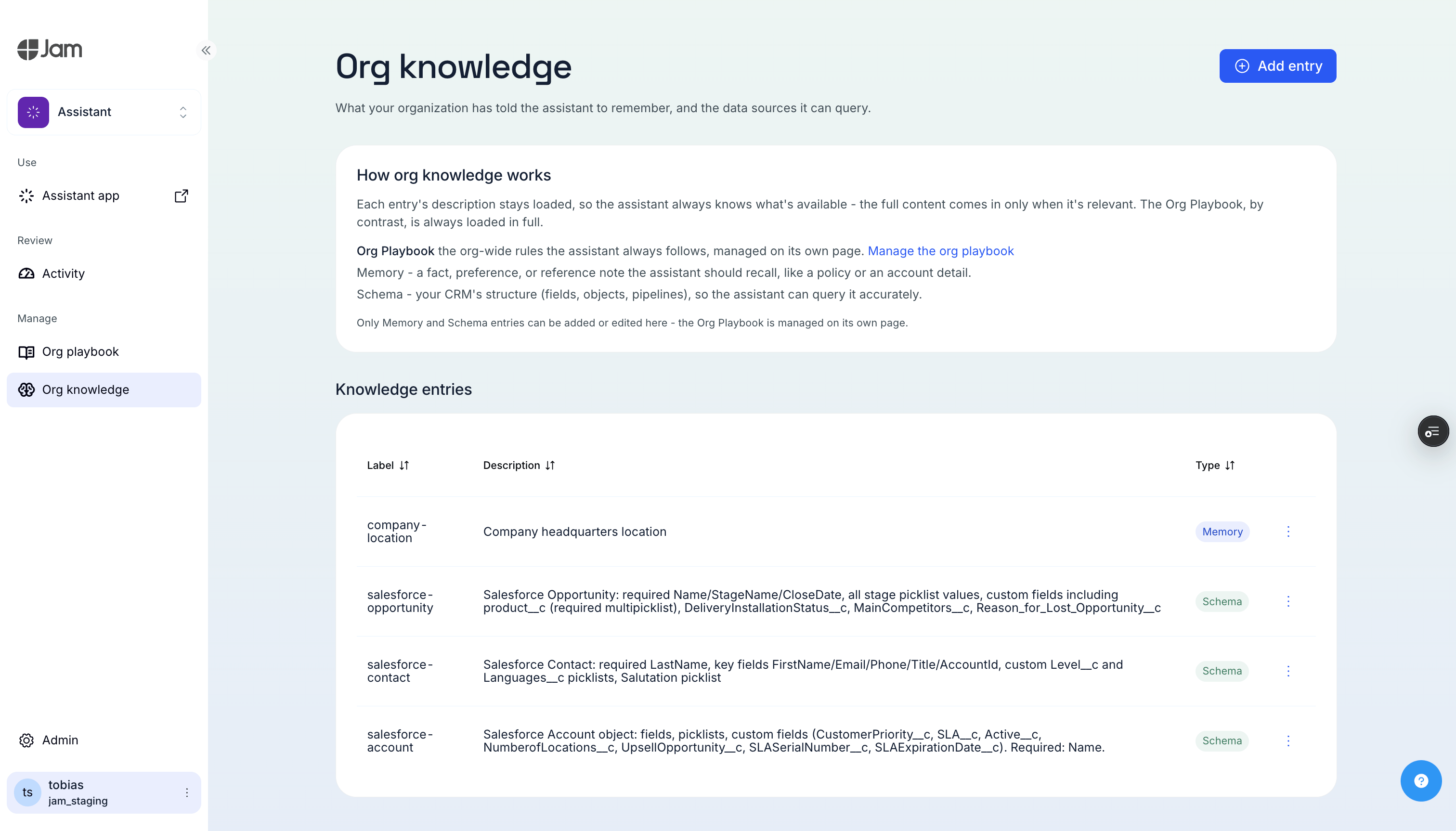 * Table of org-scoped entries with create, edit, and delete
* Only Memory and Schema entries can be created or edited here - the Org Playbook is managed on its own page
Schema entries themselves aren't discovered from this page - that happens by asking Jam Assistant directly in a conversation. See [Discovering Your CRM Schema](/external/assistant/crm-schema) for the full walkthrough.
### Example: a Schema entry
A Schema entry is a compact, structured writeup of one CRM object - not the raw field list, but the shape Jam Assistant needs to use it correctly (required fields, picklist values, custom fields, relationships). This is what discovery produces for a Salesforce Contact object:
* **Label**: `salesforce-contact`
* **Description**: `Salesforce Contact: required LastName, key fields FirstName/Email/Phone/Title/AccountId, custom Level__c and Languages__c picklists, Salutation picklist`
* **Content**:
```markdown theme={null}
# Salesforce Contact Schema
## Required Fields
- LastName (string, max 80)
## Key Standard Fields
- Id, FirstName, LastName, Name (full, read-only), AccountId, Email, Phone, MobilePhone, HomePhone, OtherPhone, Fax, Title, Department, Salutation (picklist), ReportsToId, LeadSource (picklist), Birthdate, Description, OwnerId
## Salutation Picklist
Mr., Ms., Mrs., Dr., Prof., Mx.
## LeadSource Picklist
Web, Phone Inquiry, Partner Referral, Purchased List, Other
## Custom Fields
- Level__c (picklist): Secondary, Tertiary, Primary
- Languages__c (string, max 100)
## Address Fields
MailingStreet, MailingCity, MailingState, MailingPostalCode, MailingCountry, MailingCountryCode
OtherStreet, OtherCity, OtherState, OtherPostalCode, OtherCountry, OtherCountryCode
## Key Relationships
- AccountId → Account
- ReportsToId → Contact
- Child: Cases, Opportunities, Tasks, Events, CampaignMembers
```
You don't need to write this by hand - it's shown here so you know what to expect when discovery proposes one, and what a hand-edit should look like if you're fine-tuning an existing entry.
***
## How Knowledge Loads
Both personal and Org Knowledge work the same way: every entry's description stays loaded, so Jam Assistant always knows what exists. The full content of an entry loads only when a conversation actually needs it. This keeps every conversation fast, and it's the key difference from your [Playbook](/external/assistant/playbook), which is small enough to stay loaded in full, every time.
***
## Best Practices
1. **Keep entries focused** - "My territory" and "My key accounts" work better as two entries than one combined entry.
2. **Update seasonally** - Personal entries like "my top accounts this quarter" need refreshing each quarter.
3. **Knowledge for facts, Playbook for rules** - "My discount approval matrix is: up to 10% → manager..." belongs in Knowledge. "Always ask for approval before offering more than 10% discount" belongs in your [Playbook](/external/assistant/playbook).
4. **Check Org Knowledge before adding personal entries** - if the fact is relevant to the whole team (product pricing, territory definitions), ask an org admin to add it at the org level instead.
***
## Troubleshooting
**Jam Assistant doesn't seem to know about my custom CRM fields**
* Check Org Settings > Org Knowledge for schema entries. If they're outdated or missing, ask an org admin to ask Jam Assistant to discover them - see [Discovering Your CRM Schema](/external/assistant/crm-schema).
* Make sure your HubSpot or Salesforce integration is connected (Customize > Integrations).
**I added an entry but Jam Assistant isn't using it**
* An entry's description stays loaded, but its full content loads on demand - Jam Assistant pulls it in when relevant, not in every message.
* Try asking directly: "What do you know about my top accounts?"
* Check that the entry's content is clear and specific.
**I can't edit Org Knowledge**
* Org Knowledge is admin-only, and even for admins it's read-only inside the Assistant app - it's managed on the platform. Ask an org admin to make the change at [app.wejam.ai/assistant/memory](https://app.wejam.ai/assistant/memory).
***
## Related Documentation
* [Playbook](/external/assistant/playbook) - always-loaded rules for how Jam Assistant should behave
* [Discovering Your CRM Schema](/external/assistant/crm-schema) - refresh your CRM structure after field or pipeline changes
* [Integrations](/external/assistant/integrations) - connect HubSpot, Salesforce, email, and calendar
* [Getting Started](/external/assistant/getting-started) - initial setup and first conversation
* Table of org-scoped entries with create, edit, and delete
* Only Memory and Schema entries can be created or edited here - the Org Playbook is managed on its own page
Schema entries themselves aren't discovered from this page - that happens by asking Jam Assistant directly in a conversation. See [Discovering Your CRM Schema](/external/assistant/crm-schema) for the full walkthrough.
### Example: a Schema entry
A Schema entry is a compact, structured writeup of one CRM object - not the raw field list, but the shape Jam Assistant needs to use it correctly (required fields, picklist values, custom fields, relationships). This is what discovery produces for a Salesforce Contact object:
* **Label**: `salesforce-contact`
* **Description**: `Salesforce Contact: required LastName, key fields FirstName/Email/Phone/Title/AccountId, custom Level__c and Languages__c picklists, Salutation picklist`
* **Content**:
```markdown theme={null}
# Salesforce Contact Schema
## Required Fields
- LastName (string, max 80)
## Key Standard Fields
- Id, FirstName, LastName, Name (full, read-only), AccountId, Email, Phone, MobilePhone, HomePhone, OtherPhone, Fax, Title, Department, Salutation (picklist), ReportsToId, LeadSource (picklist), Birthdate, Description, OwnerId
## Salutation Picklist
Mr., Ms., Mrs., Dr., Prof., Mx.
## LeadSource Picklist
Web, Phone Inquiry, Partner Referral, Purchased List, Other
## Custom Fields
- Level__c (picklist): Secondary, Tertiary, Primary
- Languages__c (string, max 100)
## Address Fields
MailingStreet, MailingCity, MailingState, MailingPostalCode, MailingCountry, MailingCountryCode
OtherStreet, OtherCity, OtherState, OtherPostalCode, OtherCountry, OtherCountryCode
## Key Relationships
- AccountId → Account
- ReportsToId → Contact
- Child: Cases, Opportunities, Tasks, Events, CampaignMembers
```
You don't need to write this by hand - it's shown here so you know what to expect when discovery proposes one, and what a hand-edit should look like if you're fine-tuning an existing entry.
***
## How Knowledge Loads
Both personal and Org Knowledge work the same way: every entry's description stays loaded, so Jam Assistant always knows what exists. The full content of an entry loads only when a conversation actually needs it. This keeps every conversation fast, and it's the key difference from your [Playbook](/external/assistant/playbook), which is small enough to stay loaded in full, every time.
***
## Best Practices
1. **Keep entries focused** - "My territory" and "My key accounts" work better as two entries than one combined entry.
2. **Update seasonally** - Personal entries like "my top accounts this quarter" need refreshing each quarter.
3. **Knowledge for facts, Playbook for rules** - "My discount approval matrix is: up to 10% → manager..." belongs in Knowledge. "Always ask for approval before offering more than 10% discount" belongs in your [Playbook](/external/assistant/playbook).
4. **Check Org Knowledge before adding personal entries** - if the fact is relevant to the whole team (product pricing, territory definitions), ask an org admin to add it at the org level instead.
***
## Troubleshooting
**Jam Assistant doesn't seem to know about my custom CRM fields**
* Check Org Settings > Org Knowledge for schema entries. If they're outdated or missing, ask an org admin to ask Jam Assistant to discover them - see [Discovering Your CRM Schema](/external/assistant/crm-schema).
* Make sure your HubSpot or Salesforce integration is connected (Customize > Integrations).
**I added an entry but Jam Assistant isn't using it**
* An entry's description stays loaded, but its full content loads on demand - Jam Assistant pulls it in when relevant, not in every message.
* Try asking directly: "What do you know about my top accounts?"
* Check that the entry's content is clear and specific.
**I can't edit Org Knowledge**
* Org Knowledge is admin-only, and even for admins it's read-only inside the Assistant app - it's managed on the platform. Ask an org admin to make the change at [app.wejam.ai/assistant/memory](https://app.wejam.ai/assistant/memory).
***
## Related Documentation
* [Playbook](/external/assistant/playbook) - always-loaded rules for how Jam Assistant should behave
* [Discovering Your CRM Schema](/external/assistant/crm-schema) - refresh your CRM structure after field or pipeline changes
* [Integrations](/external/assistant/integrations) - connect HubSpot, Salesforce, email, and calendar
* [Getting Started](/external/assistant/getting-started) - initial setup and first conversation