> ## Documentation Index
> Fetch the complete documentation index at: https://docs.wejam.ai/llms.txt
> Use this file to discover all available pages before exploring further.
# Getting Started
> Sign in, connect your tools, and start your first Jam Assistant conversation.
Welcome to Jam Assistant, your AI-powered field service assistant. Jam Assistant connects to your CRM, email, and calendar to help your team work faster - via web chat, voice calls, WhatsApp, or phone. This guide walks you through signing in, connecting your tools, and starting your first conversation.
## Prerequisites
* A modern browser (Chrome, Safari, Firefox, or Edge)
* **Joining an existing team:** an invitation email from your team's admin (check your inbox)
* **Setting up a new organization:** sign up directly at [link.wejam.ai](https://link.wejam.ai) - no invitation needed
***
## Step 1: Sign In
Navigate to [link.wejam.ai](https://link.wejam.ai). You'll see the Jam Assistant login screen.
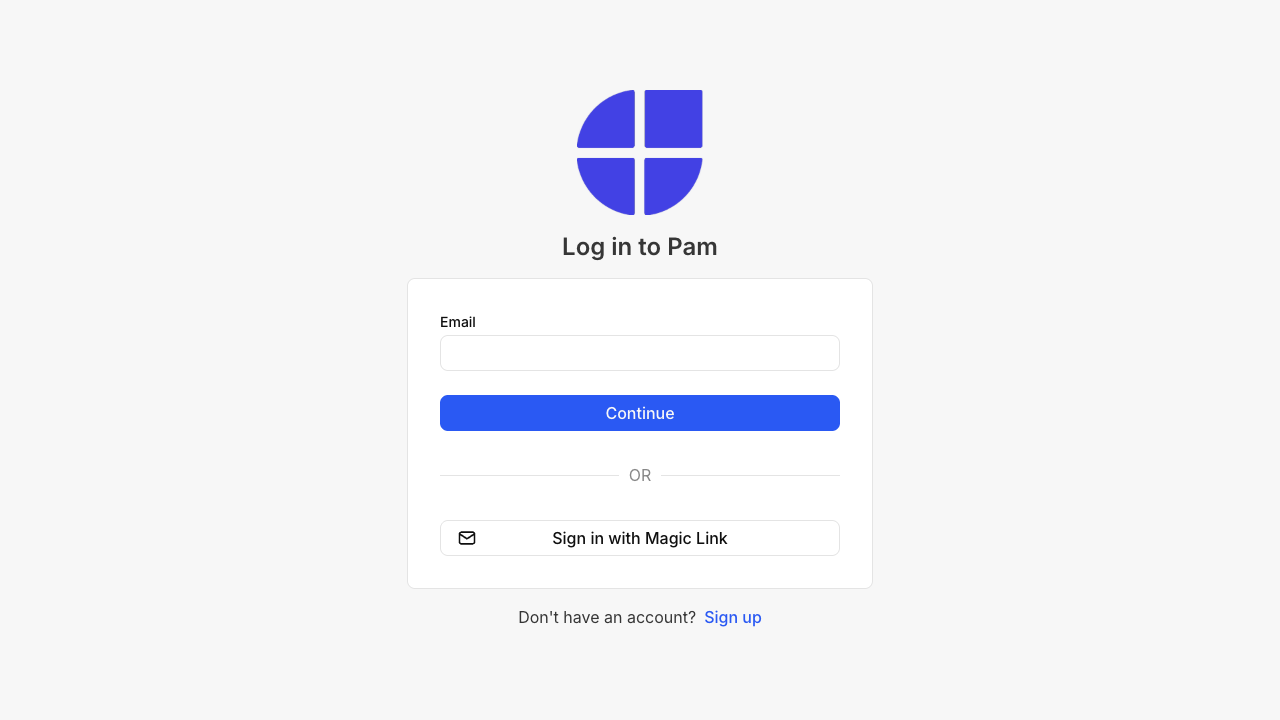
Enter your **email address** and click **Continue**. On the next step, enter your **password** and click **Log in with email**. You can also use **Sign in with Magic Link** if you prefer a passwordless login.
***
## Step 2: The Main Chat Screen
After logging in, you land directly on the **Chat** screen. This is where you talk to Jam Assistant.
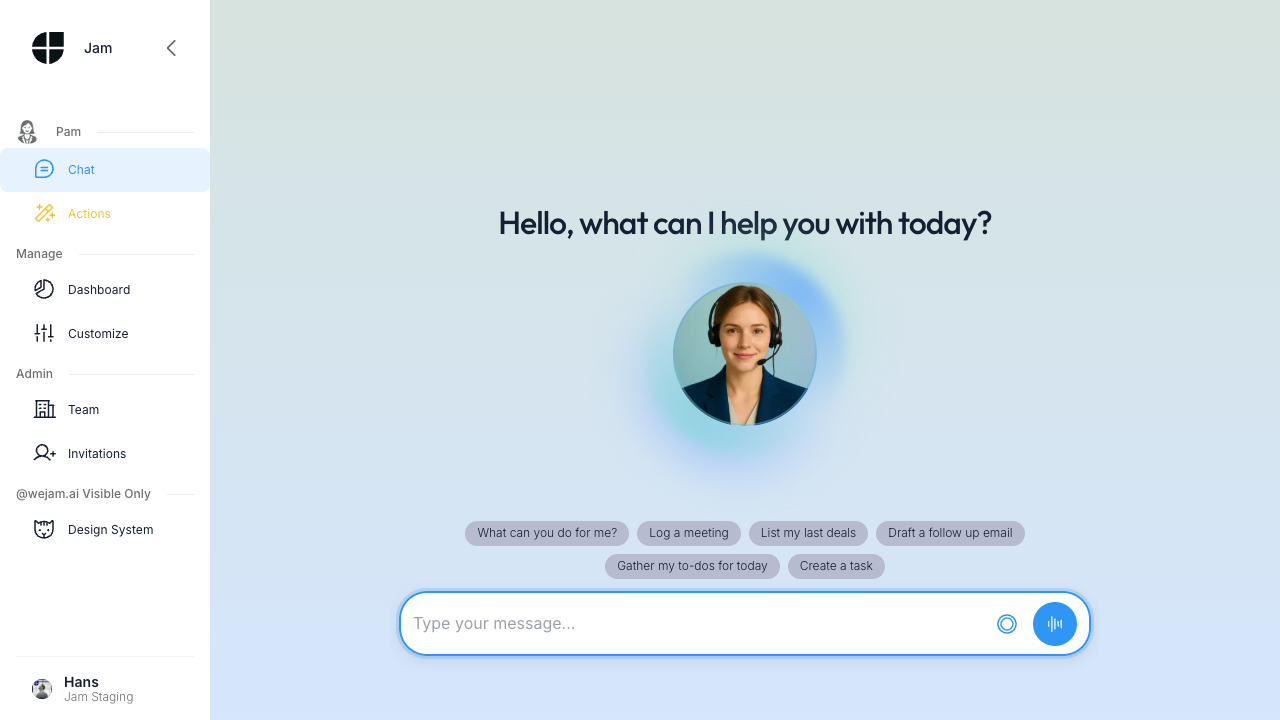
The left sidebar shows your full navigation:
* **Jam Assistant** section: **Chat** and **Actions**
* **Manage** section: **Customize** (Playbook, Knowledge, Integrations)
At the bottom of the sidebar you'll see your name and current team. Admins also see an **Admin** link there, which opens the platform ([app.wejam.ai/users](https://app.wejam.ai/users)) in a new tab - that's where organization administration (users, invitations, the [Org Playbook](https://app.wejam.ai/assistant/playbook), and [Org Knowledge](https://app.wejam.ai/assistant/memory)) now lives. See [Step 5](#step-5-invite-your-team) below.
***
## Step 3: Connect Your Tools
Before Jam Assistant can work with your real data, connect at least one provider. Navigate to **Customize** in the sidebar, then click **Integrations** in the sub-menu.
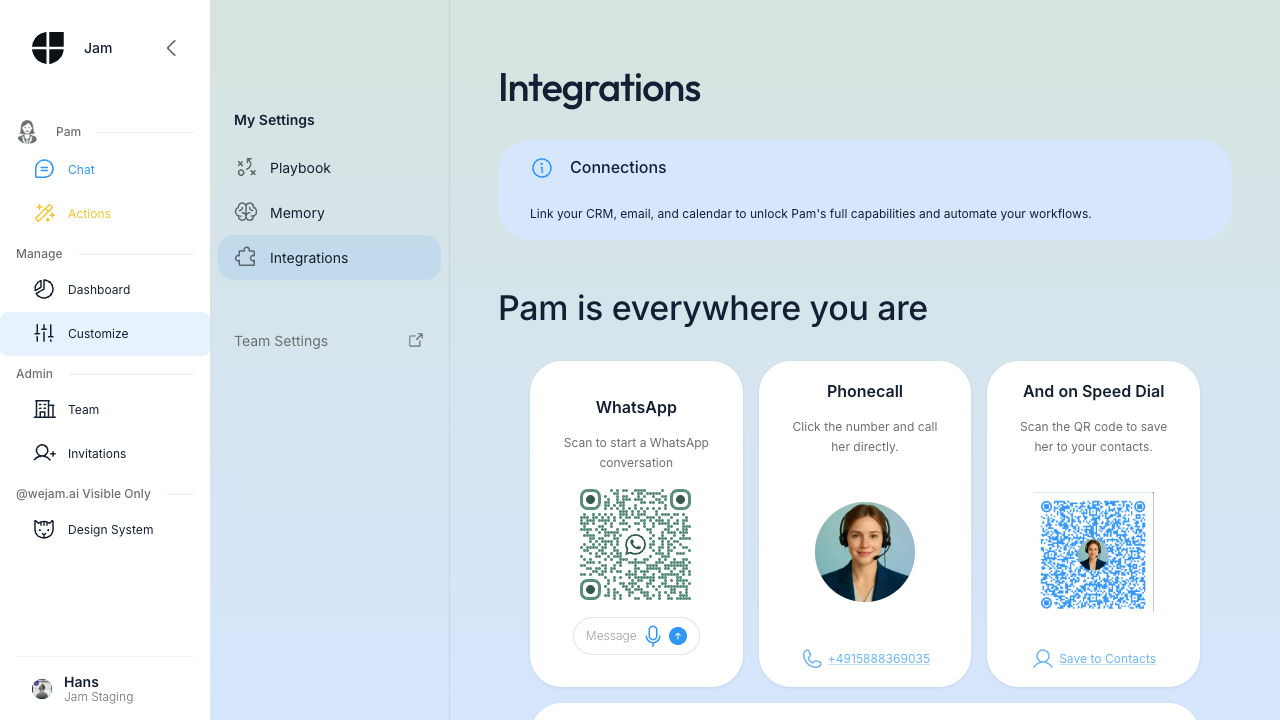
Scroll down to the **Connections** section to find your CRM, email, calendar, and chat providers.
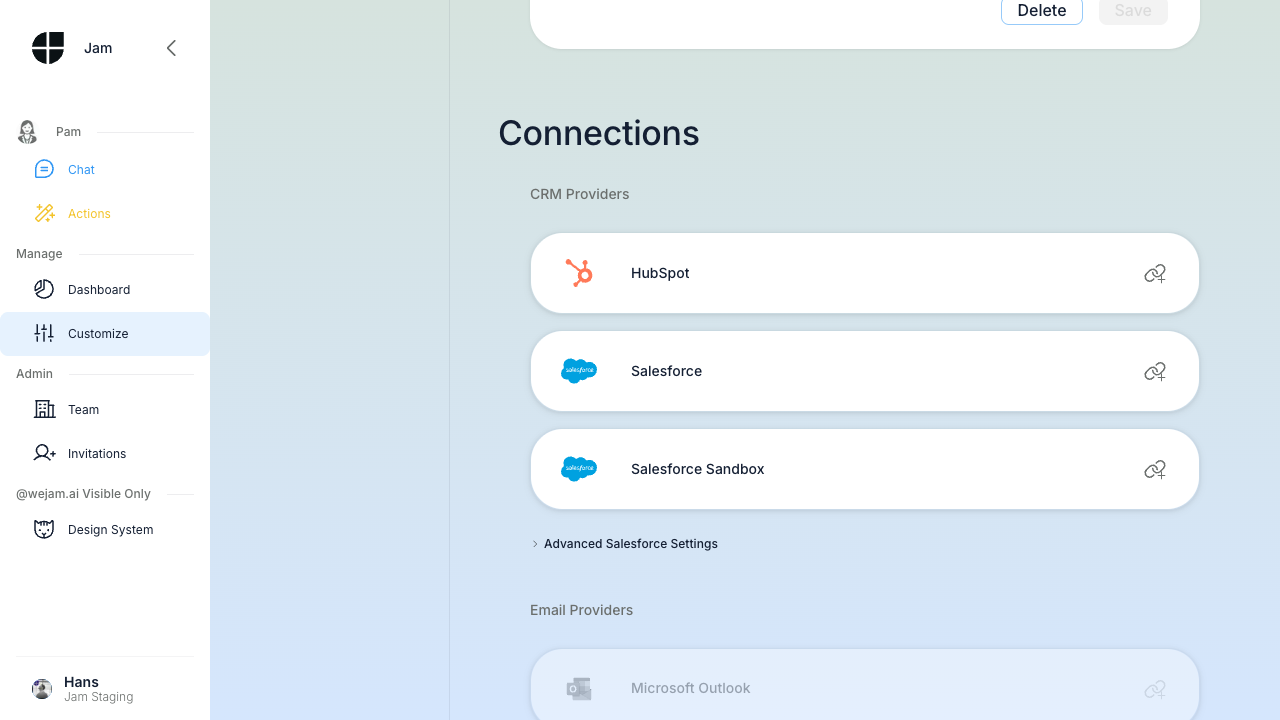
**Available integrations:**
* **CRM Providers** - HubSpot, Salesforce, or Salesforce Sandbox
* **Email Providers** - Gmail or Microsoft Outlook
* **Calendar Providers** - Google Calendar or Outlook Calendar
* **Chat Providers** - Slack or Microsoft Teams
**To connect a provider:**
1. Click the provider card (e.g., **HubSpot**)
2. You'll be redirected to the provider's OAuth authorization page
3. Grant Jam Assistant access and you'll return to the Integrations screen
4. A green **Connected** chip and a tool count confirm the connection
> **Tip:** You can connect one provider from each category. For example, connect HubSpot for CRM, Gmail for email, and Google Calendar for scheduling - all at once.
> **Salesforce users:** connecting Salesforce requires two steps in order - your Salesforce admin must first be invited to Jam Assistant with the Admin role, then follow the [Salesforce Admin Guide](https://docs.wejam.ai/salesforce-admin-guide) to approve the Connected App. Until that is done, the app will not appear in Salesforce and the OAuth flow cannot complete. See [Integrations](https://docs.wejam.ai/integrations) for the full setup sequence.
***
## Step 4: Start Your First Conversation
Click **Chat** in the sidebar to return to the conversation screen.
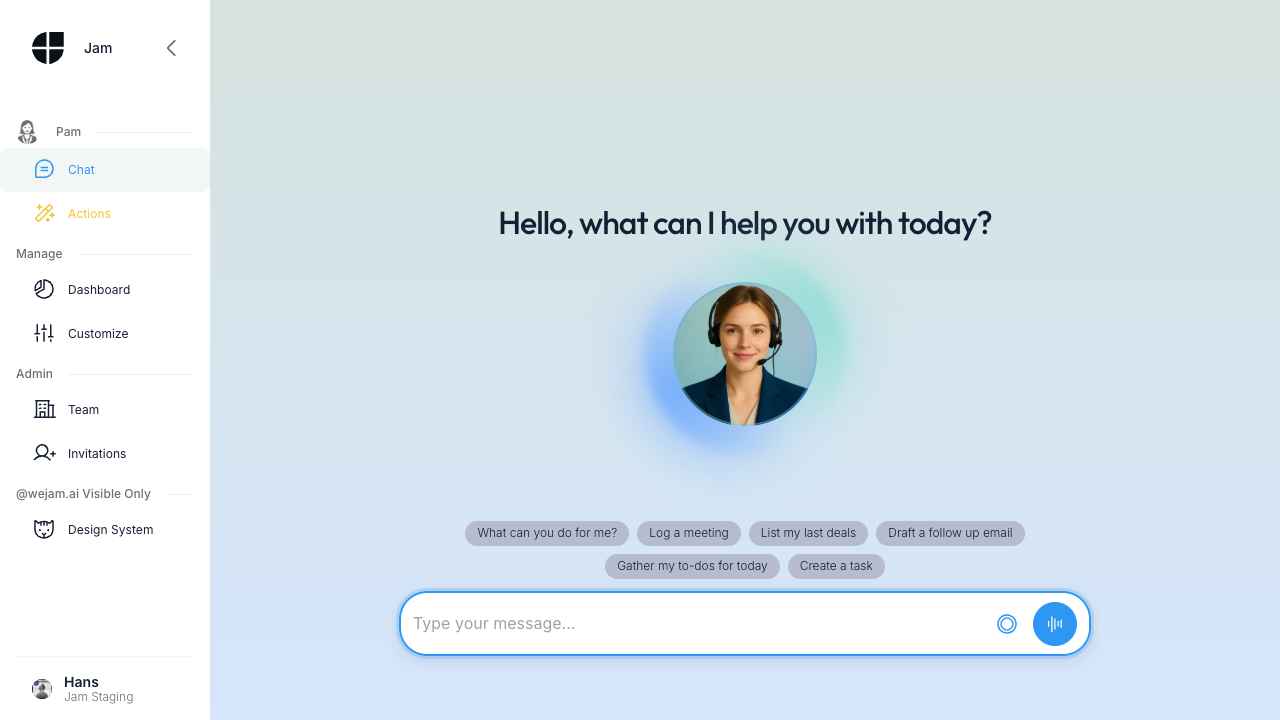
Jam Assistant greets you with **"Hello, what can I help you with today?"** and shows a row of suggestion pills to get you started quickly:
* **What can you do for me?** - Get an overview of Jam Assistant's capabilities
* **Log a meeting** - Record a meeting note
* **List my last deals** - Pull recent CRM records
* **Draft a follow up email** - Compose an email for a contact
* **Gather my to-dos for today** - See your open tasks
* **Create a task** - Add a new task in your CRM
Click any pill to send that message instantly, or type your own question in the **"Type your message..."** input. You can also use the voice recording and voice mode buttons to speak to Jam Assistant directly.
***
## Roles
Roles are assigned per user on the platform's [Users page](https://app.wejam.ai/users), and can be combined - a person can be both an Admin and an Assistant User, for example. Two roles are relevant to Jam Assistant:
| Role | What they can do |
| ------------------ | -------------------------------------------------------------------------------------------------------------------------------------------------------------------------------------------------------------------------------------------------------------------------------------------------------- |
| **Admin** | Everything an Assistant User can do, plus - on the platform - the [Org Playbook](https://app.wejam.ai/assistant/playbook), [Org Knowledge](https://app.wejam.ai/assistant/memory), the [Activity dashboard](https://app.wejam.ai/assistant/dashboard), and [user management](https://app.wejam.ai/users) |
| **Assistant User** | Use Jam Assistant (chat, voice, WhatsApp), set personal Playbook rules, view their own chat history |
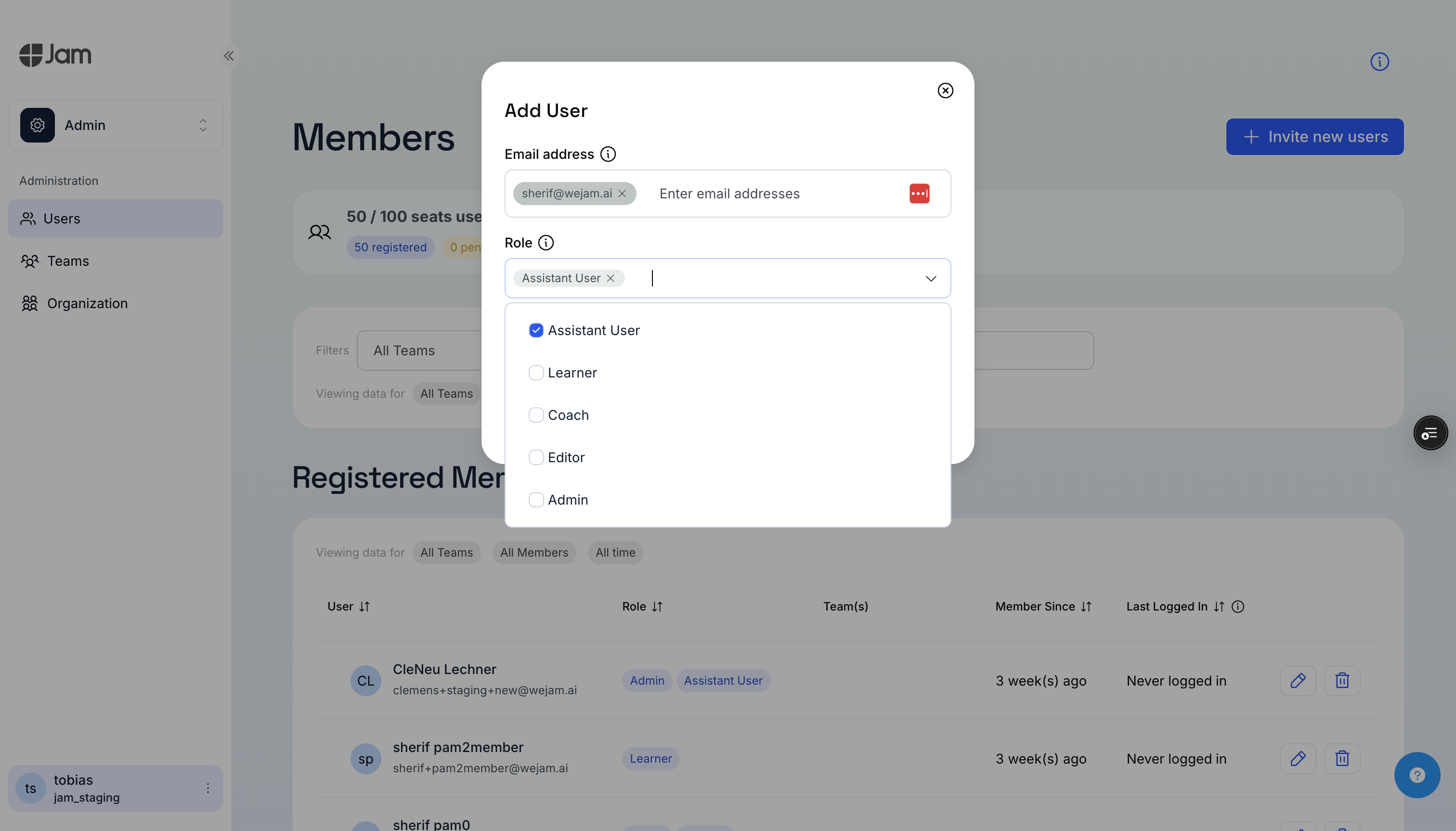
You may see other roles when inviting users - Learner, Coach, Editor - but those grant seats in Jam's other products (training, content editing), not the Assistant. They only appear if your org has those capabilities enabled, and don't affect Assistant access either way.
***
## Step 5: Invite Your Team
User invitations are managed on the platform, not inside the Assistant app. As an admin, click the **Admin** link at the bottom of the sidebar to open the [Users page](https://app.wejam.ai/users) in a new tab.
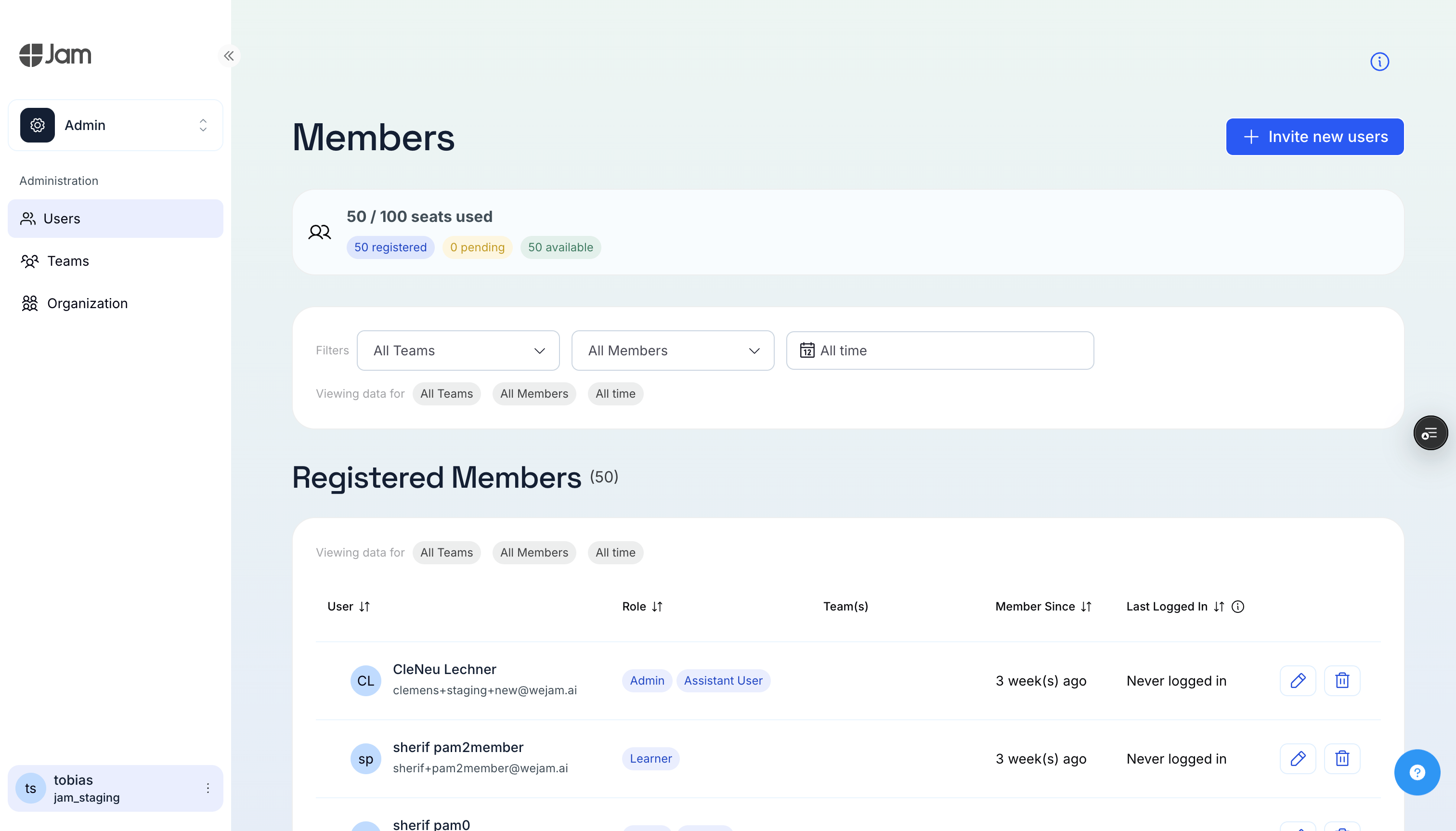 Click **Invite new users**, enter the colleague's email address, select a **Role**, and click **Invite**. They'll receive an email invitation to join your organization.
 ***
## What's Next
* [Playbook](/external/assistant/playbook) - Define how Jam Assistant works for your team and for you personally
* [Web Chat](/external/assistant/web-chat) - Deep-dive into chatting with Jam Assistant
* [Demo & Quickstart](/external/assistant/demo-quickstart) - Try the guided demo first
## Choosing a Channel
Jam Assistant is available in four ways. Here's a quick guide to help you pick:
| Channel | Best for | Requires |
| ----------------- | ------------------------------------ | ---------------------------- |
| **Web Chat** | Detailed work, reviewing CRM changes | Browser |
| **Browser Voice** | At desk, want to see action cards | Desktop browser + microphone |
| **WhatsApp** | Quick updates from mobile | Registered number + WhatsApp |
| **Phone Call** | Hands-free, no internet, any phone | Registered number |
See [Telephony](/external/assistant/telephony) for a deeper comparison.
***
## What's Next
* [Playbook](/external/assistant/playbook) - Define how Jam Assistant works for your team and for you personally
* [Web Chat](/external/assistant/web-chat) - Deep-dive into chatting with Jam Assistant
* [Demo & Quickstart](/external/assistant/demo-quickstart) - Try the guided demo first
## Choosing a Channel
Jam Assistant is available in four ways. Here's a quick guide to help you pick:
| Channel | Best for | Requires |
| ----------------- | ------------------------------------ | ---------------------------- |
| **Web Chat** | Detailed work, reviewing CRM changes | Browser |
| **Browser Voice** | At desk, want to see action cards | Desktop browser + microphone |
| **WhatsApp** | Quick updates from mobile | Registered number + WhatsApp |
| **Phone Call** | Hands-free, no internet, any phone | Registered number |
See [Telephony](/external/assistant/telephony) for a deeper comparison.