> ## Documentation Index
> Fetch the complete documentation index at: https://docs.wejam.ai/llms.txt
> Use this file to discover all available pages before exploring further.
# Add Jam Assistant as an App to Your Home Screen
> Add Jam Assistant as an app to your iPhone home screen using Safari.
Add Jam Assistant to your phone Home Screen when you want fast access without opening your browser first. The Home Screen icon opens Jam Assistant like an app.
## Prerequisites
* An iPhone with Safari, or an Android phone with Chrome
* An active Jam Assistant account
## iPhone
Use Safari to add Jam Assistant to your iPhone Home Screen.
### Step 1: Open Jam Assistant in Safari
On your iPhone, open Safari and go to [link.wejam.ai](https://link.wejam.ai). Sign in if prompted.
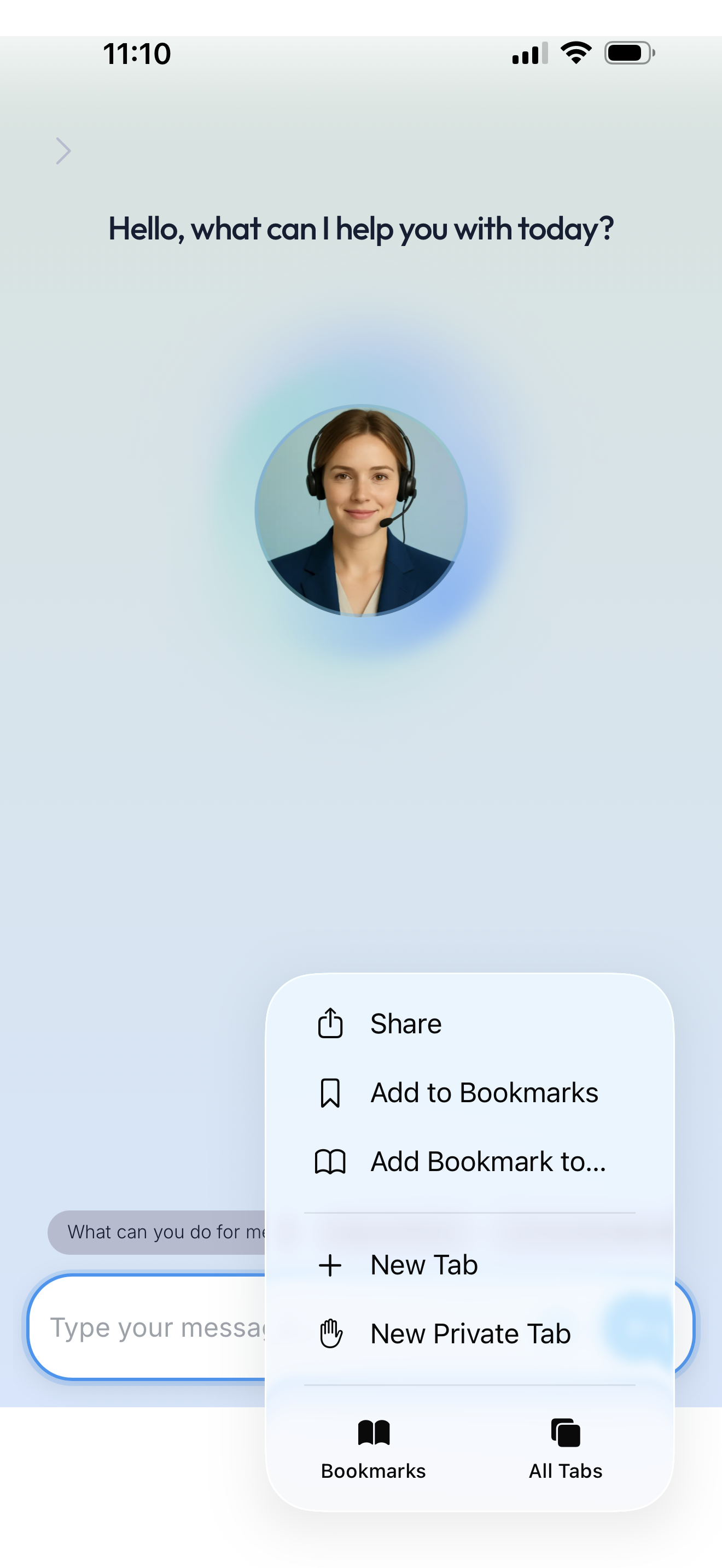
From the Jam Assistant chat screen, open Safari's page menu and tap **Share**.
 ### Step 2: Add to Home Screen
In the share sheet, tap **Add to Home Screen**.
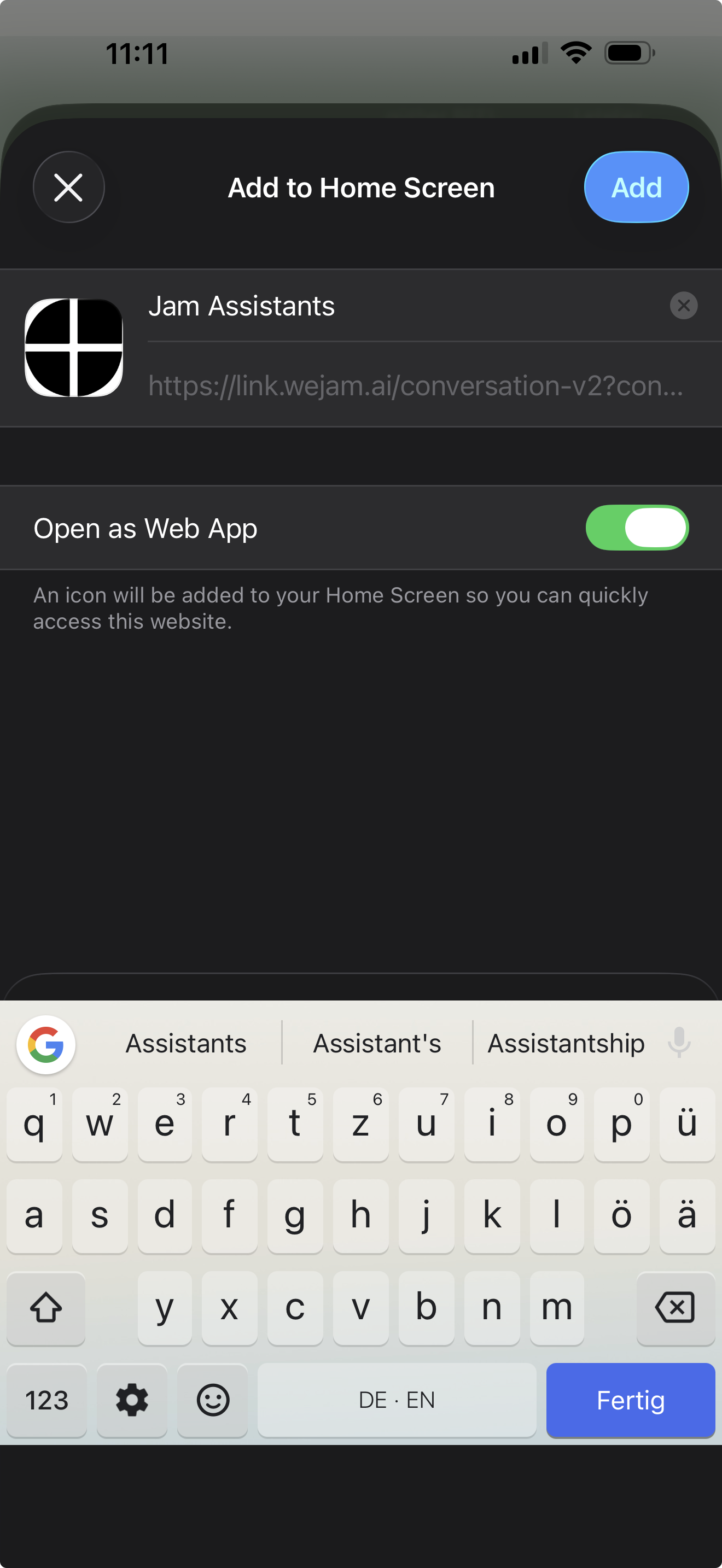
On the confirmation screen:
1. Keep **Open as Web App** enabled.
2. Leave the name as **Jam Assistants**, or edit it if you want a different Home Screen label.
3. Tap **Add**.
### Step 2: Add to Home Screen
In the share sheet, tap **Add to Home Screen**.
On the confirmation screen:
1. Keep **Open as Web App** enabled.
2. Leave the name as **Jam Assistants**, or edit it if you want a different Home Screen label.
3. Tap **Add**.
 ### Step 3: Open Jam Assistant from the Home Screen
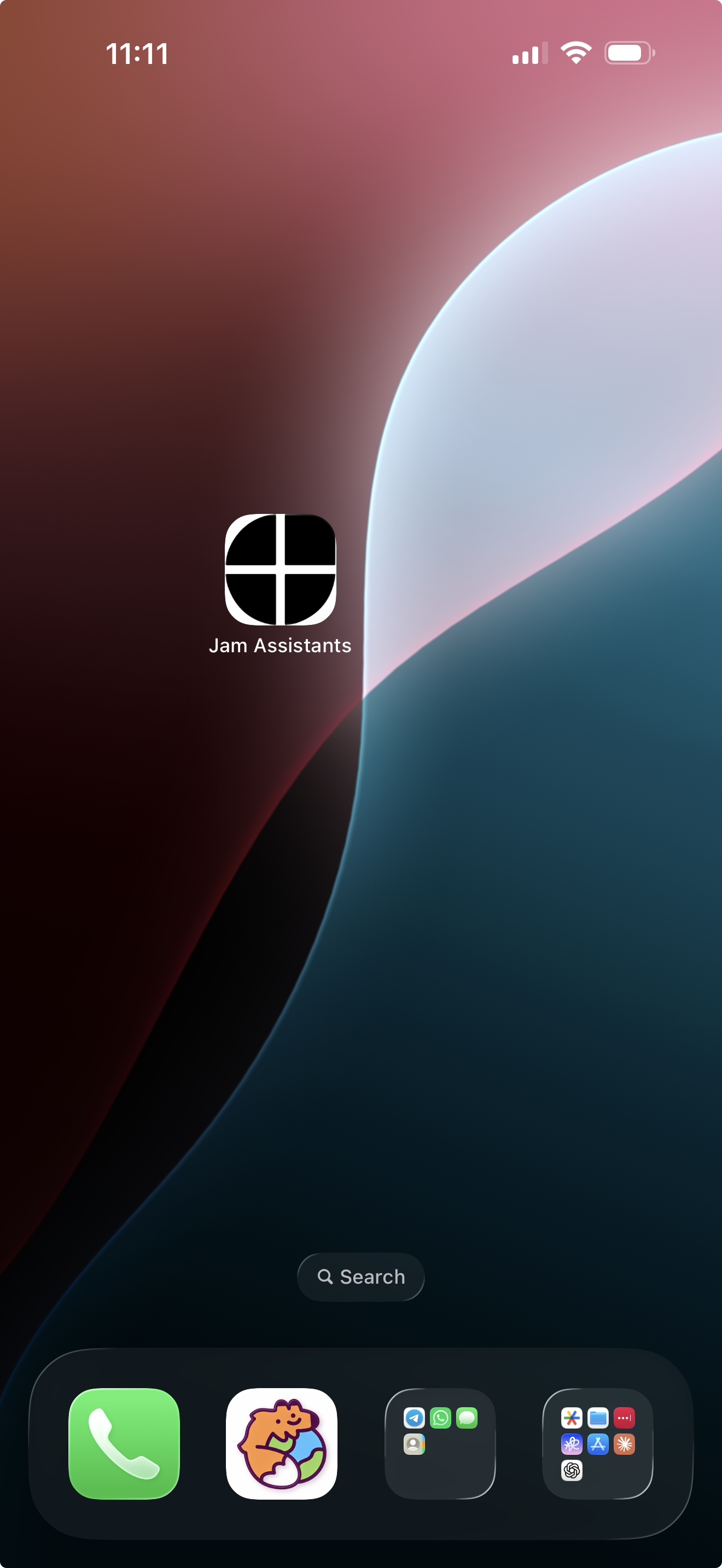
After you tap **Add**, iOS places the **Jam Assistants** icon on your Home Screen. Tap it to open Jam Assistant directly.
### Step 3: Open Jam Assistant from the Home Screen
After you tap **Add**, iOS places the **Jam Assistants** icon on your Home Screen. Tap it to open Jam Assistant directly.
 ## Android
Use Chrome to add Jam Assistant to your Android Home Screen.
### Step 1: Open Jam Assistant in Chrome
On your Android phone, open Chrome and go to [link.wejam.ai](https://link.wejam.ai). Sign in if prompted.
### Step 2: Open the Chrome Menu
Tap the **three-dot menu** (⋮) in the top-right corner of Chrome.
### Step 3: Add to Home Screen
Tap **Add to Home screen**. On the confirmation prompt, leave the name as **Jam Assistant** (or edit it), then tap **Add**.
Chrome places a Jam Assistant shortcut on your Home Screen. Tap it to open Jam Assistant directly without opening the browser first.
> **Note:** The exact menu label may vary by Android version and Chrome version. If you do not see **Add to Home screen**, look for **Install app** or refer to [Google's official guide](https://support.google.com/chrome/answer/15085120?co=GENIE.Platform%3DAndroid\&hl=en).
## Troubleshooting
**You do not see Add to Home Screen**
Make sure you opened Jam Assistant in Safari. If the option is still hidden, scroll down in the share sheet.
**Jam Assistant opens in Safari instead of as a web app**
Remove the Home Screen icon, repeat the steps, and keep **Open as Web App** enabled before tapping **Add**.
## Related Documentation
* [Getting Started](/external/assistant/getting-started) - Sign in and set up Jam Assistant
* [Web Chat](/external/assistant/web-chat) - Use Jam Assistant in the browser
## Android
Use Chrome to add Jam Assistant to your Android Home Screen.
### Step 1: Open Jam Assistant in Chrome
On your Android phone, open Chrome and go to [link.wejam.ai](https://link.wejam.ai). Sign in if prompted.
### Step 2: Open the Chrome Menu
Tap the **three-dot menu** (⋮) in the top-right corner of Chrome.
### Step 3: Add to Home Screen
Tap **Add to Home screen**. On the confirmation prompt, leave the name as **Jam Assistant** (or edit it), then tap **Add**.
Chrome places a Jam Assistant shortcut on your Home Screen. Tap it to open Jam Assistant directly without opening the browser first.
> **Note:** The exact menu label may vary by Android version and Chrome version. If you do not see **Add to Home screen**, look for **Install app** or refer to [Google's official guide](https://support.google.com/chrome/answer/15085120?co=GENIE.Platform%3DAndroid\&hl=en).
## Troubleshooting
**You do not see Add to Home Screen**
Make sure you opened Jam Assistant in Safari. If the option is still hidden, scroll down in the share sheet.
**Jam Assistant opens in Safari instead of as a web app**
Remove the Home Screen icon, repeat the steps, and keep **Open as Web App** enabled before tapping **Add**.
## Related Documentation
* [Getting Started](/external/assistant/getting-started) - Sign in and set up Jam Assistant
* [Web Chat](/external/assistant/web-chat) - Use Jam Assistant in the browser